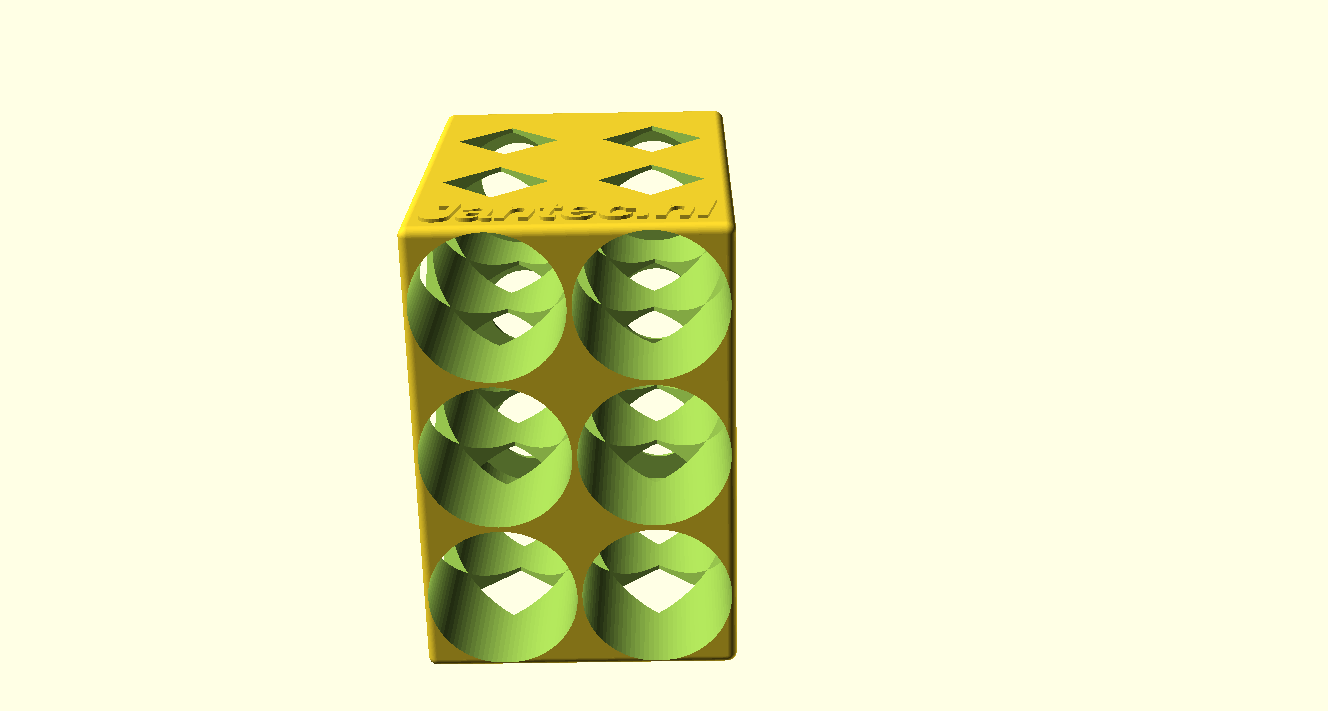
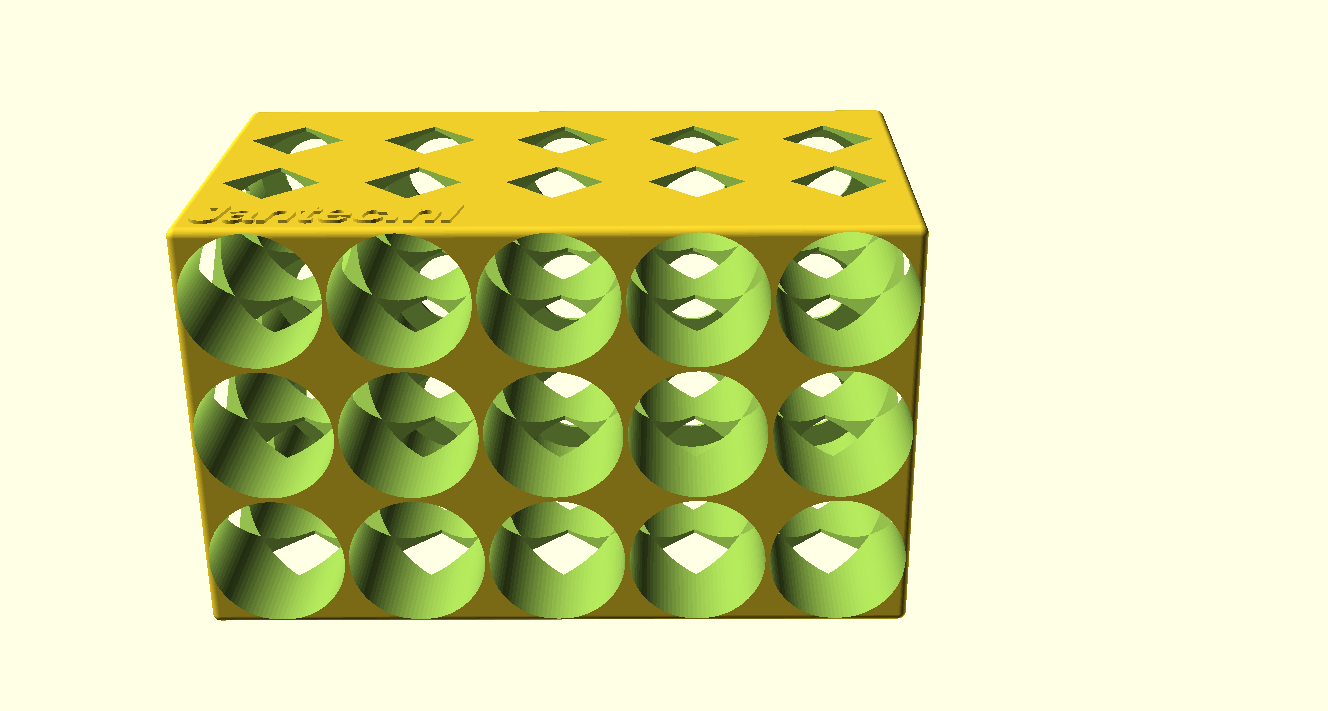
AchterkantEn zo staat ie in de koelkast!Voorkant en doorkijkje naar achter
Voor gewone 330cl bierflesjes
De box in 3×3 flesjes uitvoering is 238 mm diep en 197mm hoog & breed.
Printen gaat het best met de achterkant van de flessenbox op het bed, dat is het deel waar de ronde gaten aan de achterkant van de flessen het kleinst zijn.
Als je printer max 200x200x200 mm aan kan, print dan de Z op 80%.
De flesjes steken er dan aan de voorkant 4 cm uit, dat kan ook prima!
Print meer boxen en zet ze naast elkaar, op elkaar etc.
Meaning, I now (May, 2023) have the old Citroën Traction Avant 11BN occupying space in my garage. The Traction Avant is ready to drive, and with the 4-gear gearbox, in combination with the ID19 engine, this car is quite roadworthy.
I should really drive this car more, it is almost always just sitting in the garage…
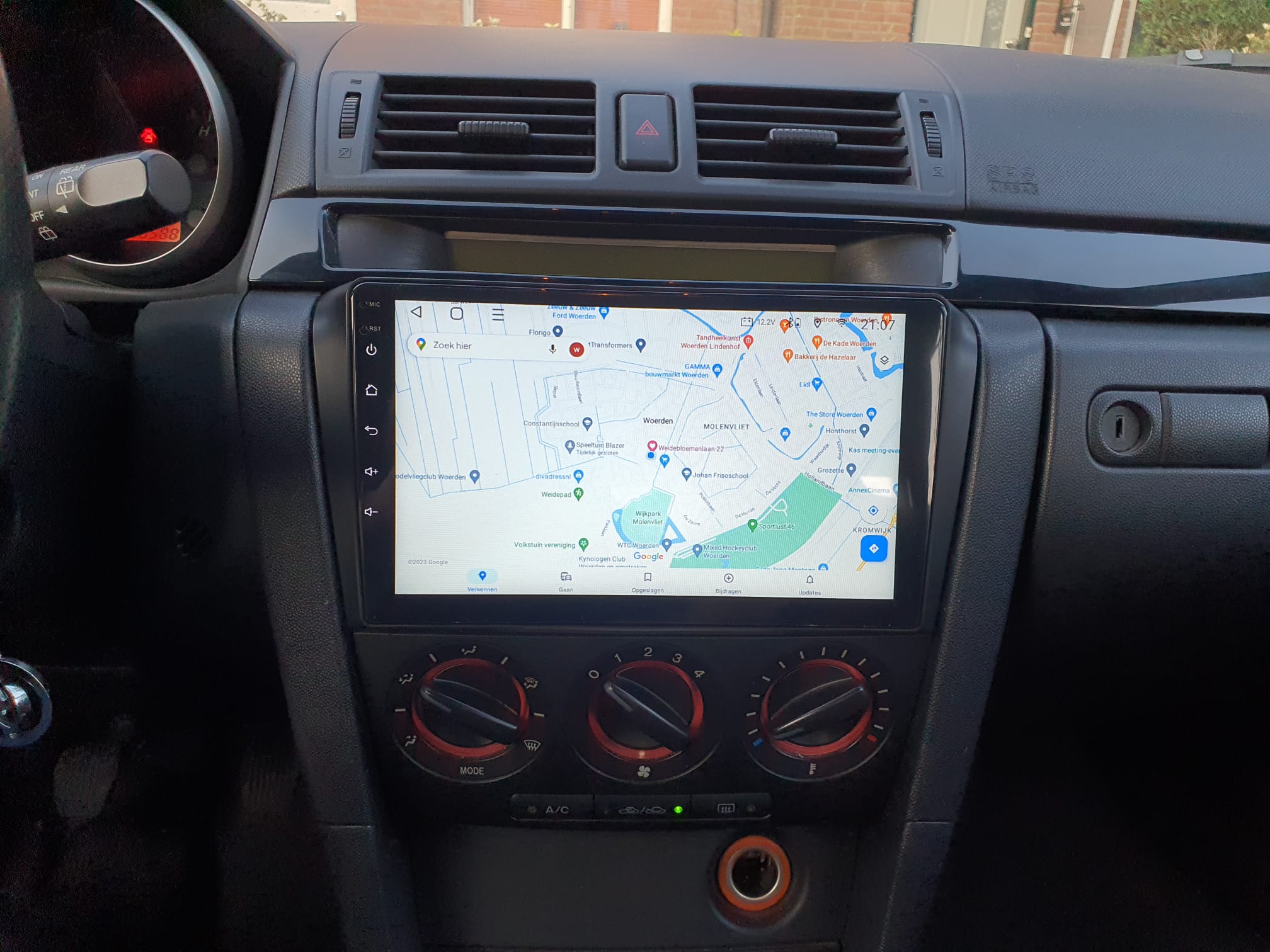
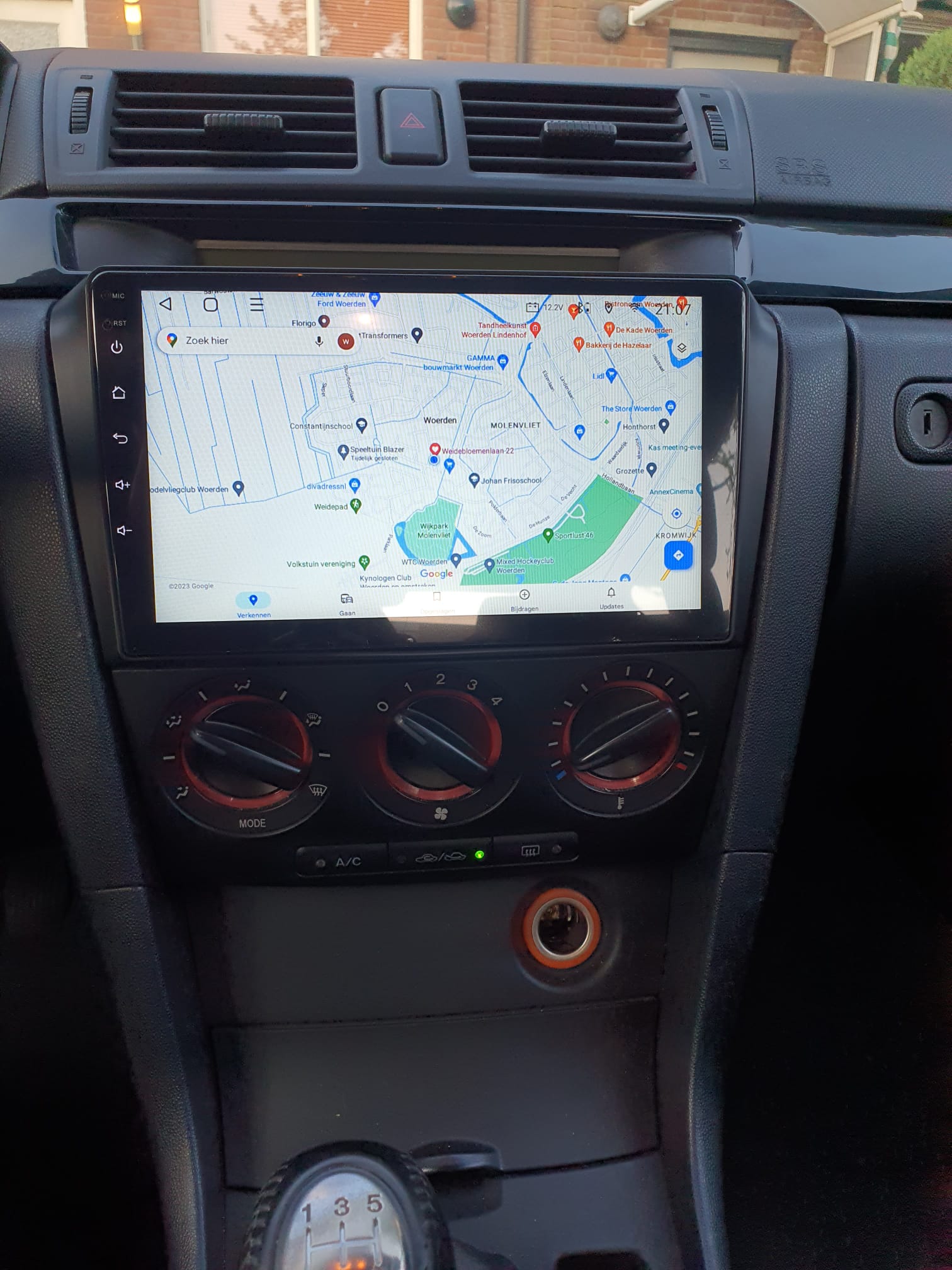
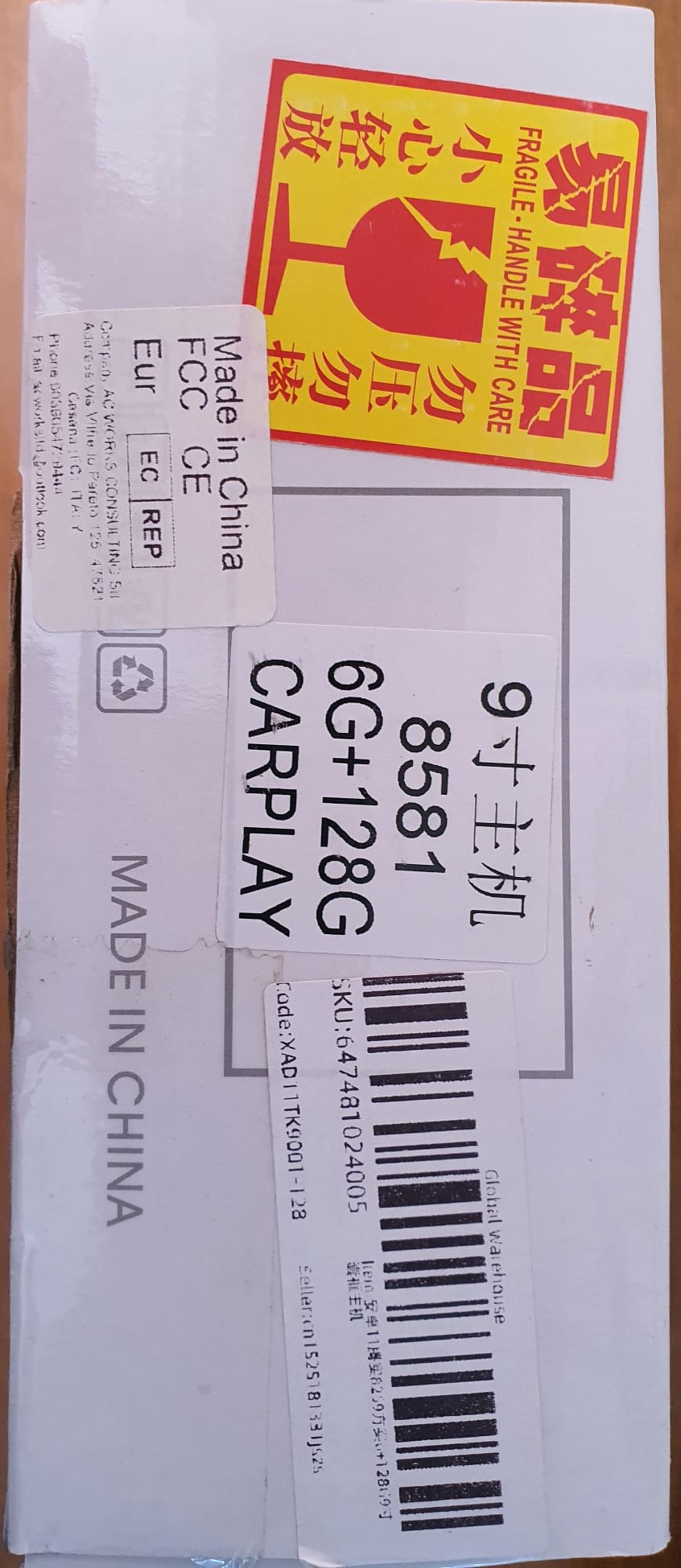
Just (2023-5-28) got the new Android 11 CARPLAY head unit installed in our red Mazda 3 // 1.3 BK(2004).
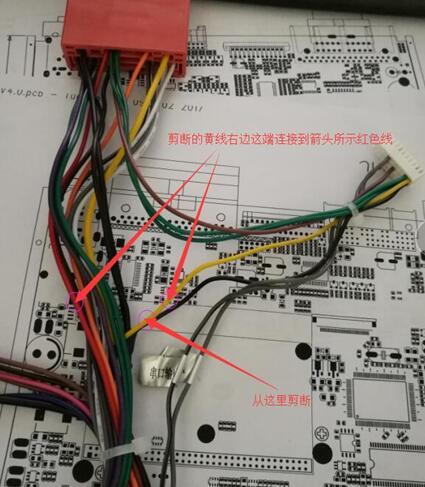
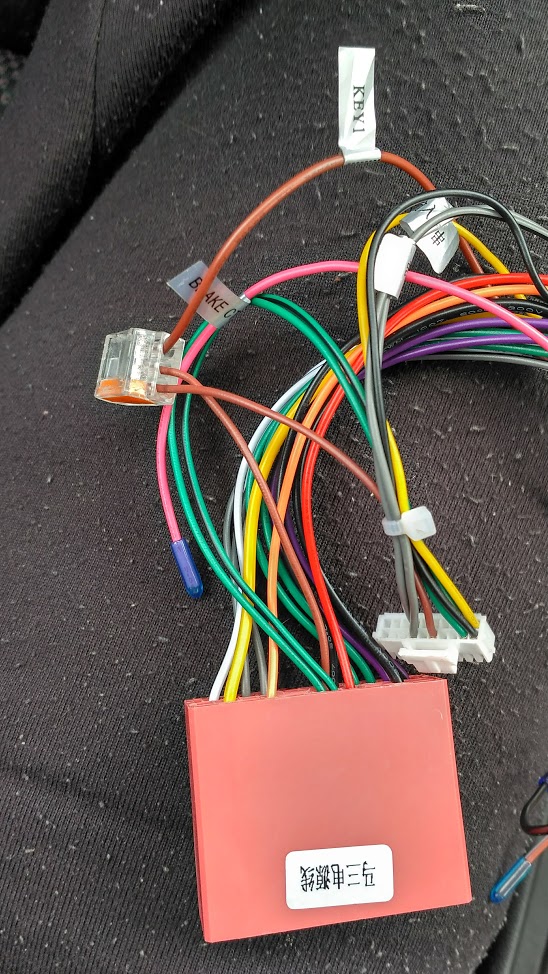
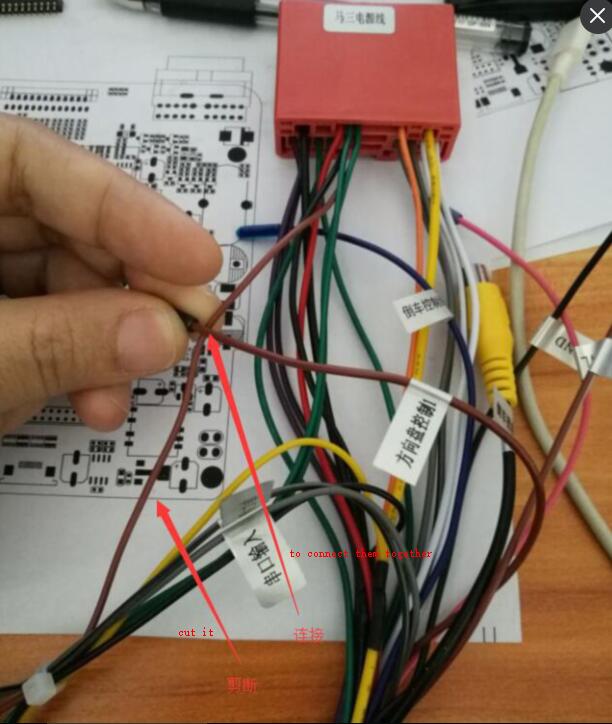
All went very easy, except the Steering wheel controls. Turned out I had to cut the delivered control connectrion for SWC2 that went into the OBD control module and reconnect this directly between the head unit and the Mazda’s big connector. Just like with our previous Android 6 head unit, which in the end got so slow that we decided to toss it for a new one.
The new one is a very fast Andoid 11, octacore 1,6 Ghz 6GB/128GB device, we expect it to outlive the car this time!
We use it mainly for navigating and the new head unit has 2 IMEI’s so we can install a simcard or just share internet with our phone. We also have android auto which can be sort of nice, although we’ll probably not use that.
The FM radio is very good, and the amplifier as well.
Mijn BYD Atto 3 heb ik vanaf de aanschaf in november 2022 gereden met daarin een Garmin mini dashcam gemonteerd, op de voorruit net boven rechts naast de binnenspiegel. Dat werkt prima, alleen heb je een kabel lopen die je moet wegwerken en je moet met je telefoon app de beelden bekijken.
Volgens de BYD-dealer is het niet mogelijk om de originele BYD dashcam achteraf te monteren.
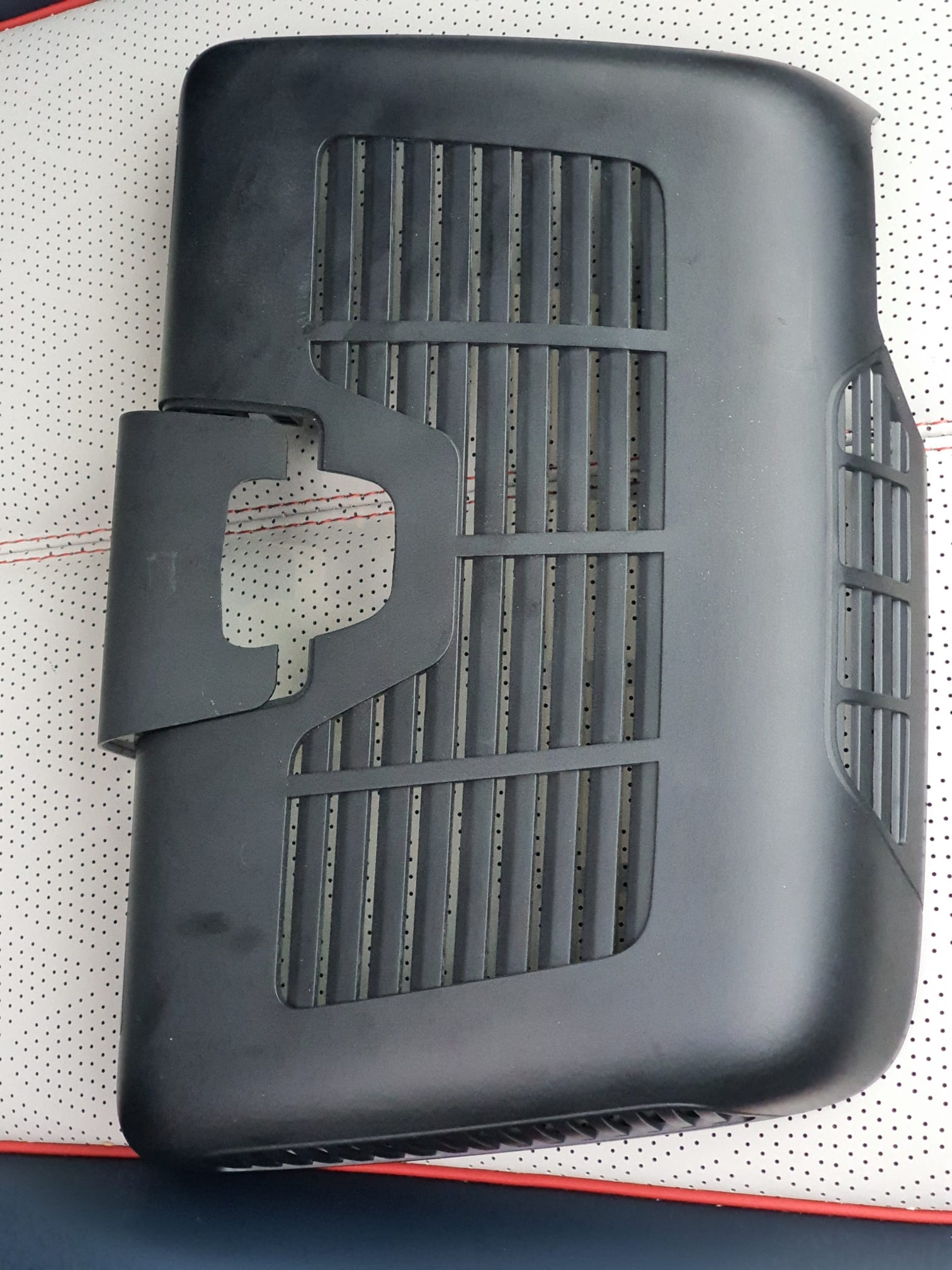
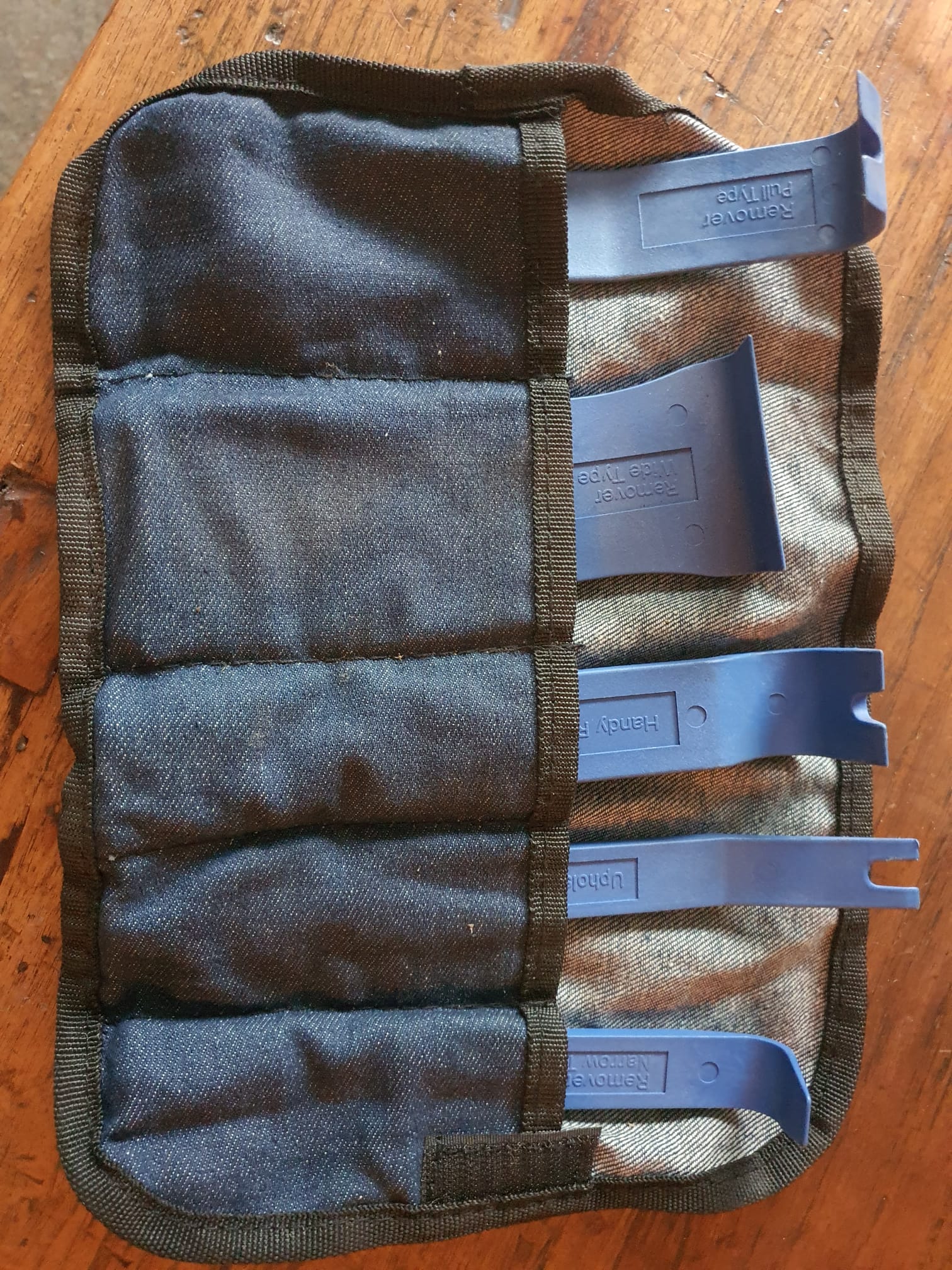
Ik heb de beschermkap waar de dashcam in moet komen verwijderd, met hiervoor geschikt gereedschap om de plastic klikbeugels niet te beschadigen.
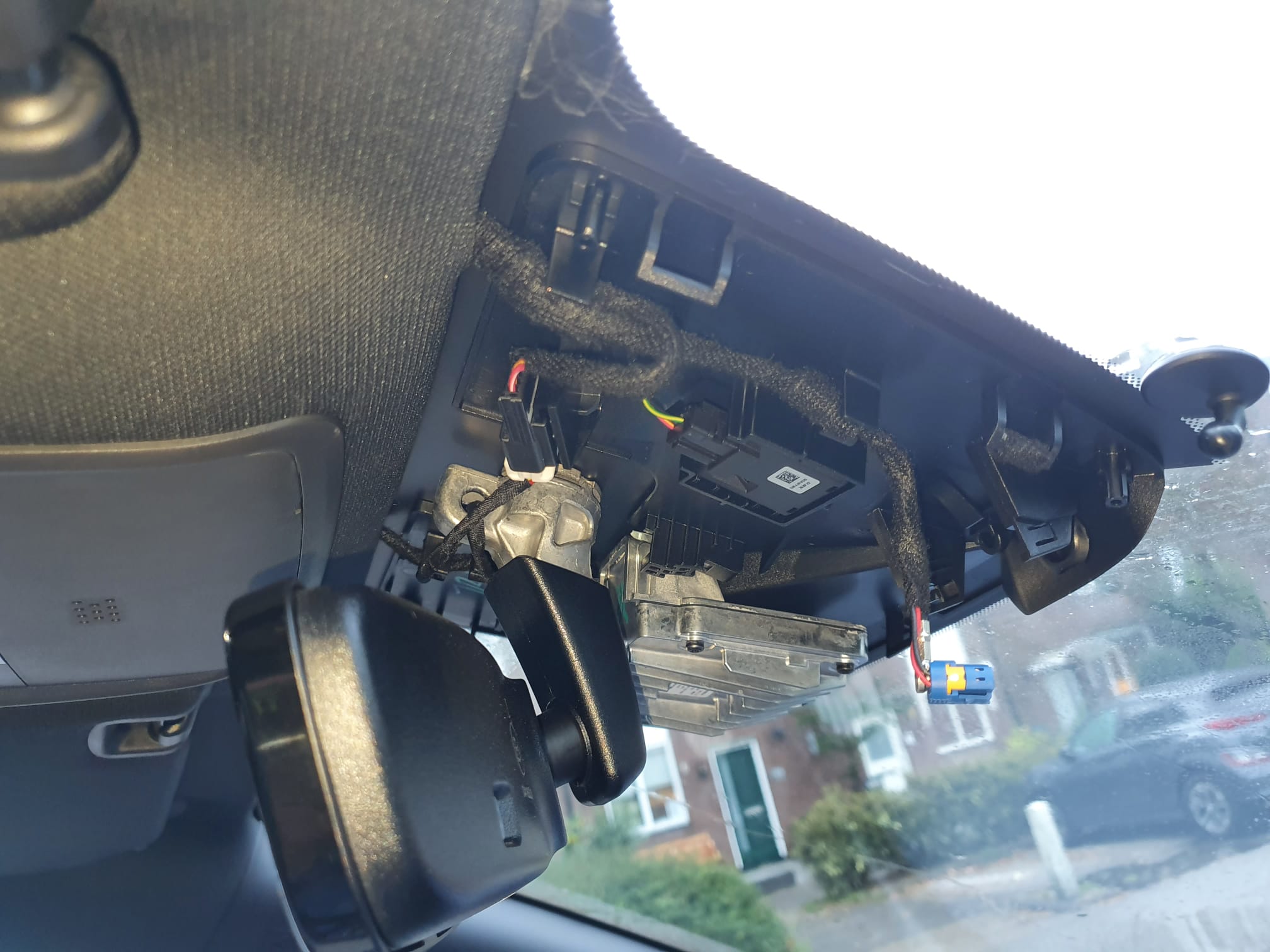
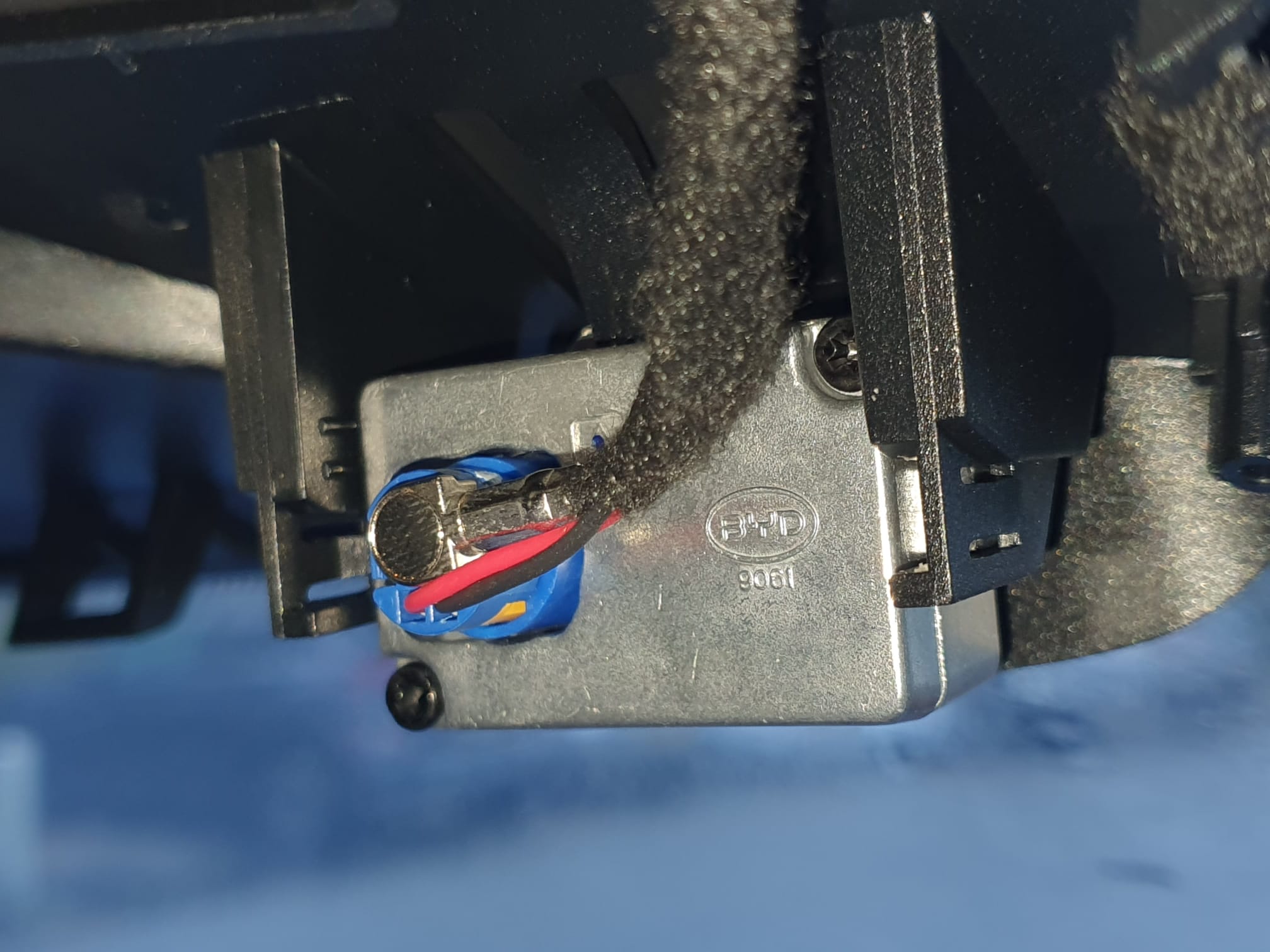
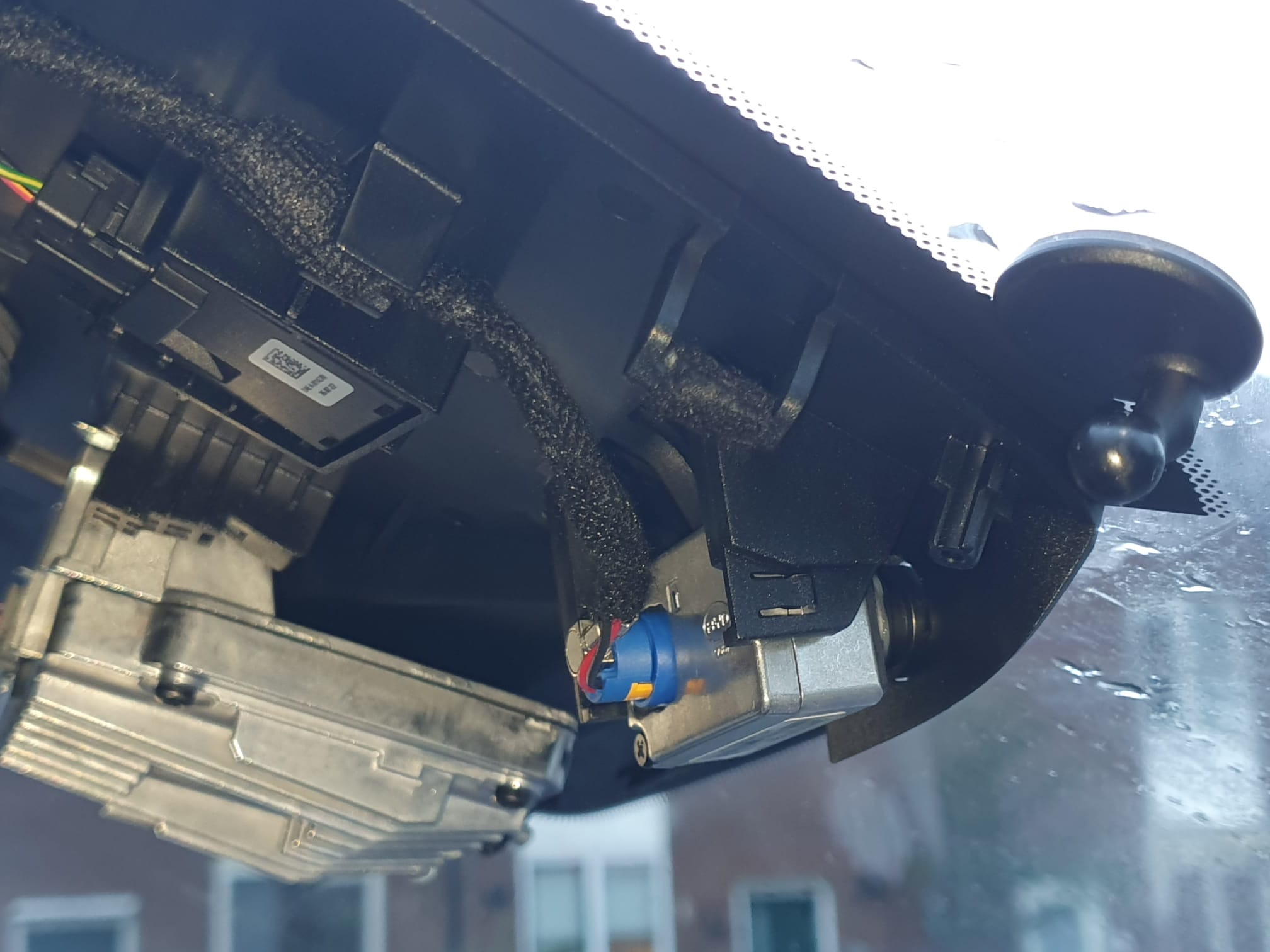
Daarna bleek dat de kabel voor de dashcam gewoon netjes gemonteerd aanwezig is. Rechts op onderstaande foto kun je nog net het montagevoetje van de Garmin mini dashcam zien. Het blauwe losse stekkertje met gele vlakje is de stekker voor de originele BYD dashcam .
[Obviously, this is for a left-steered version but for a right-steered version the situation is just mirrored.]
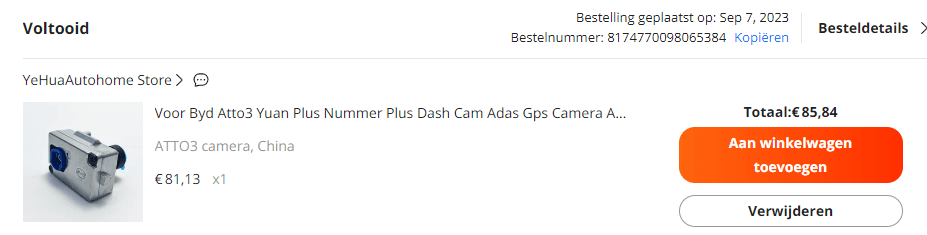
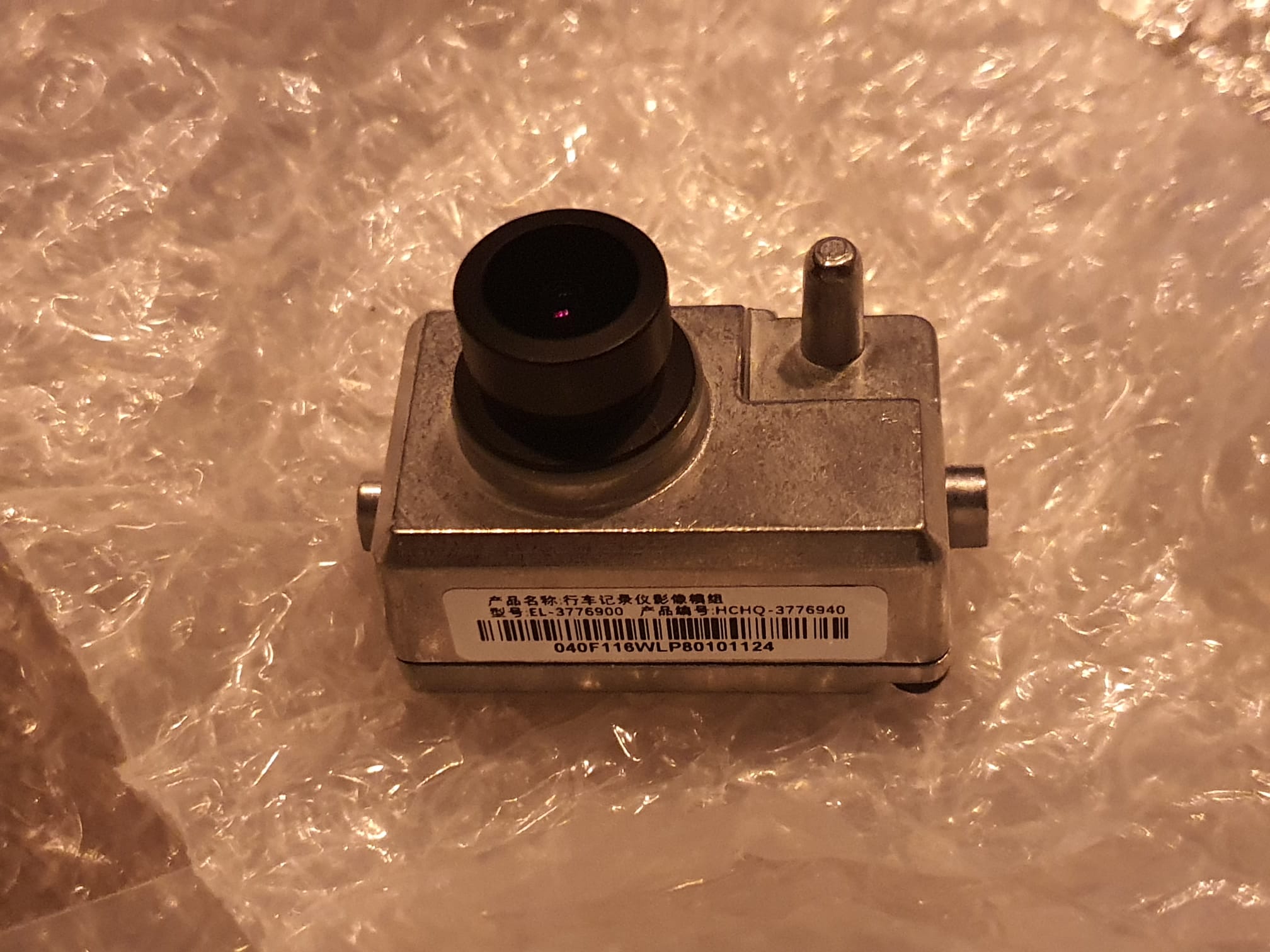
Op Aliexpress kwam ik de originele BYD dashcam als losse vervangingsunit gewoon tegen, voor ca. 83 Euro. Dus 2 weken terug besteld en vanmorgen gemonteerd.
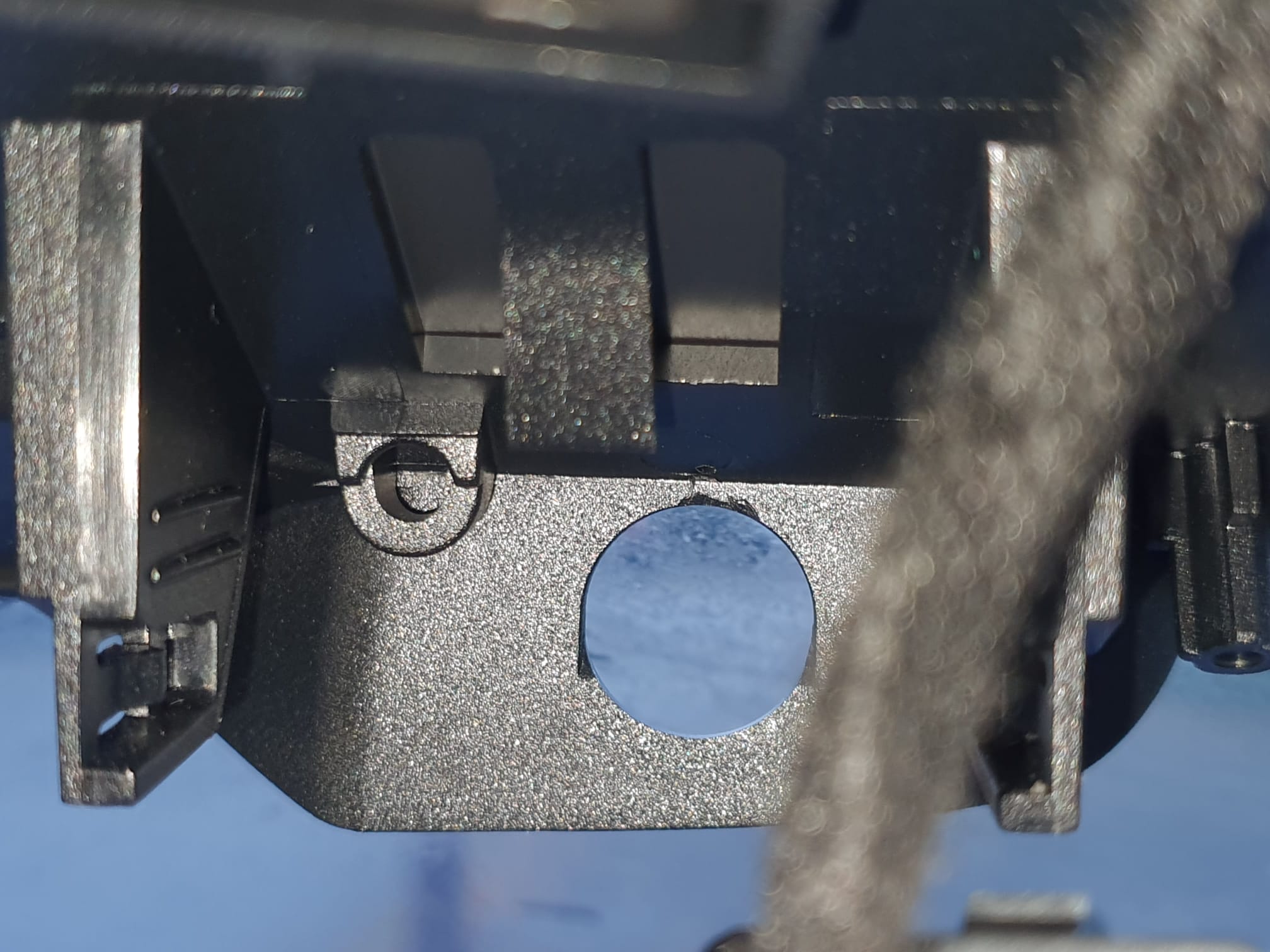
Het monteren is heel simpel: Eerst het rubbertje verwijderen waar de lens van de dashcam door moet komen .Obviously, this is for a left-steered version but for a right-steered version the situation is just mirrored.
Daarna de kabel in de camera klikken, het zit vanzelf geborgd. Kijk heel goed hoe deze stekker erin moet worden geplaatst! Het is een gecombineerde stekker met 2 contacten voor de voedingsspanning en een coax videoconnector aan elkaar vast dus het past maar op 1 manier!
Obviously, this is for a left-steered version but for a right-steered version the situation is just mirrored.
En de camera op de juiste plek in de houder klikken.
En.. wat denk je? Het werkt gewoon. Ik had gelijktijdig ook de update van de auto naar V 1.4 onderhanden, en na het opstarten ontdekte de auto dat er een dashcam aanwezig was. En de app werd gelijk geactiveerd, zodat de camera nu geïntegreerd in de auto functioneert!
Vervolgens heb ik de beschermkap gemonteerd en de bevestigingssticker van de Garmin dashcam er netjes afgehaald en de ruit schoon gemaakt. Bij het weer monteren van de beschermkap heb ik eerst het grote deel geplaatst. Daarna de spiegel neer onder gedraaid en het kleine deel in het grote deel geplaatst. Dat was wel even heel voorzichtig werken…
De software wijst zichzelf: je moet wel een MicroSD card plaatsen onder het dashboard. Ik heb er een MicroSD card van 128Gb in zitten en die heb ik via de camera app van de auto-software op FAT32 geformatteerd.
Wat je vindt nadat je de camera gebruikt hebt is een aantal directories op de microSDcard. Je bestanden staan in de DCIM map, gerangschikt naar o.a. video en foto.
Met de app kun je een aantal instellingen wijzigen waaronder de opnameduur per opgenomen fragment. Ik zet dat altijd op de langst mogelijke tijd. Hier is dat 5 minuten. net als de Garmin.
Je kan live kijken en dan ook foto’s nemen. Ik heb een snelknop van het stuurwiel geprogrammeerd om de dashcam video-opnames te laten maken wanneer ik dat belangrijk vind. De app maakt sowieso natuurlijk altijd opnames die een bepekte tijd worden bewaard vanwege de omvang van de opslag op de MicroSDCard. is de kaart vol, dan gaan de oudste opnames eraf. Maar wanneer je zelf een opname initieert dan blijft deze opname altijd ‘beveiligd’ op de MicroSDCard bewaard.
Het programmeren van de knop voor aanzetten van de camera voor beveiligde (niet-wisbare) opnames) gaat zo: Je gebruikt hiervoor de schermrotatieknop op het stuurwiel. Druk deze knop 5 seconden totdat het grote LCD scherm je de keuze geeft wat je wilt verbinden aan deze knop. Ik heb daarvoor dus voor video opname gekozen.
Als je opnames vanaf de opslaglocatie wilt kopiëren kan dat het gemakkelijkst naar een USB drive doen via de bestandsbeheer app van de BYD software. gewoon kopiëren van MicroSDCard/DCIM/… en naar USB/… plakken zoals op je telefoon.
Dat was het! Veel plezier met je dashcam in de BYD Atto 3.
All of the hardware like frame parts, extruder, hotend, motherboard, steppers, teethed wheels and -belts, bearings, nuts and bolts are available.
I will go with a Duet2wifi board, since this is known to me and I like the Duet’s web interface a lot. An ESP32 camera will be added to the build and this will also be integrated into the Duet’s Web interface, as with all my other printers.
TO BE SOURCED:
I will need to source a good 24V PSU but I may go with an external one for this build, to start with.
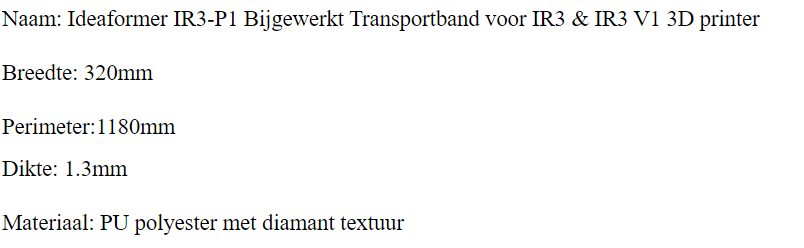
The belt and corresponding heated bed have veen ordered from Ali, I chose an Ideaformer belt , 320mm wide, 1.3 mm thick and a perimeter of 1180mm.
Ik bouw meestal mijn eigen 3d printers, voornamelijk op basis van bestaande ontwerpen.
De reden hiervoor is dat ik het gewoon leuker vind om zelf te bouwen dan kopen en gebruiken.
Ik had dus een reden om een printer te kopen die langere objecten kan printen dan 350 millimeter, waartoe ik nu beperkt ben.
Na wat onderzoek vond ik 4 echte alternatieven.
De eerste is de Creality CR-30:
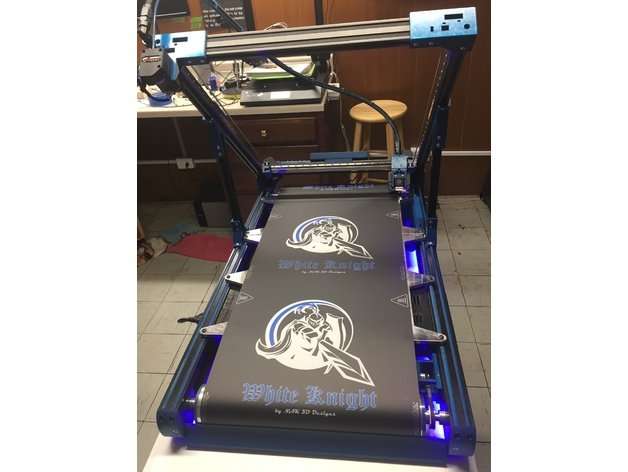
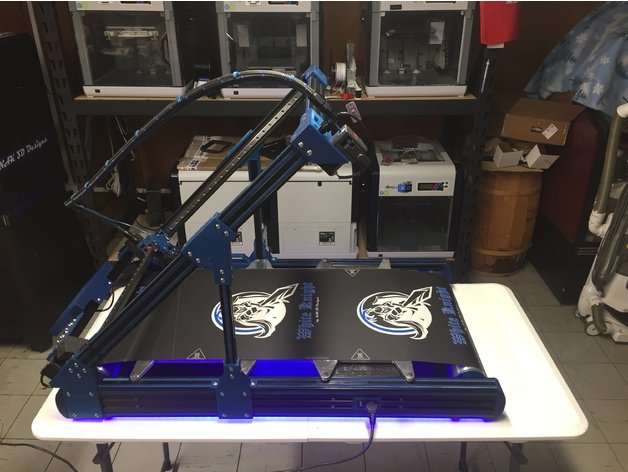
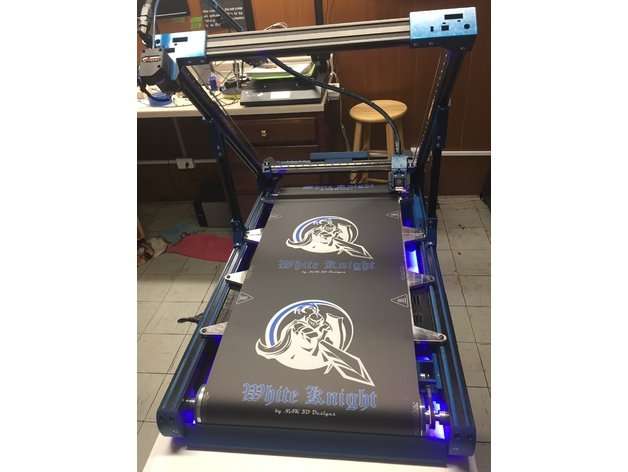
De tweede is een white knight (Zelfbouw/nabouw):
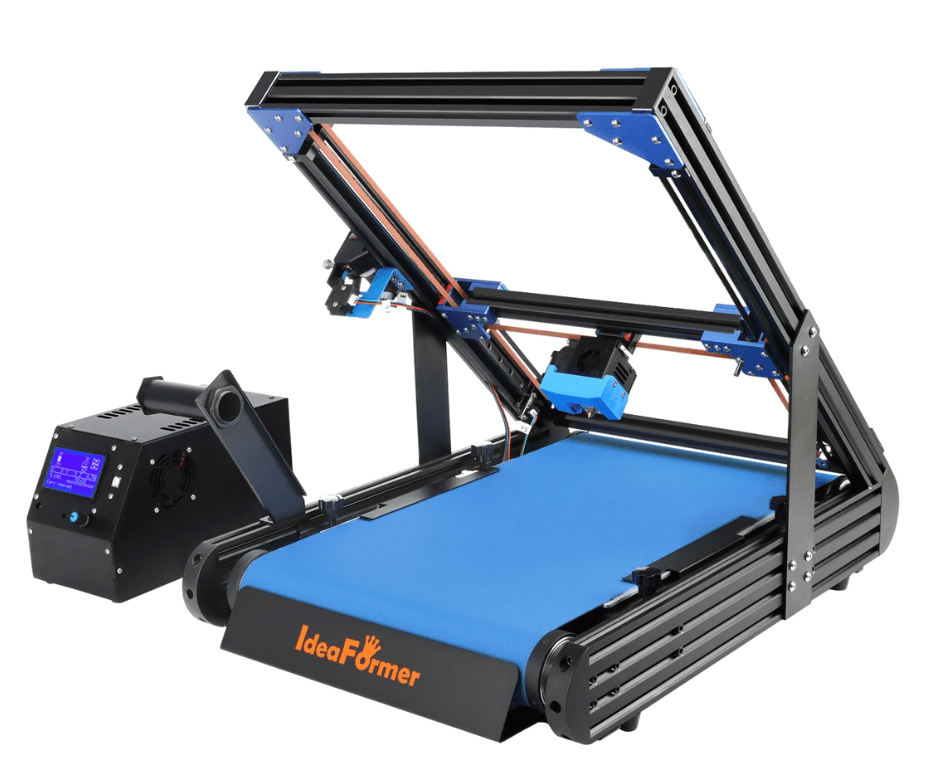
De derde is de Ideaformer IR3 V1:
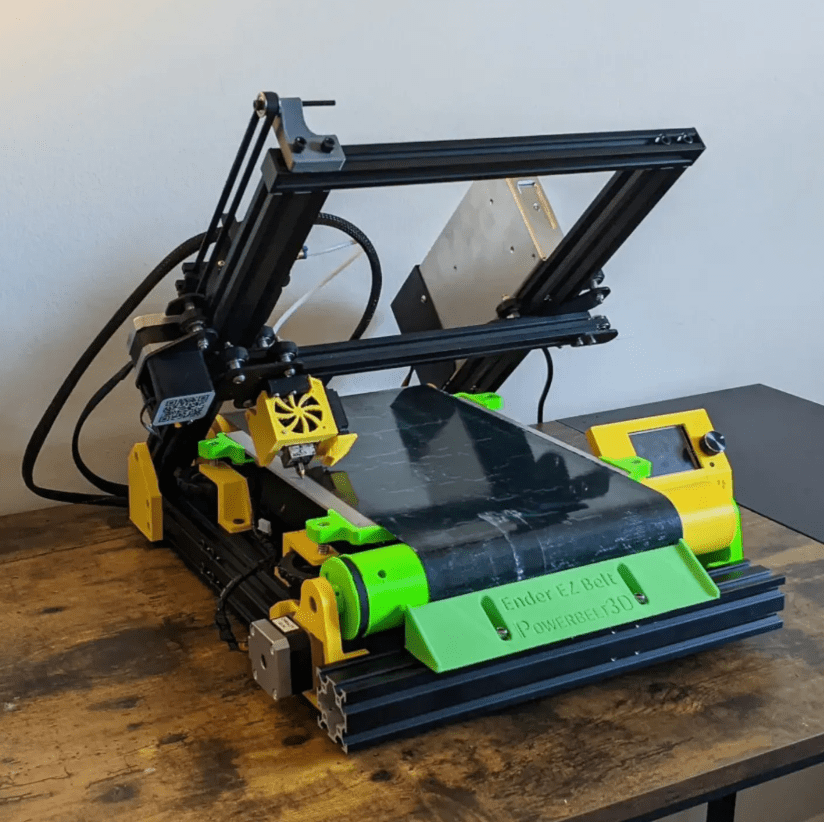
En de vierde is een ombouw van een bestaande eEnder-3, de EZ-belt ‘open source’ belt printer.
Mijn keuze is uiteindelijk op de Ideaformer gevallen vanwege de core XY structuur en de goede verkrijgbaarheid van het roterende bed, de ‘belt’.
Alle hardware zoals framedelen, X-as zijplaten, extruder, hotend, moederbord, steppers, tandwielen en -riemen, lagers, bouten en moeren heb ik voorradig..
Ik ga sowieso voor een Duet2wifi-board, omdat dit bij mij bekend is en ik de webinterface van de Duet erg prettig vind. Er zal een ESP32-camera worden toegevoegd en deze zal ook worden geïntegreerd in de webinterface van de Duet, net als bij mijn andere printers.
Aan te schaffen:
Ik zal een goede 24V PSU moeten aanschaffen, maar om te beginnen ga ik misschien voor een externe voeding van 24 Volt.
De riem en bijbehorende verwarming zijn ook al binnen via Ali, ik heb dus gekozen voor een Ideaformer riem, 320mm breed, 1,3 mm dik en een omtrek van 1180mm. Zoals ik heb gemeten is de lengte van het bed ca. 56 cm , afhankelijk van de dikte van de transportrollen. Bij de ideaformer zijn die rollen 3 inch dik, en van aluminium.
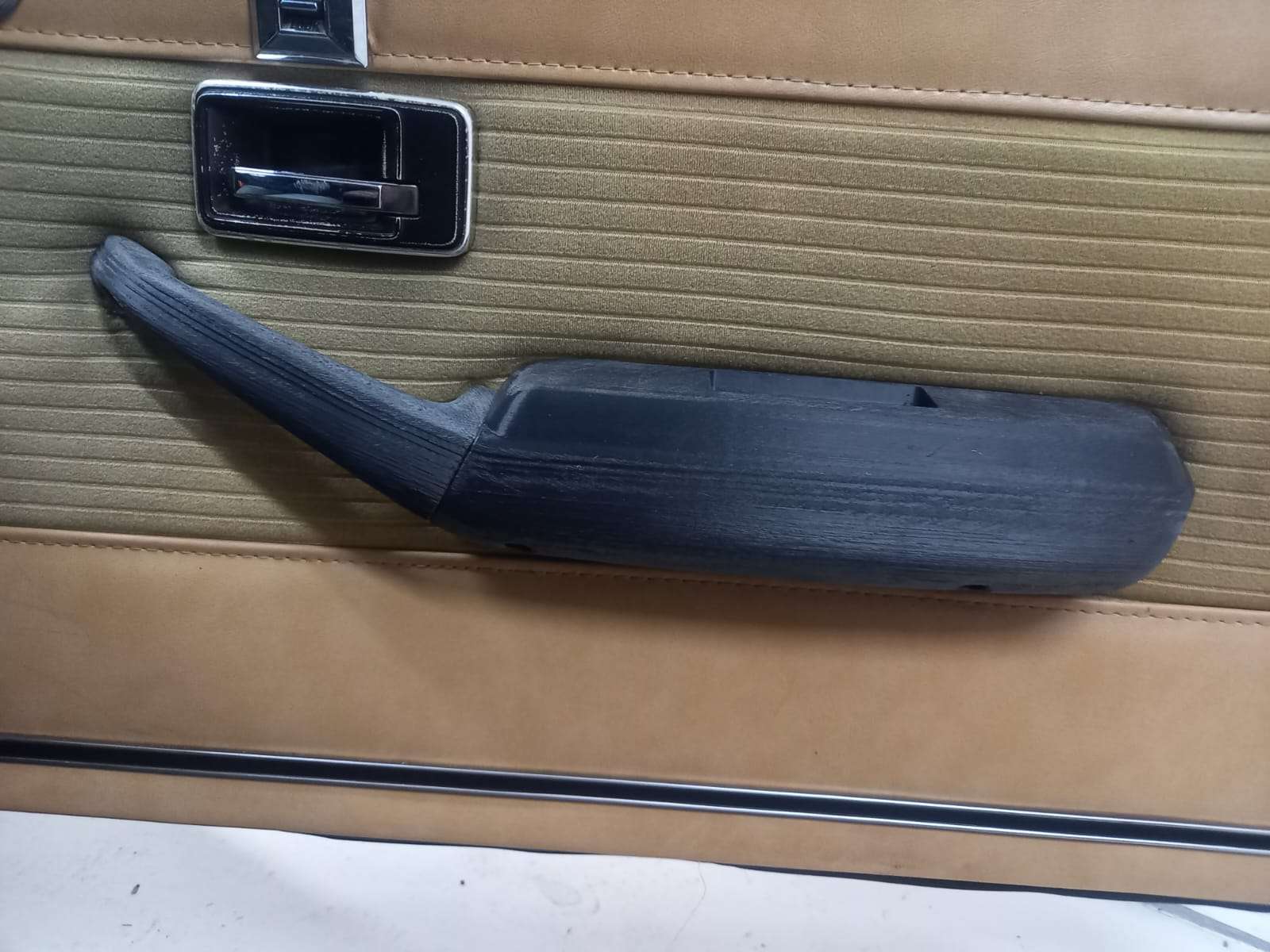
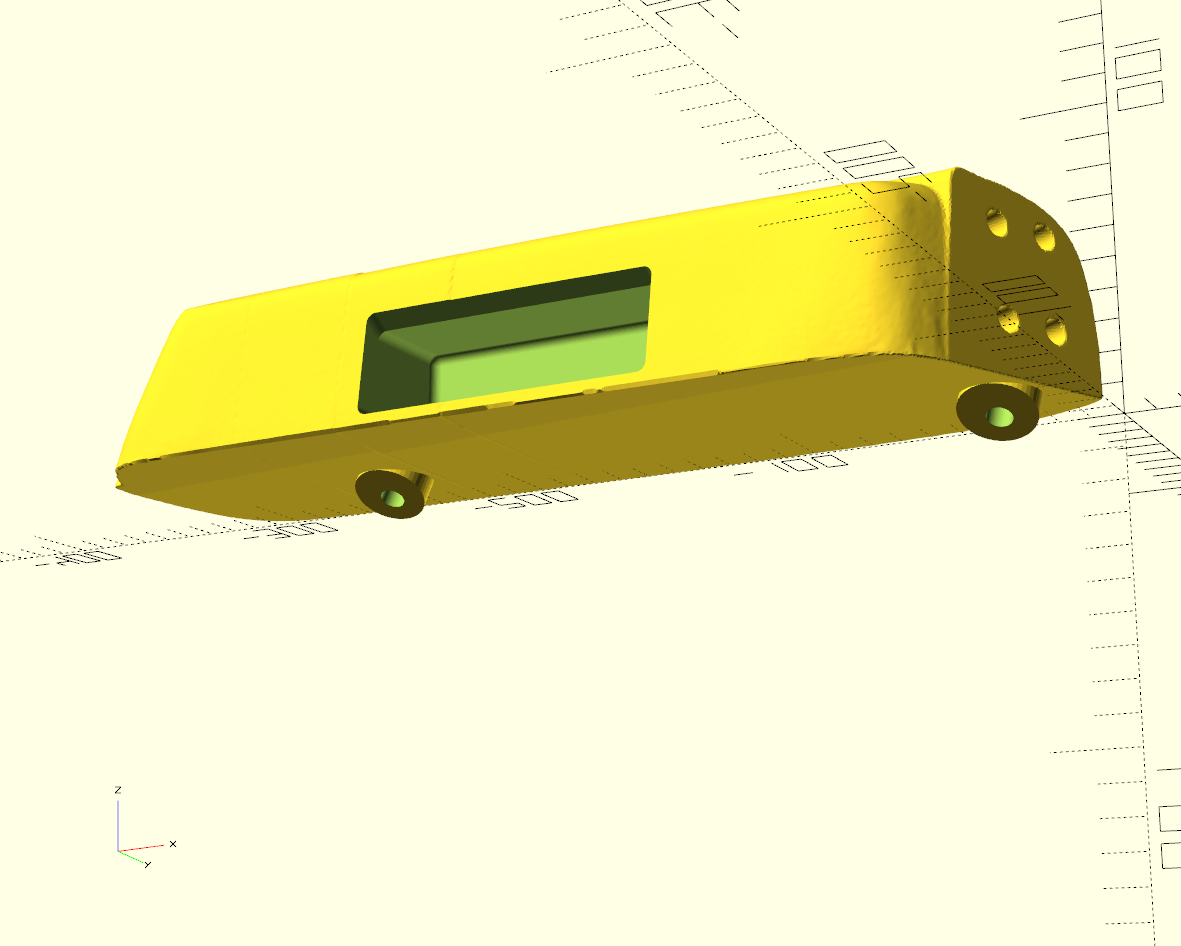
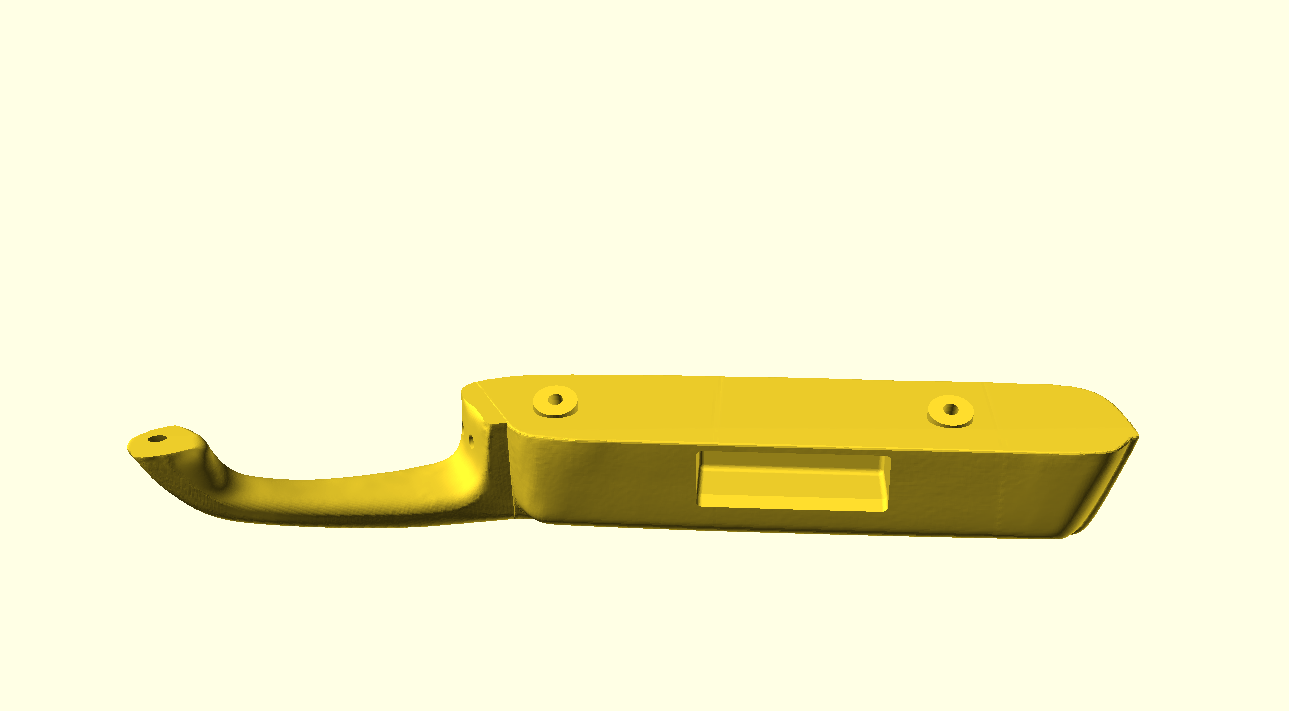
My brother owns a completely overhauled Chevrolet Camaro with power windows (I believe from 1969 or 1971) and asked if I could scan, improve and reproduce the armrests since these are both quite sloppy.
This type of Chevrolet Camaro is the only version that has these large armrests and they are a typical product from those days.
Manufactured from plastic and covered with some kind of latex.
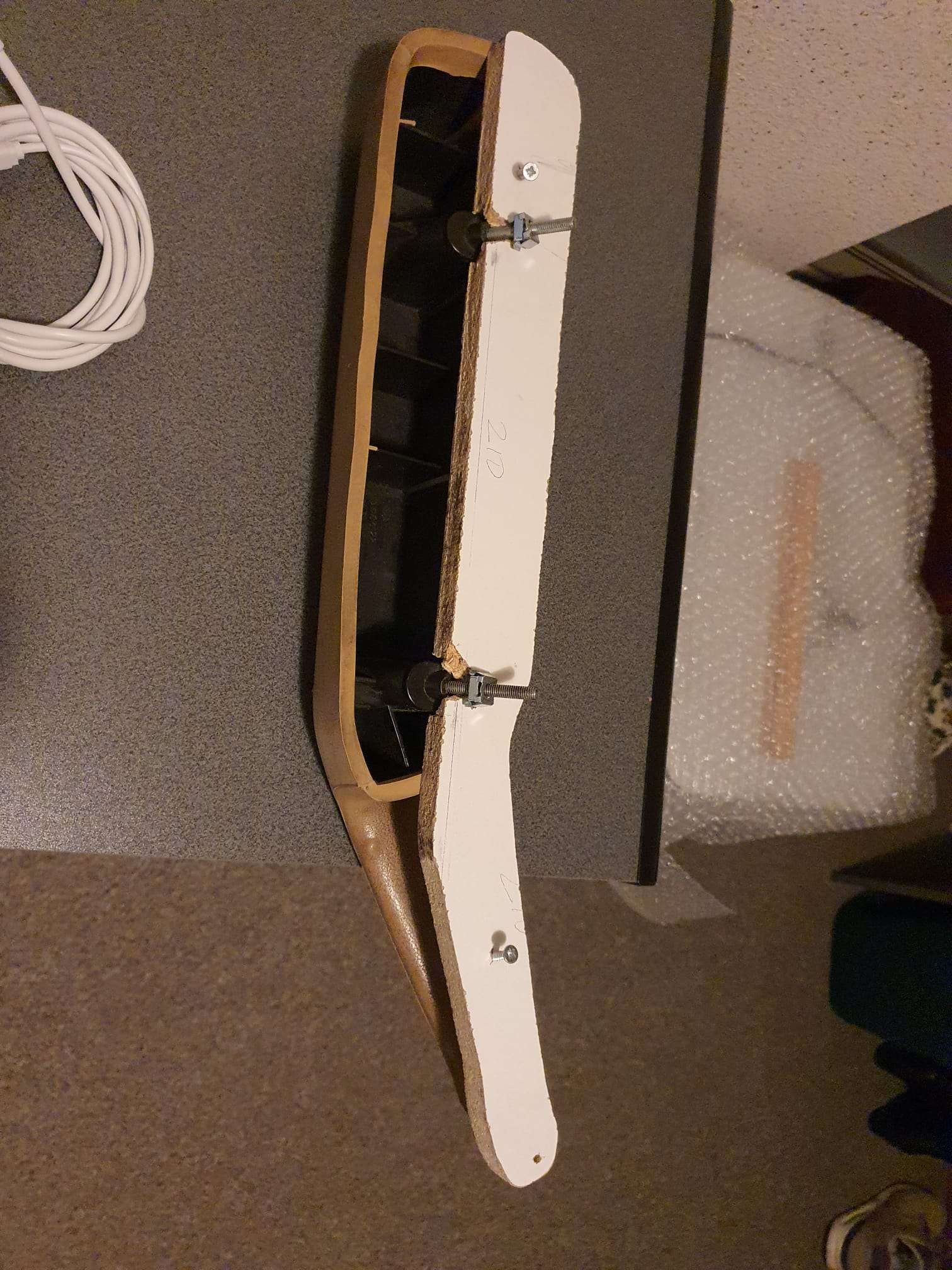
Due to time and usage these armrests are both L and R broken between the actual armrest and the handle that is used to close the door.
This handle is at the front of the door and with these long and heavy doors some force is required to close the doors.
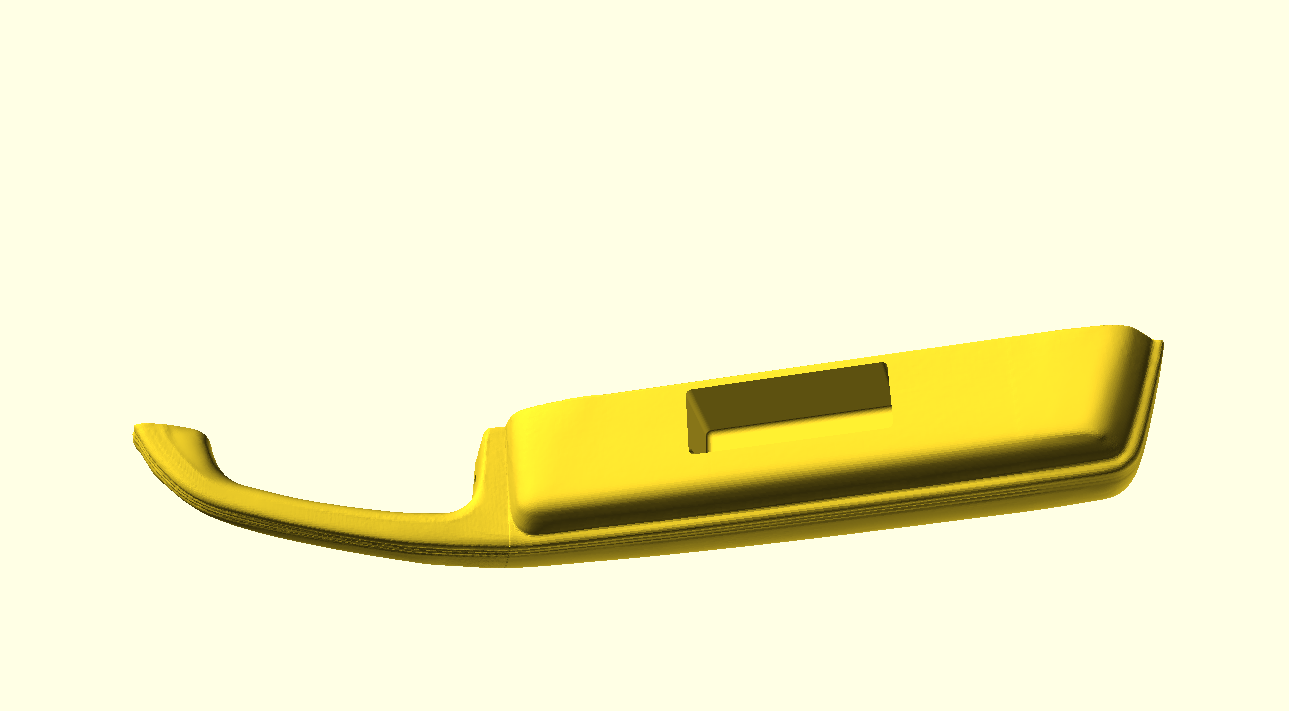
Therefore, we will try to modify the armrest with an additional handgrip in the large part of the armrest.
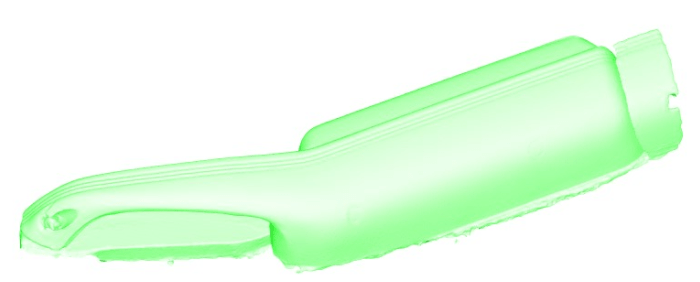
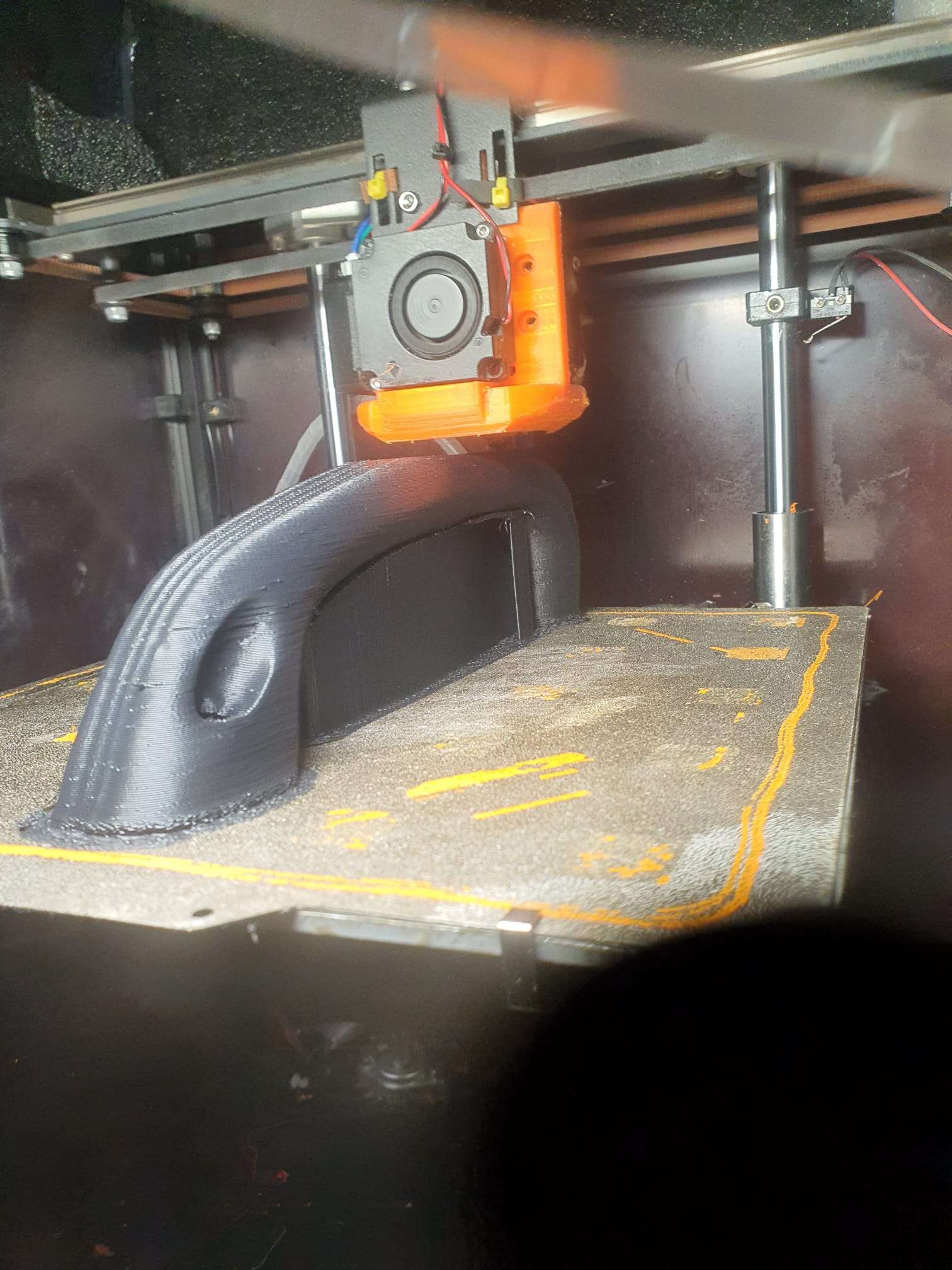
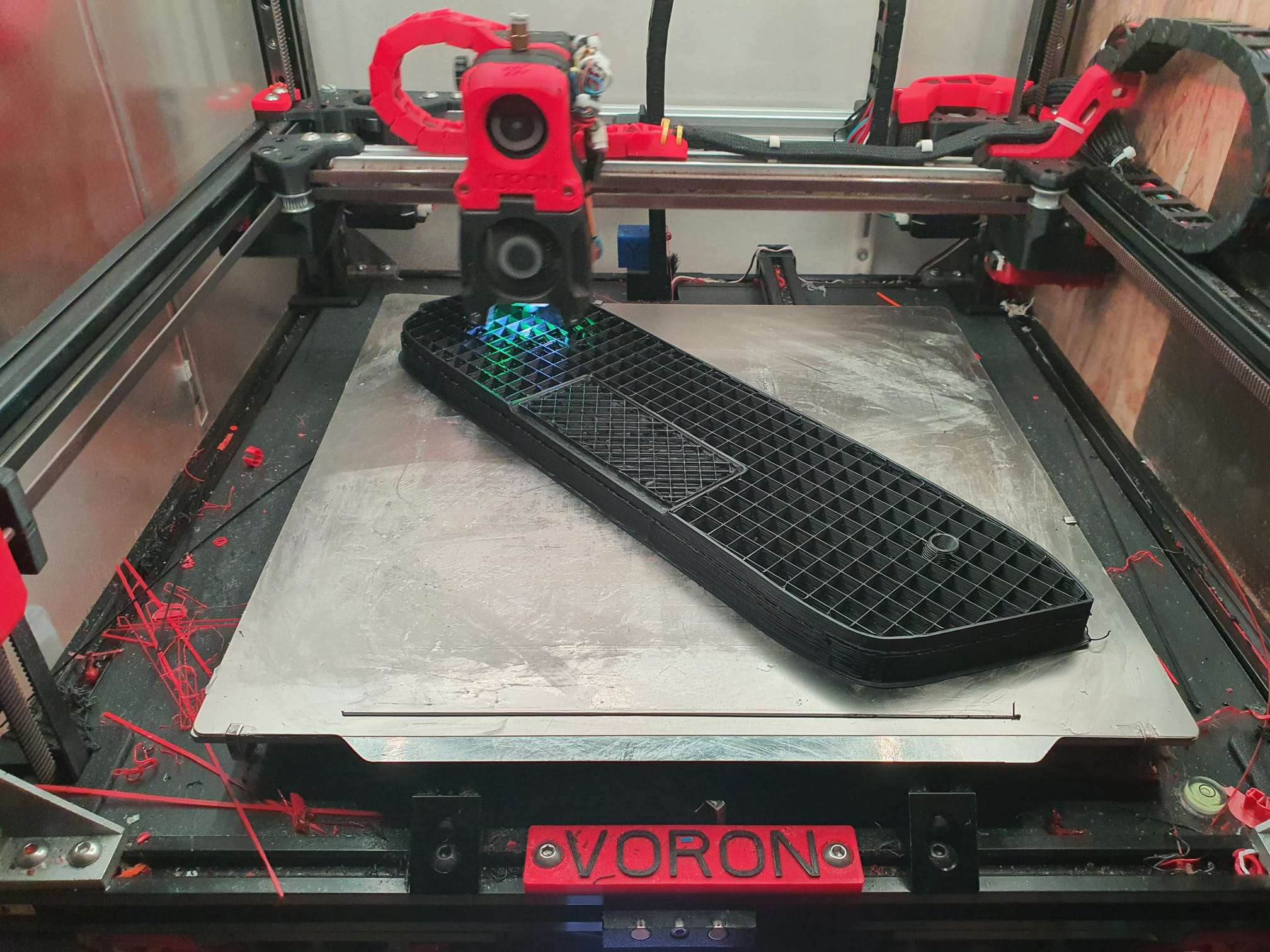
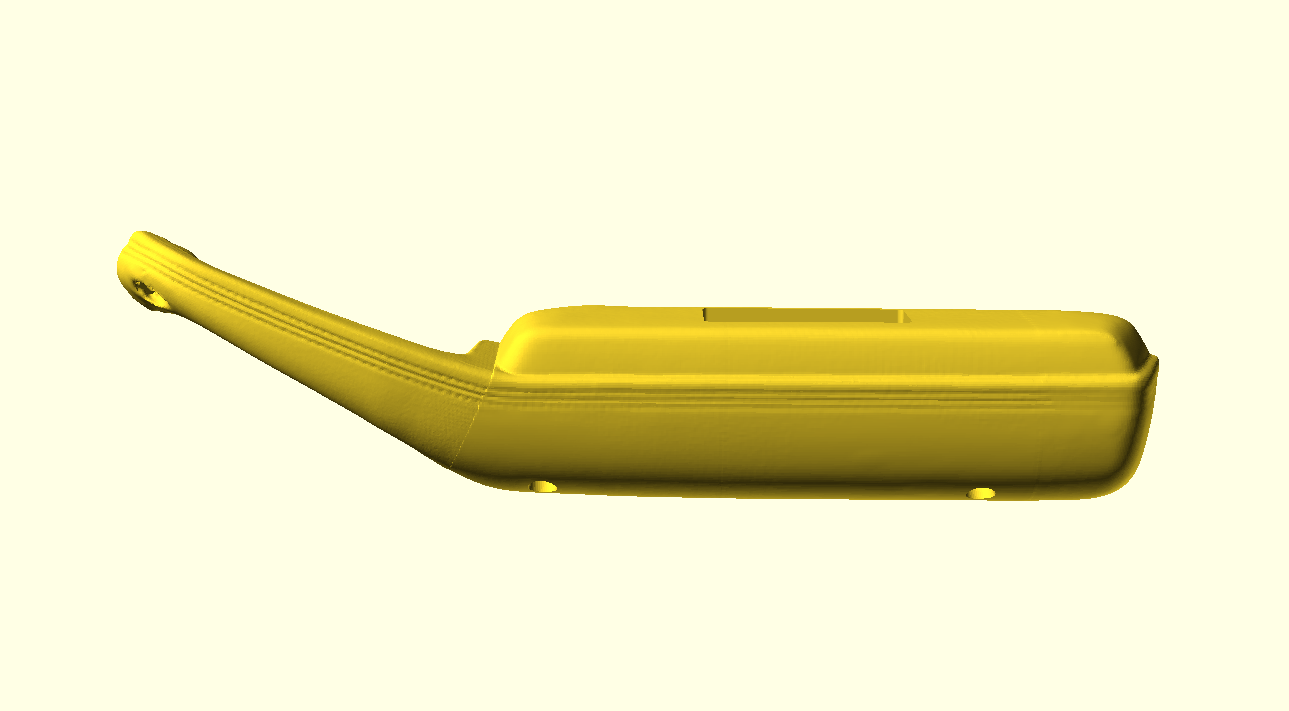
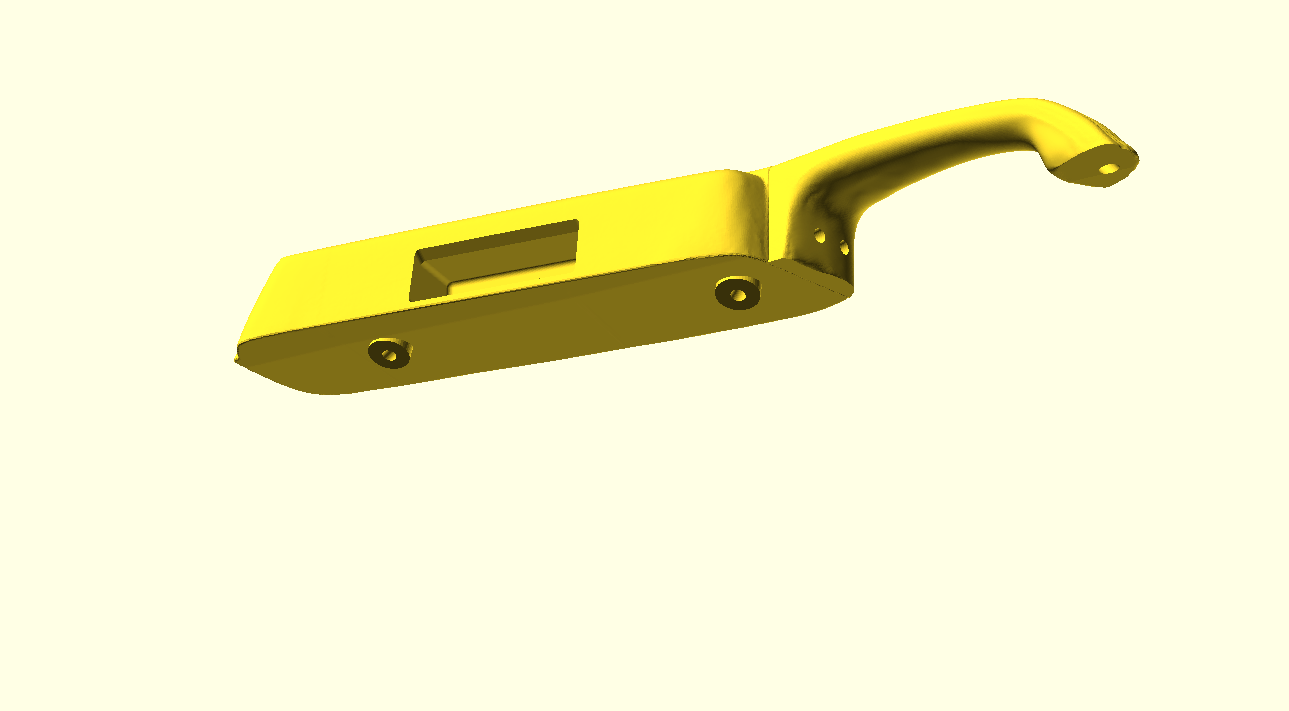
So- I used my Creality lizard scanner to scan one of the the original armrests and cut the design in 2 connectable parts. This makes it printable om my Voron300.
After reproduction, the part will get a new leather cover.
After the right hand side is made to fit perfectly, we will also mirror the design to produce the armrest and handle for the left hand side as well.
We will add our pictures to this post as we move along!
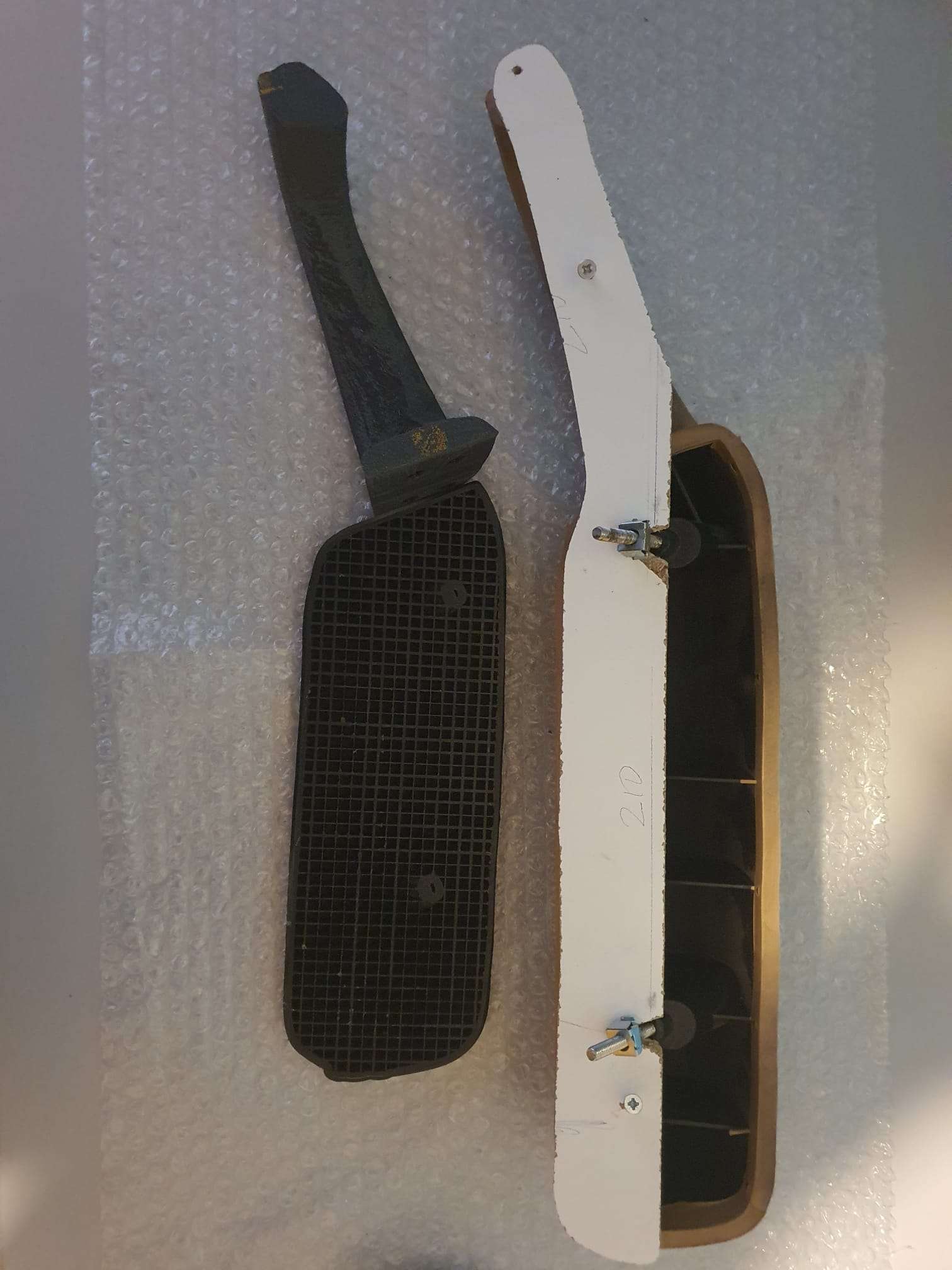
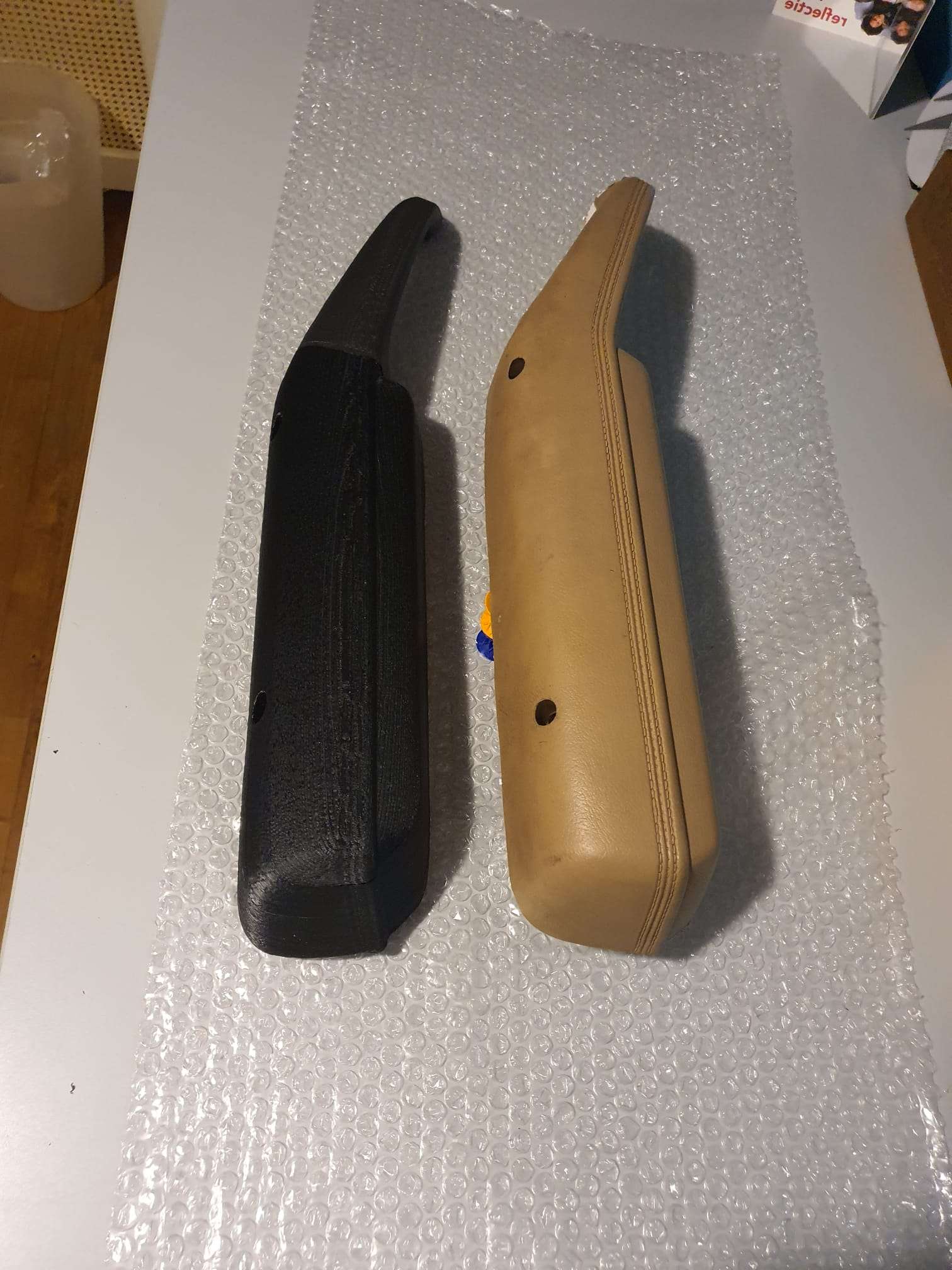
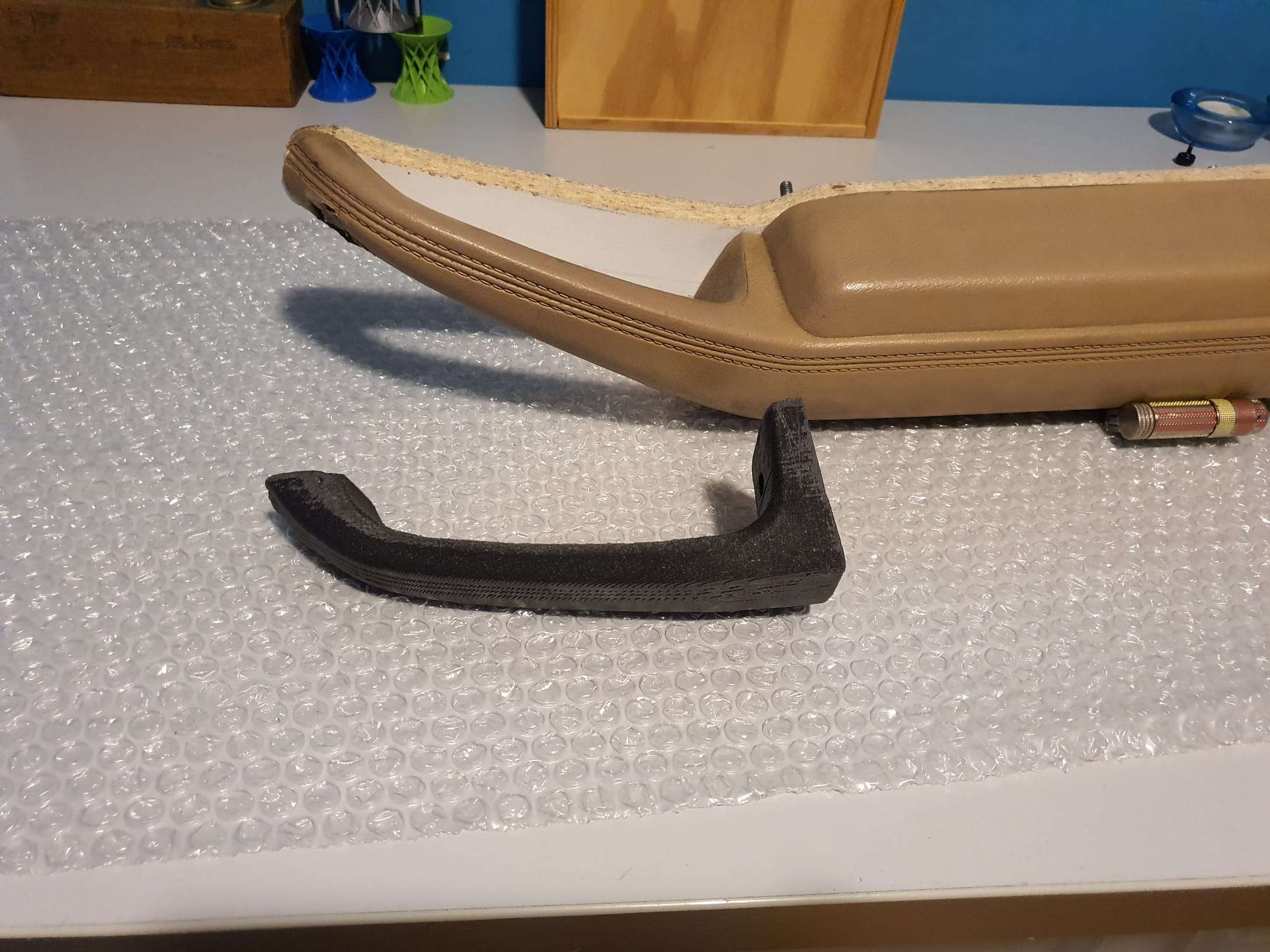
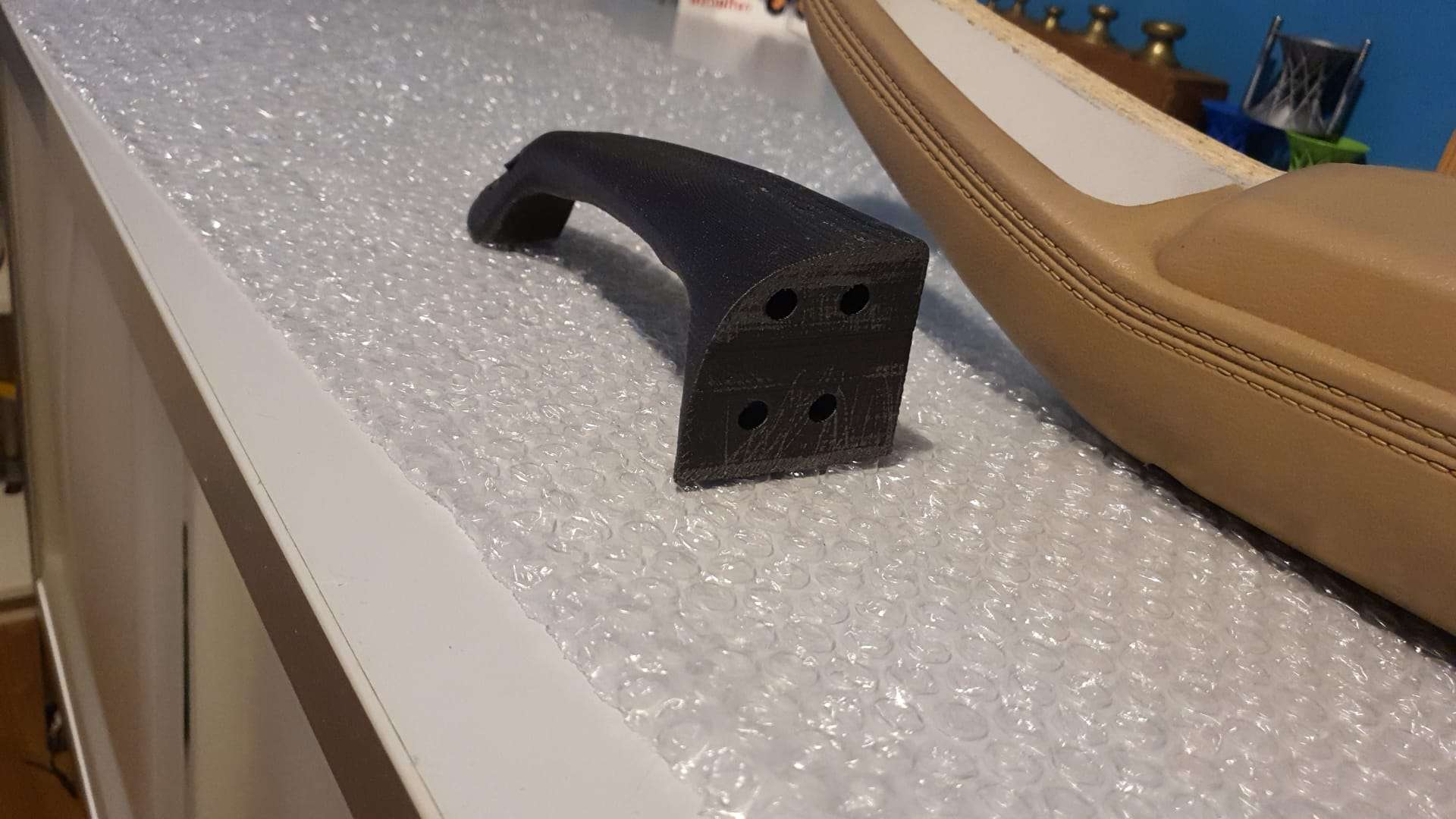
The final result of the two 3dprinted parts joined on the right hand doorAnd the part for the LEFT door of the carFor proper scanning, I had to fixate the front of the armrest.
Scanning did produce a nice textured 3d mesh of the armrest BUT the scan proved to be inadequate when we mesured the length of the scan. This was 8.5 cm (more than 3 inch) shorter than the original armrest.
Above shows an impression of the scan that I made with the Creality lizard 3d scanner. After many retries this was the best I could get. It took a lot of rework to get it to a 100% match with the original armrest. The armrest is actually too large to be scanned with the Lizard’s rotating platform so it had to be done manually.In the above picture the diverted length is clear, left is the print of the scan (after rework to get rid of all debri).
Also, the mounting holes were only visible as small round indents in the hull and due to the length decrease they were not at the correct position.
And-another problem occured due to the broken plastic inside the connection between the armrest and the handle: It was very difficult to scan the original armrest with the plate attached. The plate was however very needed because the handle needs to be fixated to get it at the right position for proper results with scanning.
Plus, the mounting spot that is at the end of the handle was severily damaged and the scan obviously also reproduced this ugly spot. I reworked this with meshmixer.
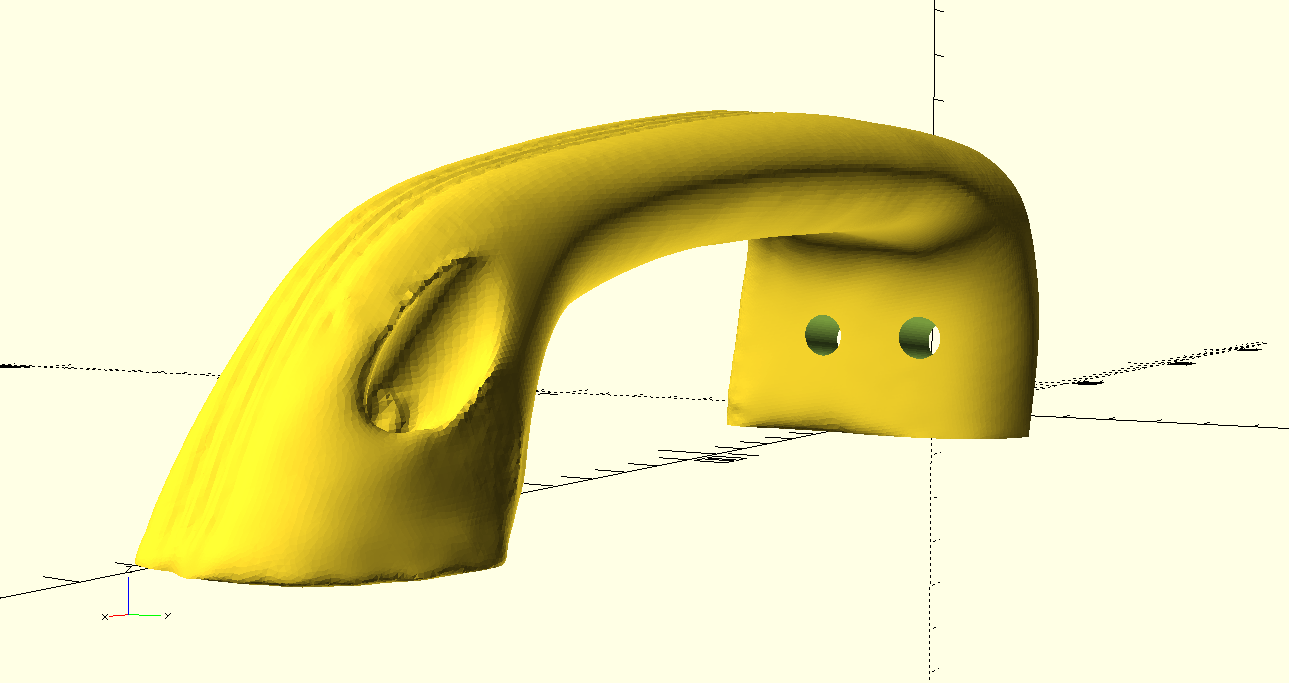
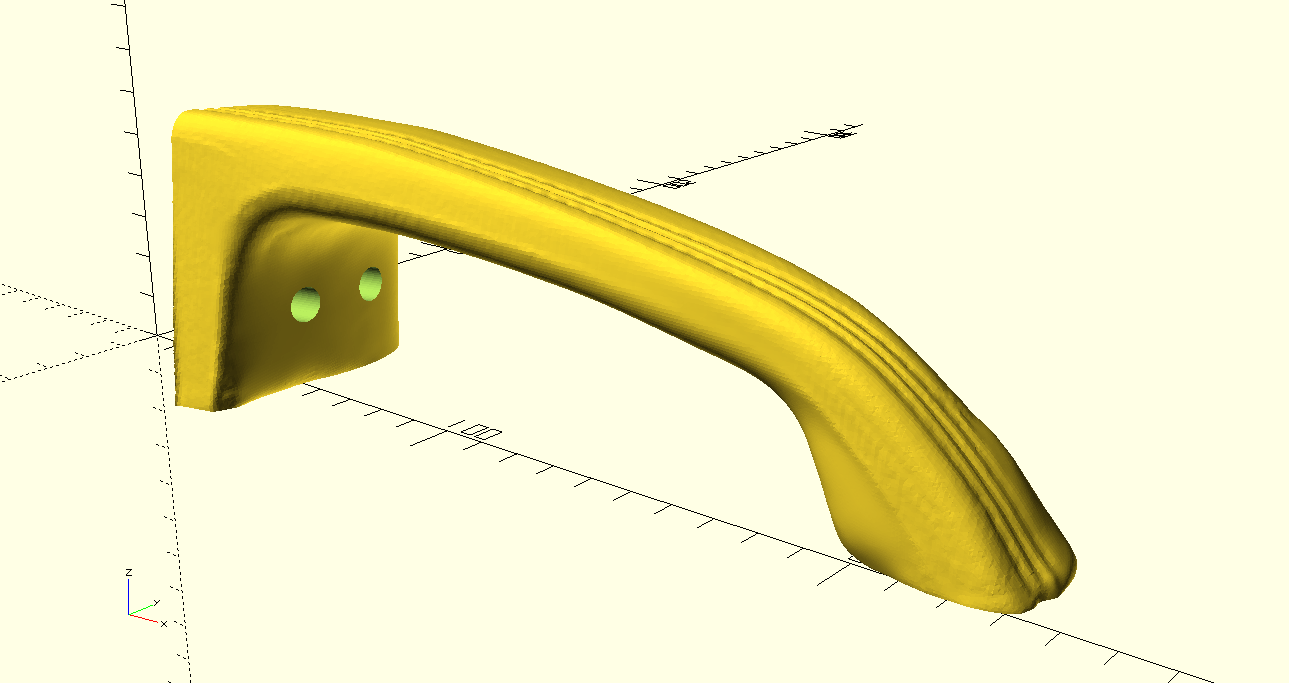
Fixing the above and making the 3 mounting holes into the design with a Cad/Cam program (I used both meshmixer and Openscad to get everything done) proved to be very time-consuming.
All in all- I always do my time-keeping when I do specific work- it took around 72 hours of my PC time to get this all done, up until the workable version of the STL files that were OK to be printed.
For scanning I use my Creality lizard scanner on my gaming laptop with built-in RT3060 GPU.
For editing, I use my newest ACER XPS13 laptop with thunderbolt, connected to my Razor external thunderbolt RT3060 graphics box and an external hi-res monitor.
3D printing is the next step that is very time consuming, but thankfully I only need to start the prints up and afterwards get the prints off the machines.
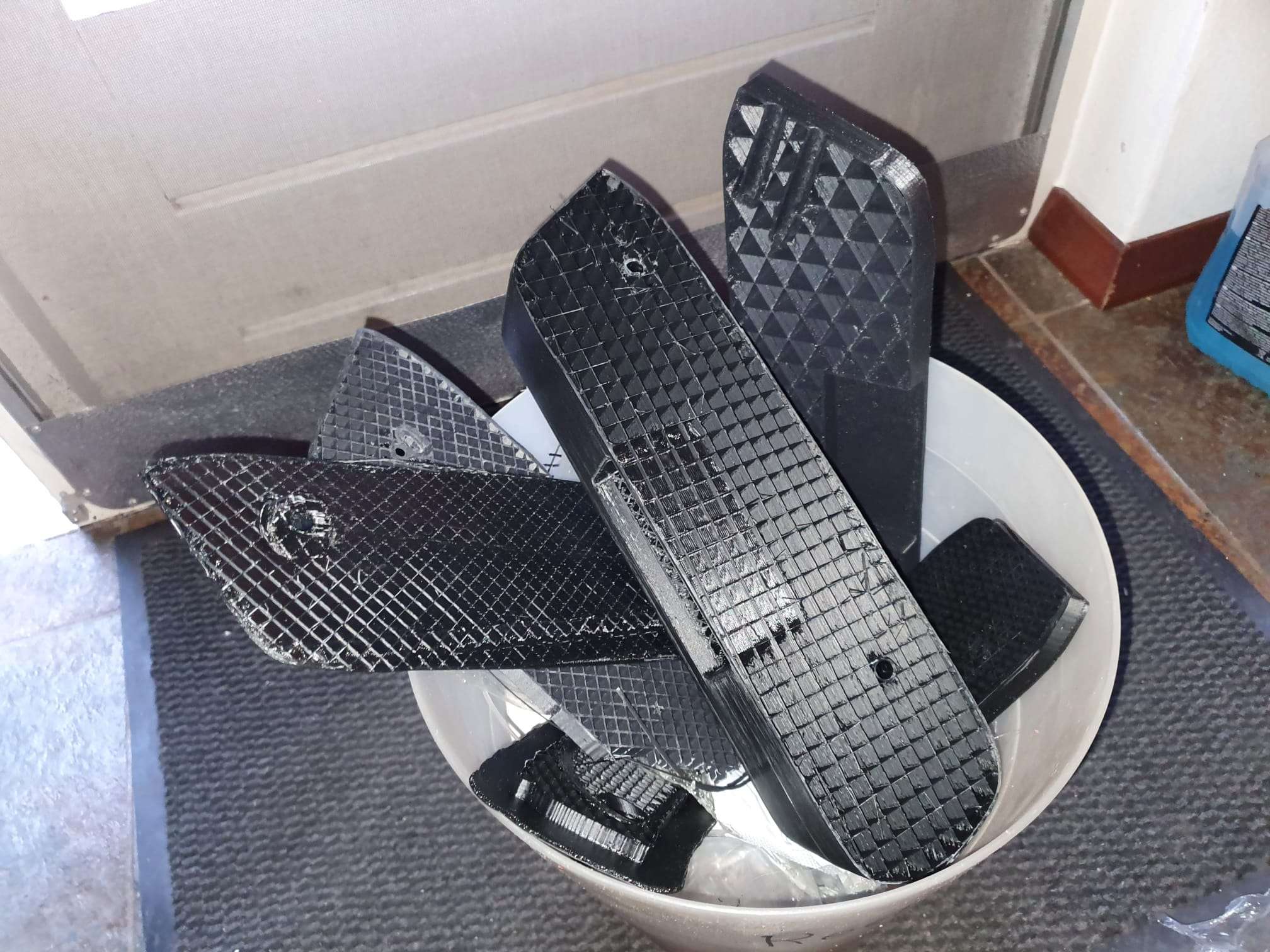
I made about 6 versions of both the designs and the printed parts before everything was OK.
The handle prints in around 6 hours on my twotrees sapphire pro at 100mm/s, 0.3 mm layer height with hi-temp ASA filament (0,6mm nozzle and BIQU high temp direct drive hotend installed).
The large armrest 387 mm long part prints in 20 hours at 0.3 mm layer height, ASA high-temp filament on my Voron 2.4 with a 0.5 mm nozzle.
The results are shown below:
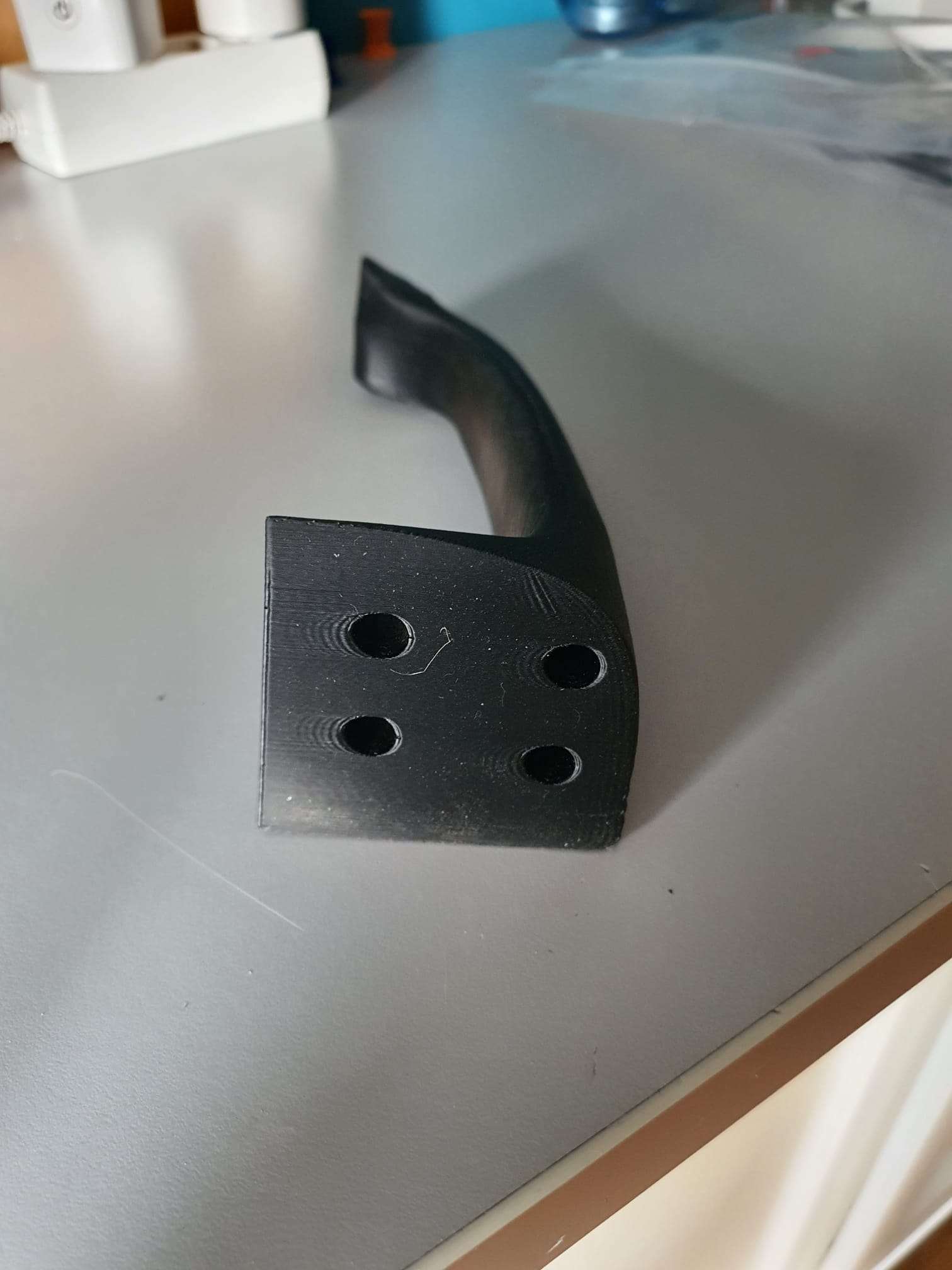
First compare of the 3d printed parts against the original.This is only the door handle, i.e. the front part that gets screwed onto the larger armrest part with 4 pieces 8mm screws
Above, the repaired mounting hole and its surroundings is shown. This was done with meshmixer.
This design shows the added pocket that I made in the design of the armrest to close the door by using this grip without the need to use the front handleFinal version of the STL file that can be printed either as 1 part with a really large 3d printer or, as I did: print it in 2 parts and connect the parts with 4 pieces 8mm plugs


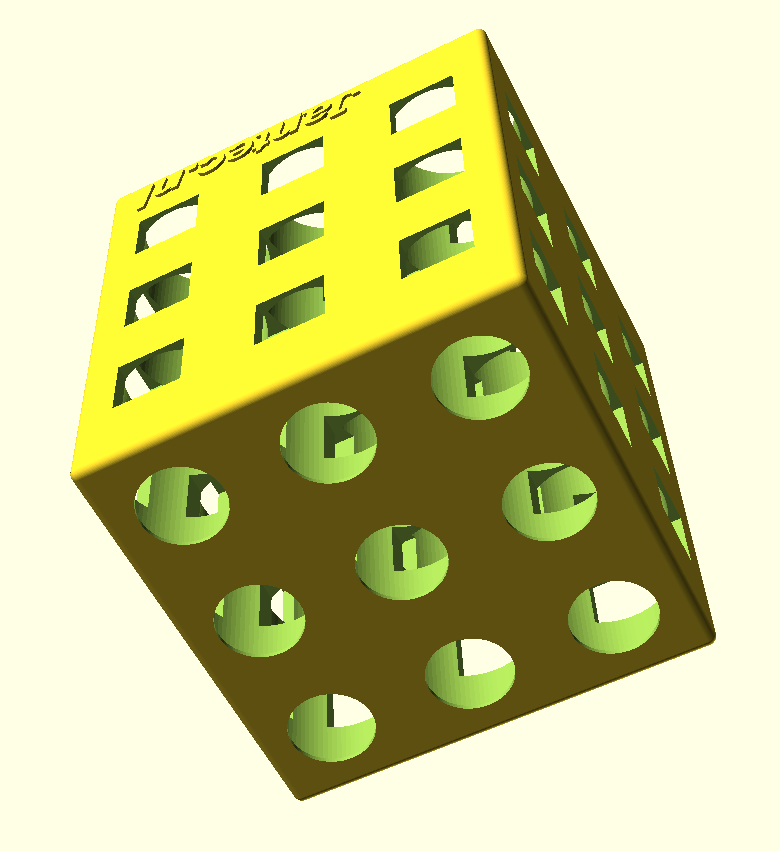
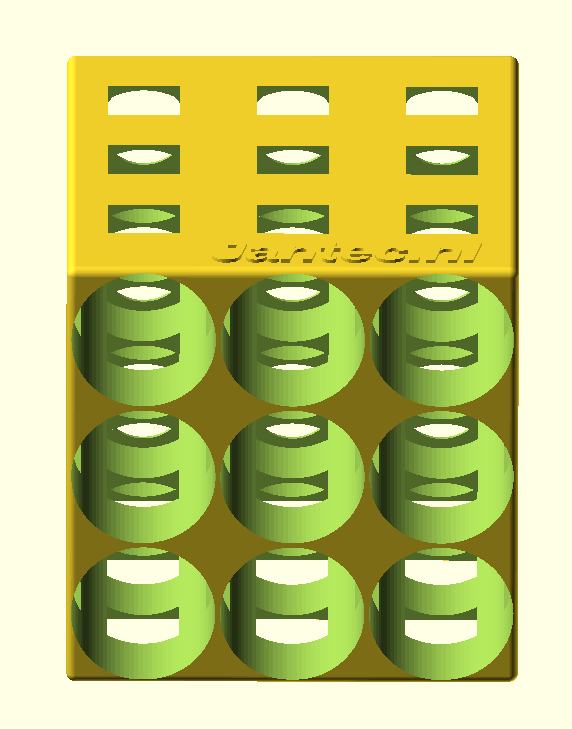
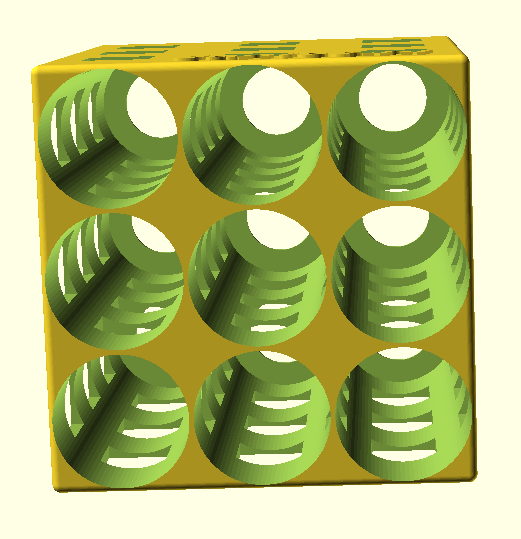
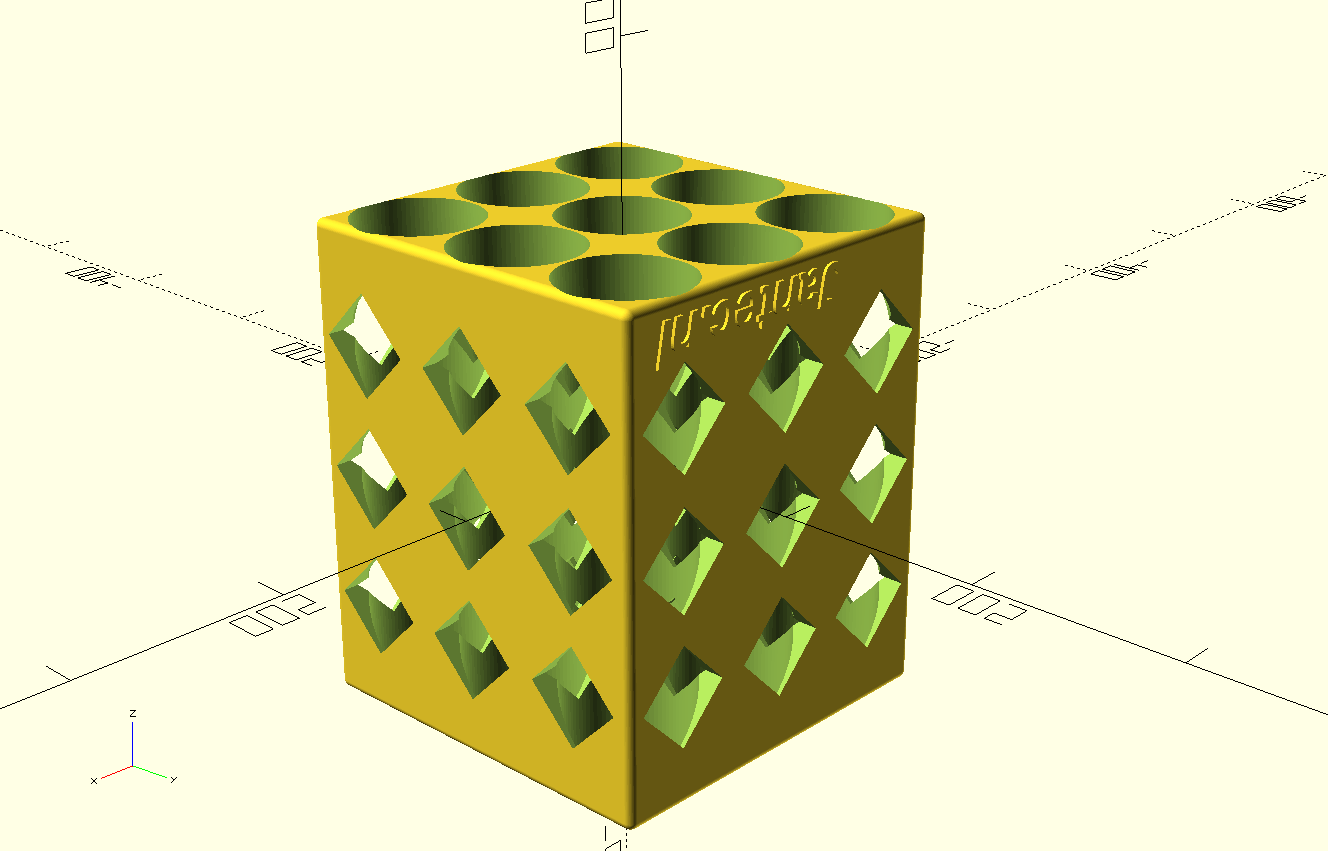 beer bottles fridge rack with 45deg squared side holes 2023 04 20
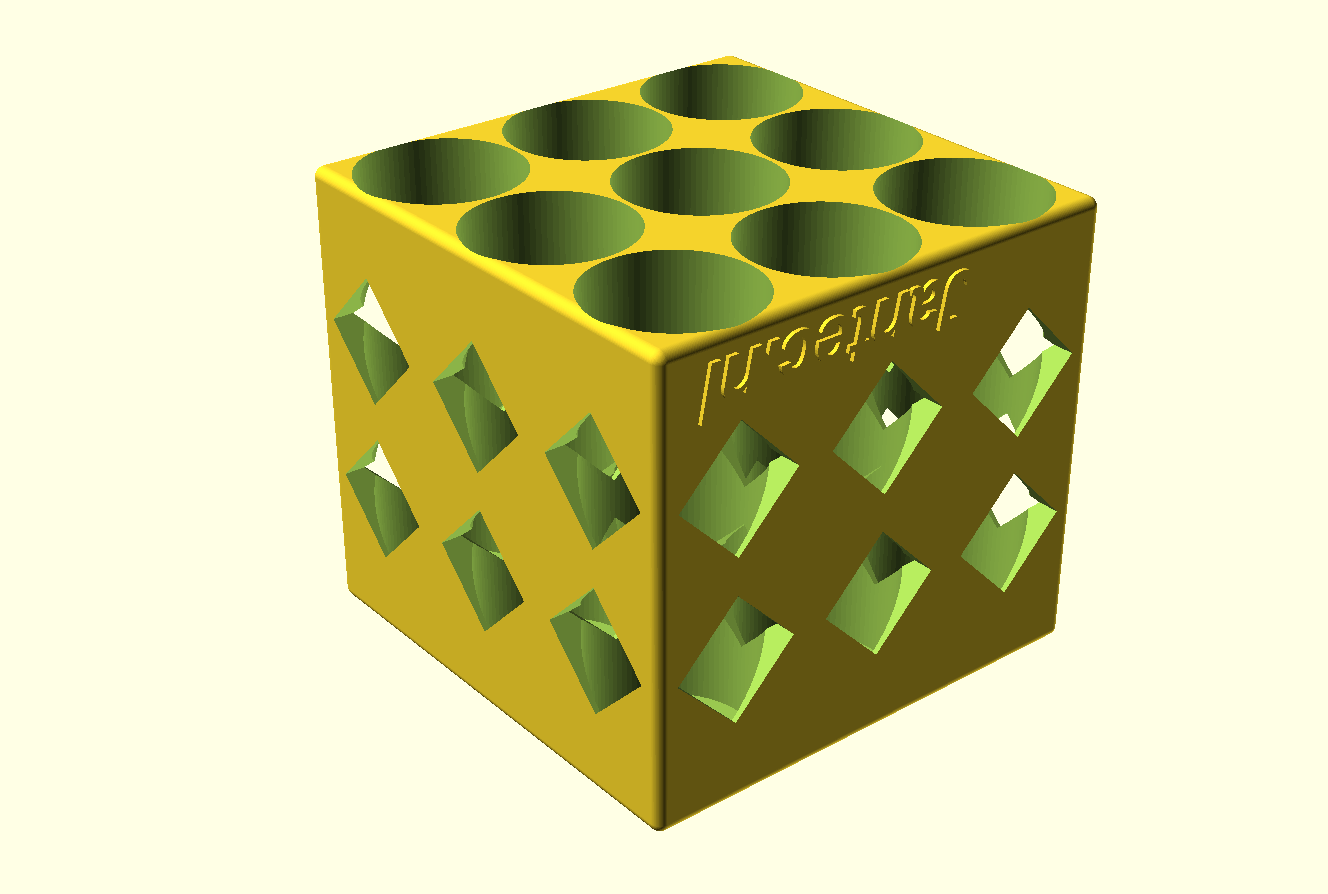 beer bottles SHORT fridge rack with 45deg squared side holes 2023 04 20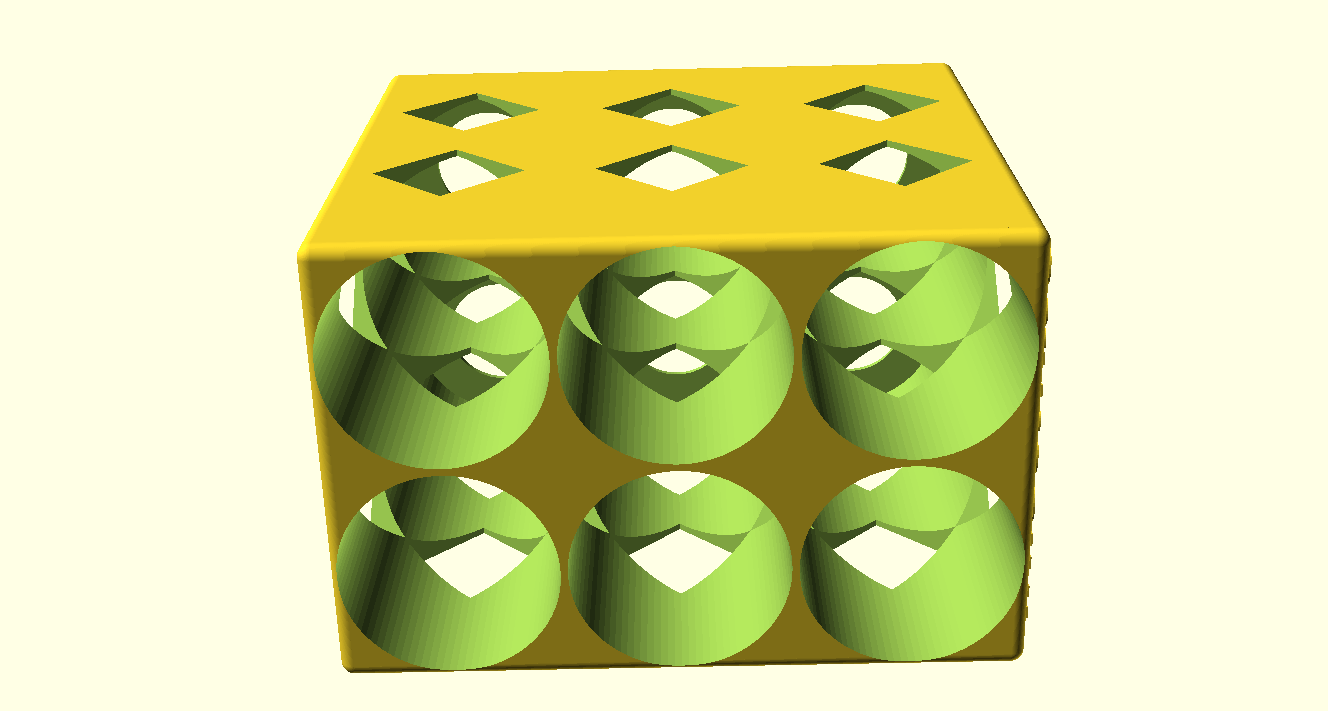
 Daarna bleek dat de kabel voor de dashcam gewoon netjes gemonteerd aanwezig is. Rechts op onderstaande foto kun je nog net het montagevoetje van de Garmin mini dashcam zien. Het blauwe losse stekkertje met gele vlakje is de stekker voor de originele BYD dashcam .