In 2020 I upgraded my Ender 3 with synchronised Z-axes and a new motherboard, the SKR Mini E3 V2.1.
The Ender 3 is very reliable and has been equipped with a direct drive bondtech extruder but still has the original hotend.
I chose the Ender3 to be the 3d printer on which I will attach the MMU2S. This also means that I will have to exchange the hotend/extruder combination with a Prusa Mk3S version.
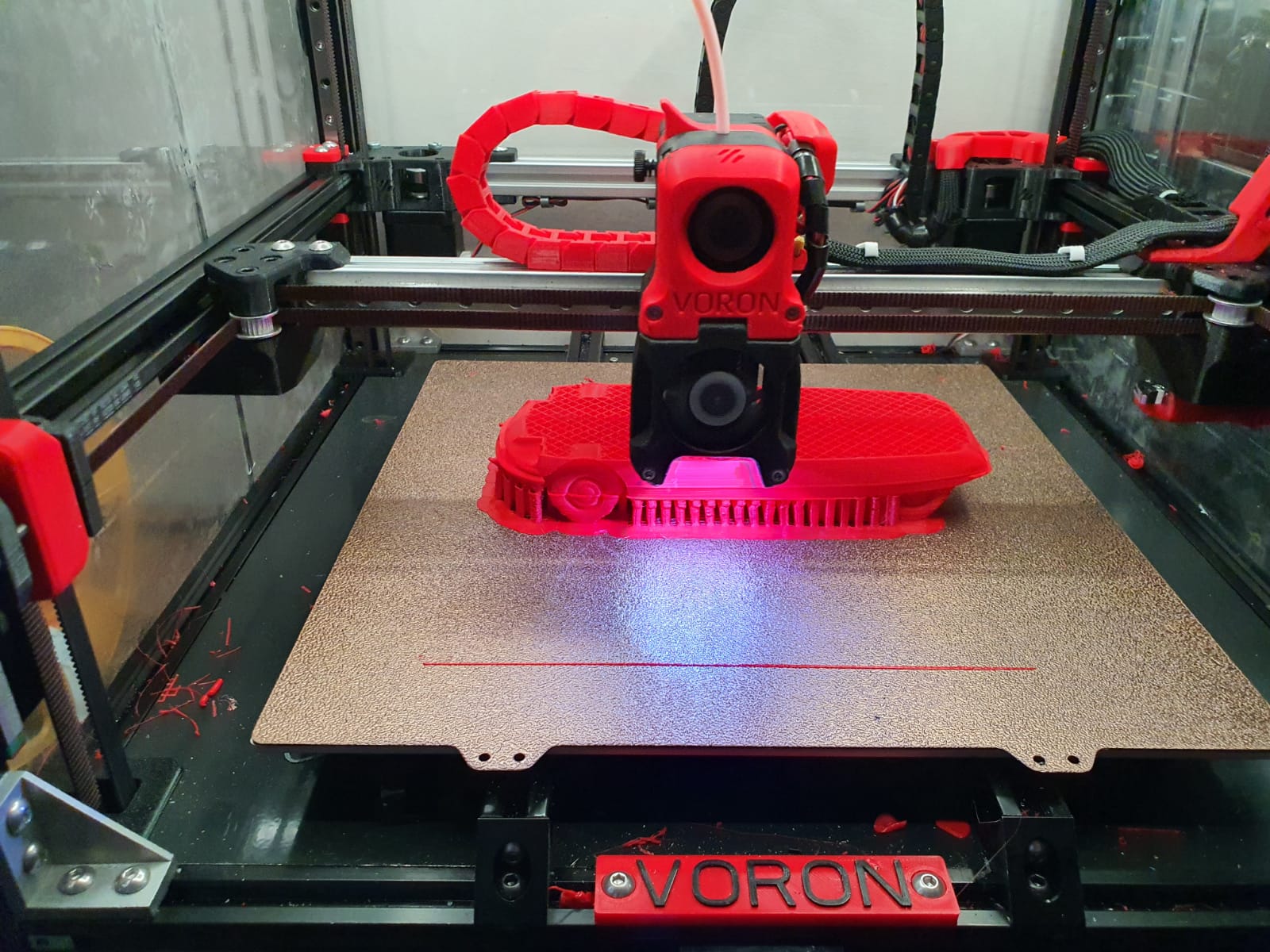
Started this on May 4th, 2021. Only the printed parts were needed, all other parts were already available through sourcing form a.o. Ali. I printed everything in ABS, mostly red. For this I used 2 machines: The Twotrees Sapphire pro with enclosure for black ABS and the Voron 2.3 (300) for red ABS.
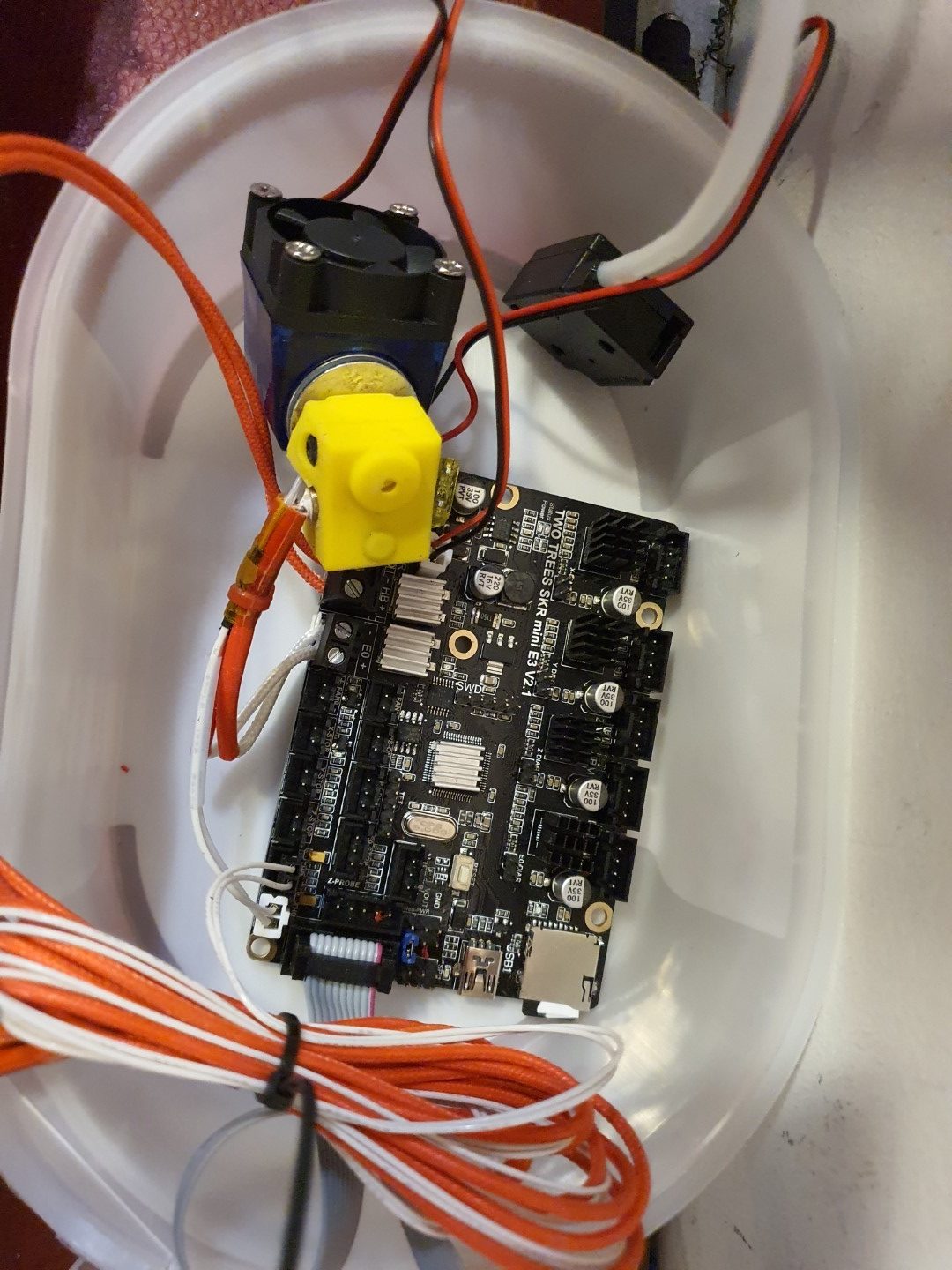
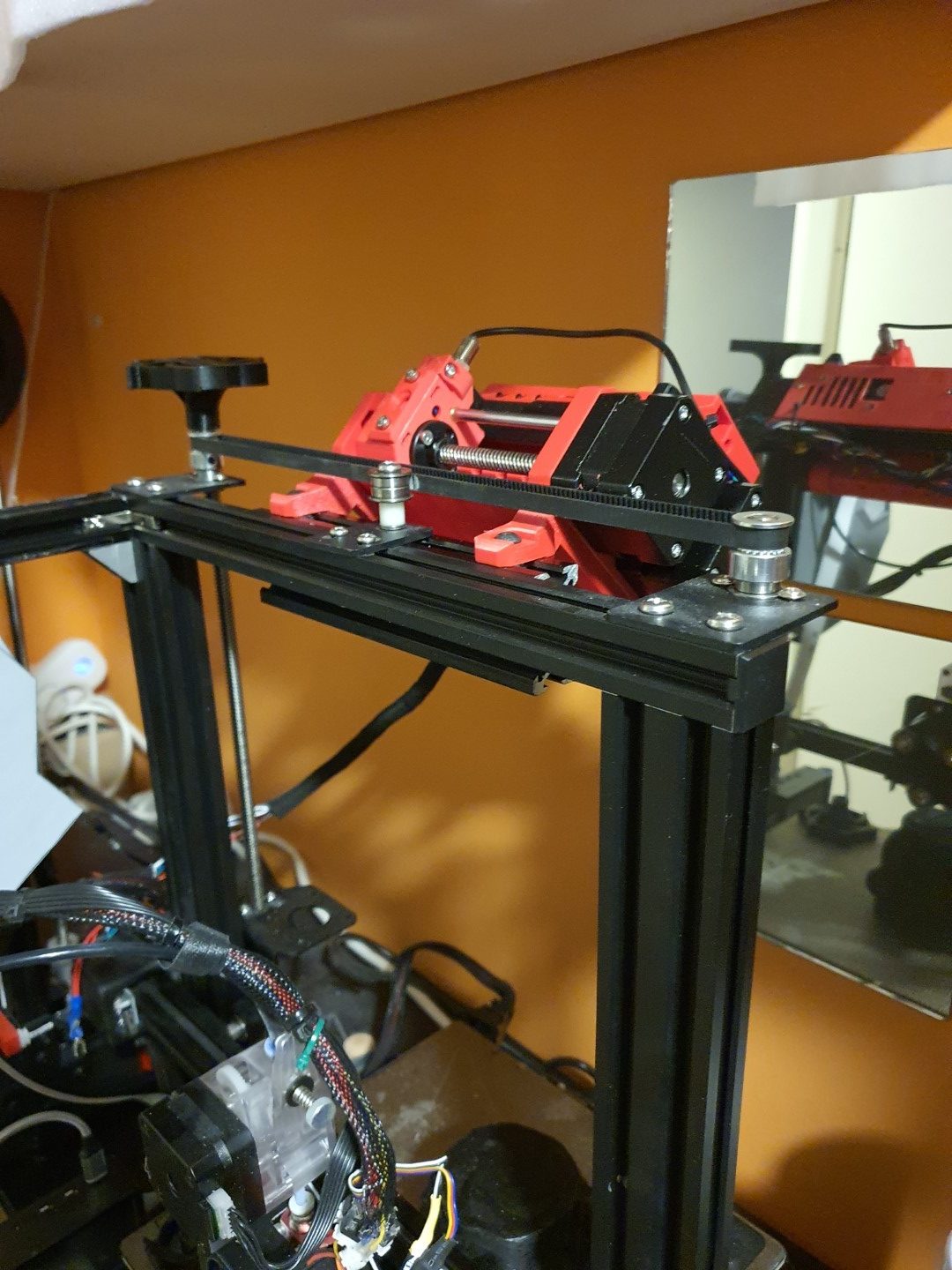
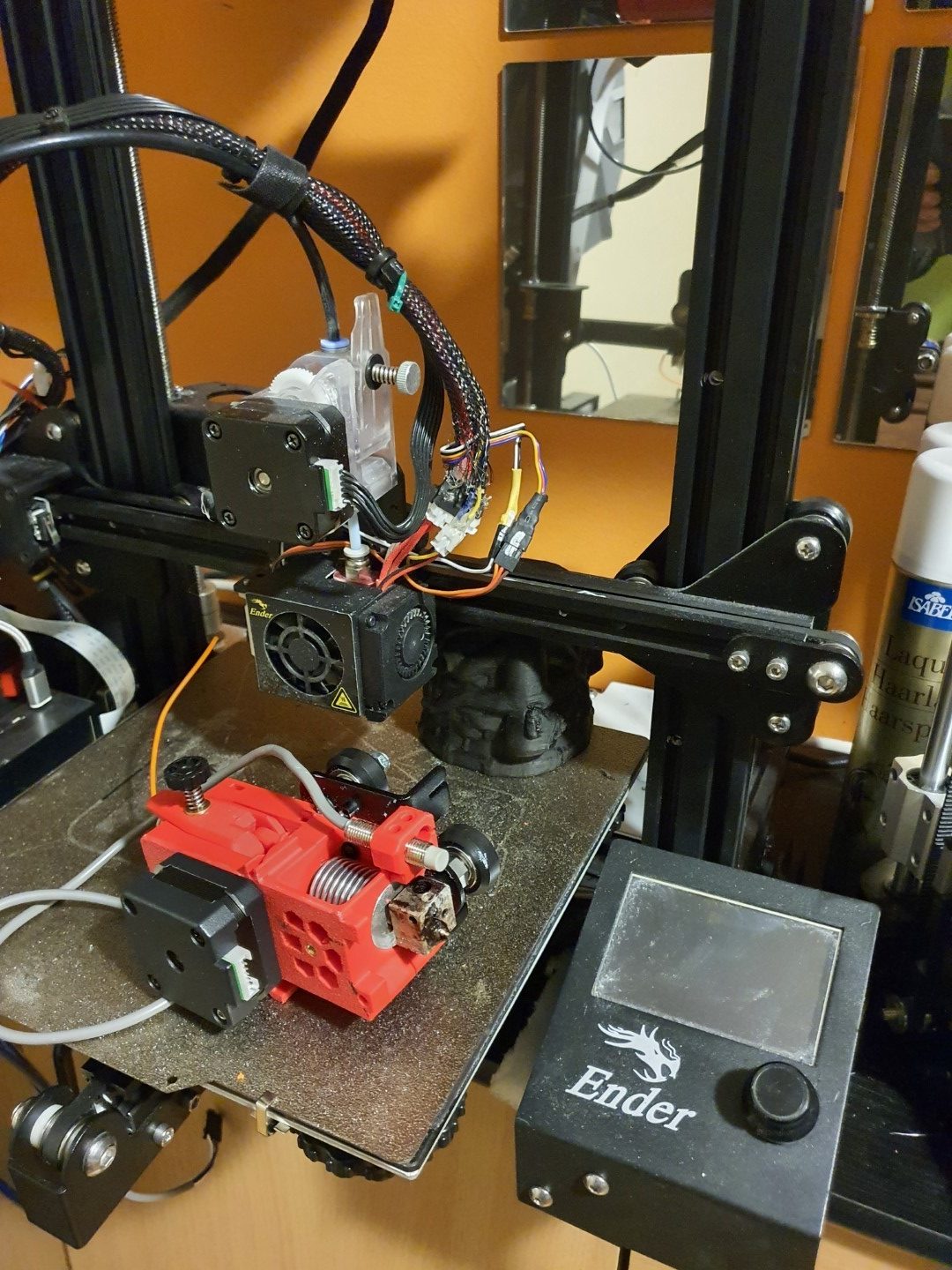
The motherboard that is also in the Ender3, SKR mini E3 V2.1. I used this setup to test the MMU hard- and software together with the SKR mini E3 motherboardThe MMU2S on top of the Ender3, just next to the 6mm belt that connects both Z-leadscrewsThe bondtech Prusa MK3S hotend/extruder combination, mounted on a 2020 mounting plate for the Ender3
There is a firmware version for the SKR mini E3 V2.1 on Github that makes use of the MMU2S. I downloaded this version and uploaded it to the board via visual studio code maker, all works well in the test setup. Some tweaking was needed in configuration.h and in the advance config, since I am using the S-version of the MMU2 and the filament sensor was not standard ON. And- it appears that the communication port needs to change to the 2nd port. You can see it all at the Reddit page, the additional changes to the published config files are these (thnx to fixel112):
Excerpt from Configuration.h:
#define SERIAL_PORT -1
#define SERIAL_PORT_2 2 <————— This has been the issue. Uncomment that line.
#define BAUDRATE 250000
Excerpt: Configuration_adv.h
#if ENABLED(PRUSA_MMU2)
// Serial port used for communication with MMU2.
// For AVR enable the UART port used for the MMU. (e.g., mmuSerial)
// For 32-bit boards check your HAL for available serial ports. (e.g., Serial2)
//#define MMU2_SERIAL_PORT 2
#define MMU2_SERIAL MSerial2
//#define MMU2_RST_PIN 23
// Enable if the MMU2 has 12V stepper motors (MMU2 Firmware 1.0.2 and up)
//#define MMU2_MODE_12V
// G-code to execute when MMU2 F.I.N.D.A. probe detects filament runout
#define MMU2_FILAMENT_RUNOUT_SCRIPT “M600”
…
#define MMU2_DEBUG // Write debug info to serial output
#endif // PRUSA_MMU2
Next is to put everything physically on the Ender, and exchange the hotend/extruder. Then, the settings for the extrusion lengths will have to be determined. And- the buffer for the filament between the MMU2S and the filament spools has to be installed. As soon as I have it all properly installed, more pictures will follow!
I discovered that the dual display I now use for the Ender3 will only work for Marlin LCD and no longer for TFT, since the serial TFT pins will be used to drive the MMU2S unit. I exchanged the TFT/LCD unit with the original Ender3 LCD, I kept this in storage and tested it today with the Ender mini E3 V2.1 , it works very well!
The twotrees SKR Mini E3 V2.1 motherboard is really perfect for the combination with the MMU2S and the new filament sensor in the new hotend/extruder. The firmware has been updated to include the MMU2S and the AUX’s serial that was previously used for the TFT screen is now in use by the MMU! It all works!!!
Now the next thing was to get the new extruder, F.I.N.D.A. and the filament sensr to work properly.
That took some time and next on the agenda is the filament management.
I already decided to go with the original Prusa filament box with plates to hold the retracted filament for all 5 spools. The spools themselves will hang at the wall, behind the printer. I don’t have space for standing spoolholders. Underneath the spools the filament box with plates gets its place on the wall and from there the 5 PTFE tubes will run to the MMU!
As I experienced, from my 10+ 3d printers only the Prusa mini and the I3 Bear deliver adequate print quality. Even the Voron 2.4 CoreXY has problems if you look carefully at the printed results. Though all prerequisites were made to build a good printer, it was never really matching real good quality. So- in my search for the root cause of this somewhat disappointing discovery, I stumbled on some interesting stuff: The HevORT Advanced DIY 3D Printer project.
I found this website as a link from one of my fact finding searches for the cause of wobble in my linear rails that I am using for my Indymill CNC.
Obviously, the cheaper rolled linear screws with ball bearing nuts are not as good as the ones that are first cut on a lathe and are then grinded on a special machine. The better linear screws with ball bearings are specified into 10 categories from 1 to 10 where no.1 is most expensive and no.10 the least expensive. Quality is better with higher price. Prices are over 500 Dollars US for the better ones, but can mount up even higher.
If you look at the category of the rolled ball bearing screws, these take a lot of strain in the material due to the manufacturing process. The strain causes an unequal surface and therefore this can cause lateral wobble. When using these cheap linear ball bearing screws for 3d printers as Z-drives, the lateral problem can be solved by adding shifting plates as horizontal shift compensator.
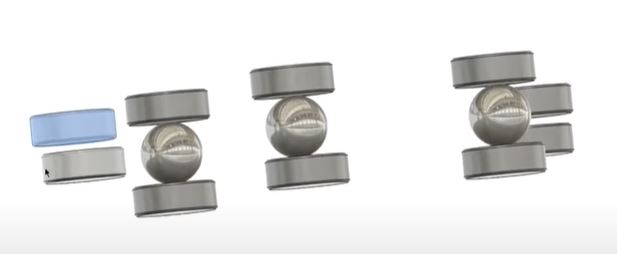
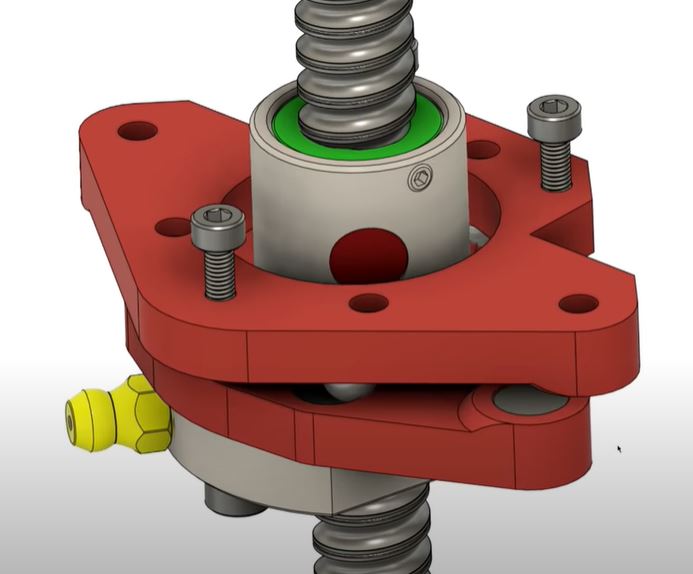
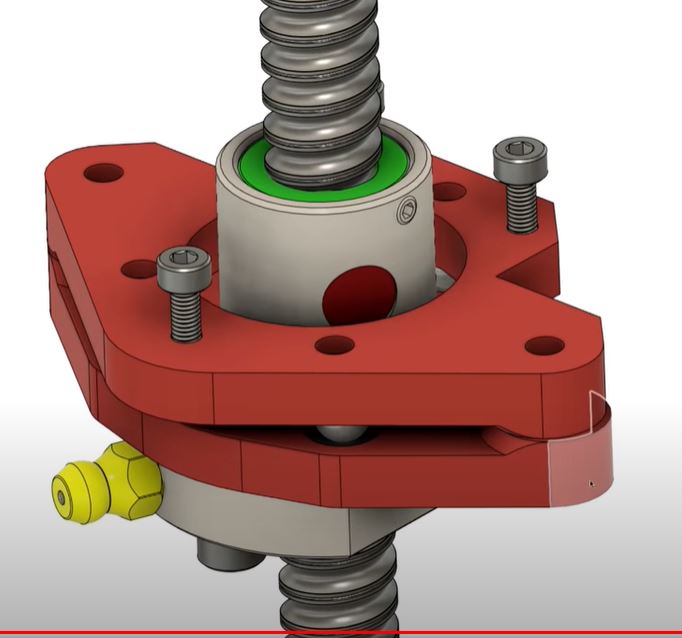
On the net, a solution is given by using a couple of bearing balls (3) between magnets that are used as rolling plates on top and bottom. The shifting plate holders on top and bottom stay aligned with each other by mounting 2 magnets that attract each other on 2 sides of these plates. Please see the cutouts I took from the movie that is provided in the above mentioned link:
This can be implemented in the HevOrt BUT I feel that my Voron2.4 could really benefit also from this solution. Although the Voron is depending on the vertical linear rails for sliding up and down and a belt mechanism is making the motion happen, the mechanism that compensates for any wobble or different sizing of the frame is only a friction plate of (in my case) 2 PETG surfaces that slides on each other, 1 per vertical axle.
So, I will see what I can find or make to get the above anti-lateral wobble solution built and implemented in the Voron 2.4 asap and see what the result will be!
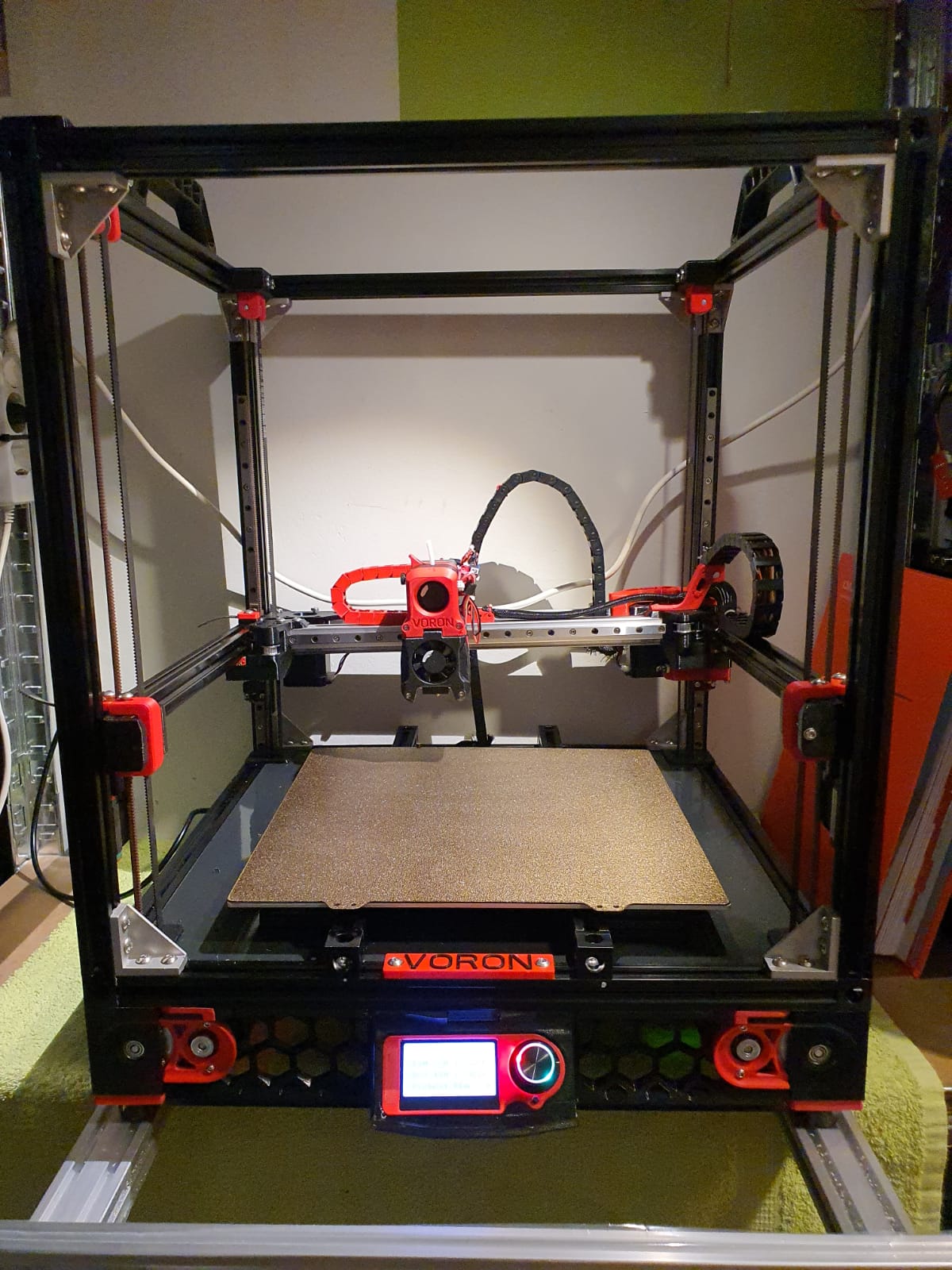
My experiences with CoreXY printers are excellent, so I chose a VORON for my home-built COREXY printer with a print size of 300x300x300 mm.
Developed from a large community, the VORON is one of the best and most reliable 3D printers. And this printer just looks really good!
Via AliExpress, Banggood, Reichelt, aluminiumopmaat.nl and plexiglas.nl I ordered all the stuff, according to the bill of materials I could download from the VORON site.
I printed the PETG parts on the Prusa mini at 0.15 fine.
The ABS parts (red and black) were printed on the Twotrees Sapphire plus. It took a lot of ‘tweeking’ before the ABS came out well but in the end I got a nice result!
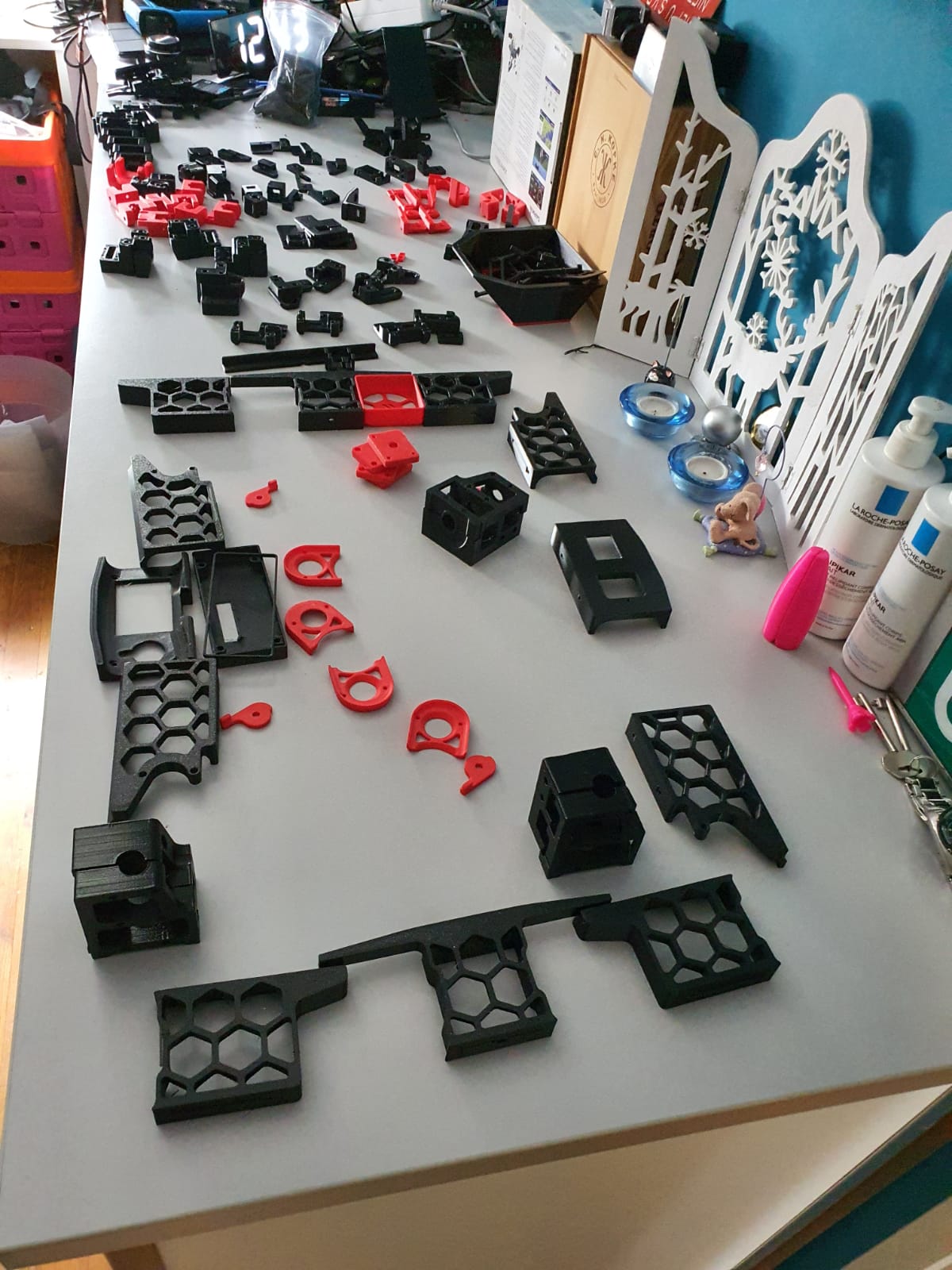
Printed parts for the Voron 2.4 300In the end, rebuilding is not really self-building and it is more based on ordering and assembling than getting to work with the saw and drill yourself. Also the necessary 8(!) linear rails of 350mm, bearings, gears, belts, motors, electronics and so on have been ordered and the rest of the necessary stuff has been printed (25-8-2020).
For the control part I have chosen one PI Raspberry PI 4B 4GB and two pieces of SKR 1.4 turbo motherboards, according to the VORON recommendation.
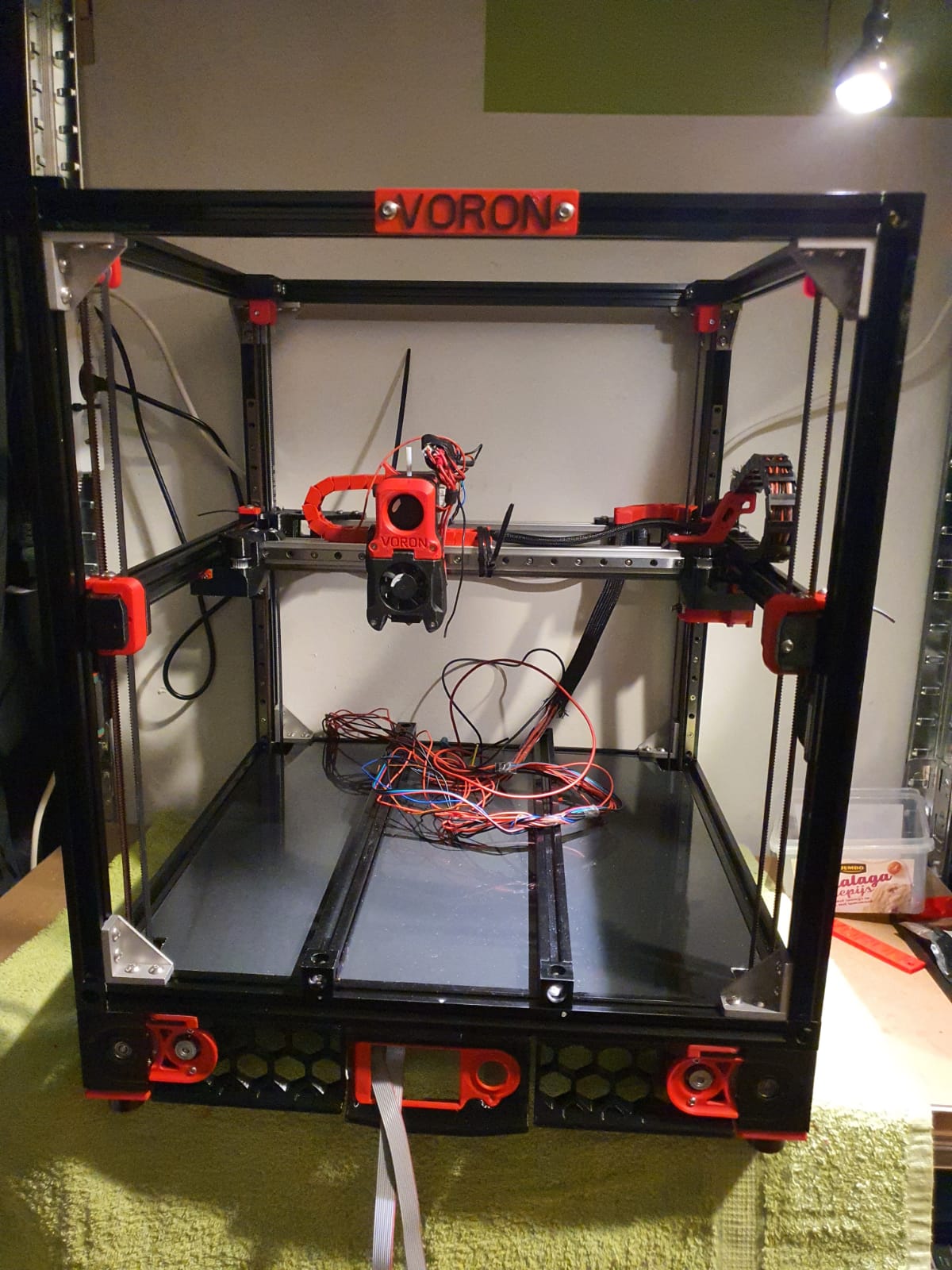
Building the Voron 2.4 with the afterburner Beta1 hotend combination is illustrated by the following pictures.
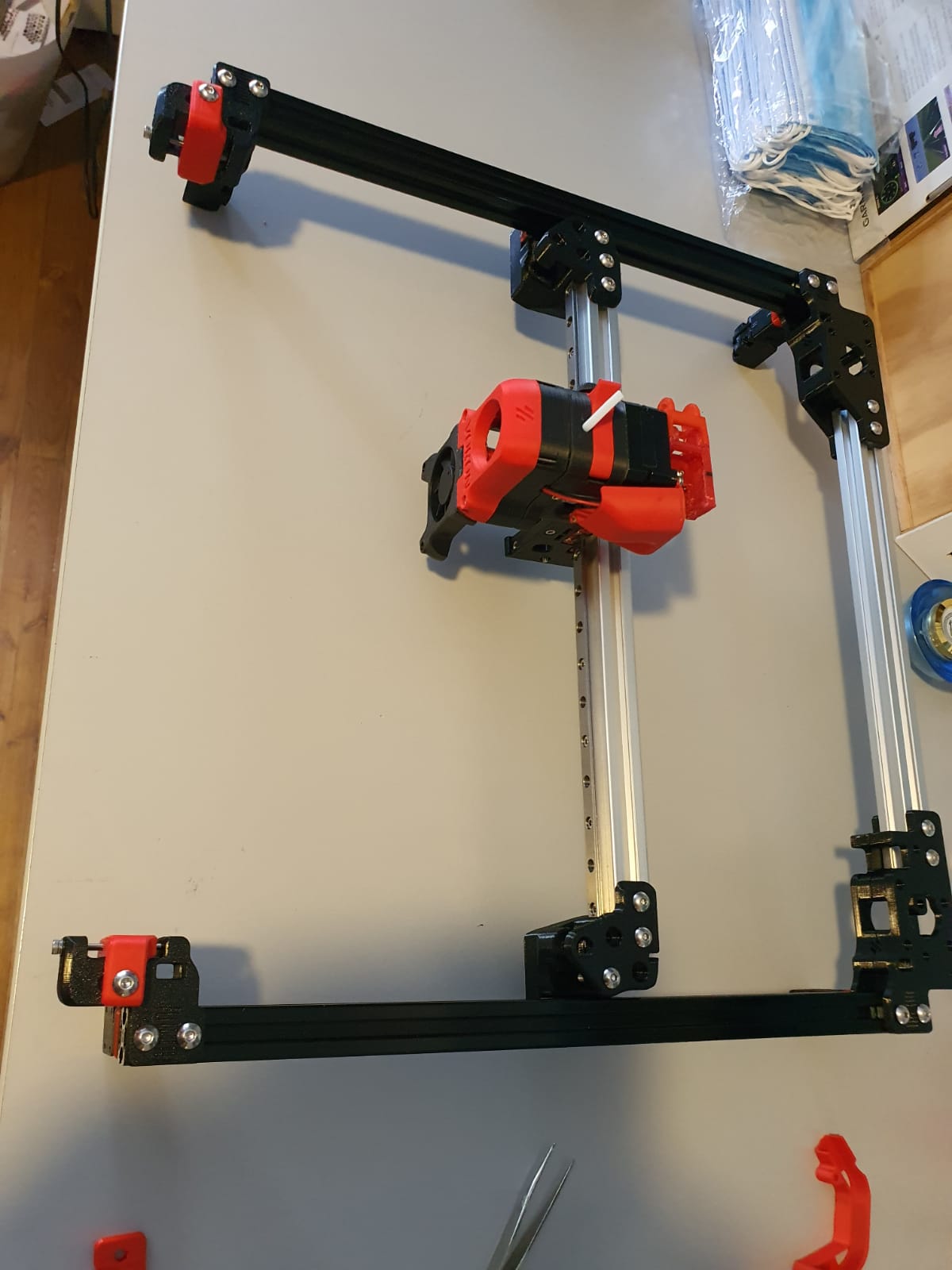
Gantry ready:
Gantry of my Voron 2.4 300Housing and skirts underside with Z-motors yet without the gantry mounted:
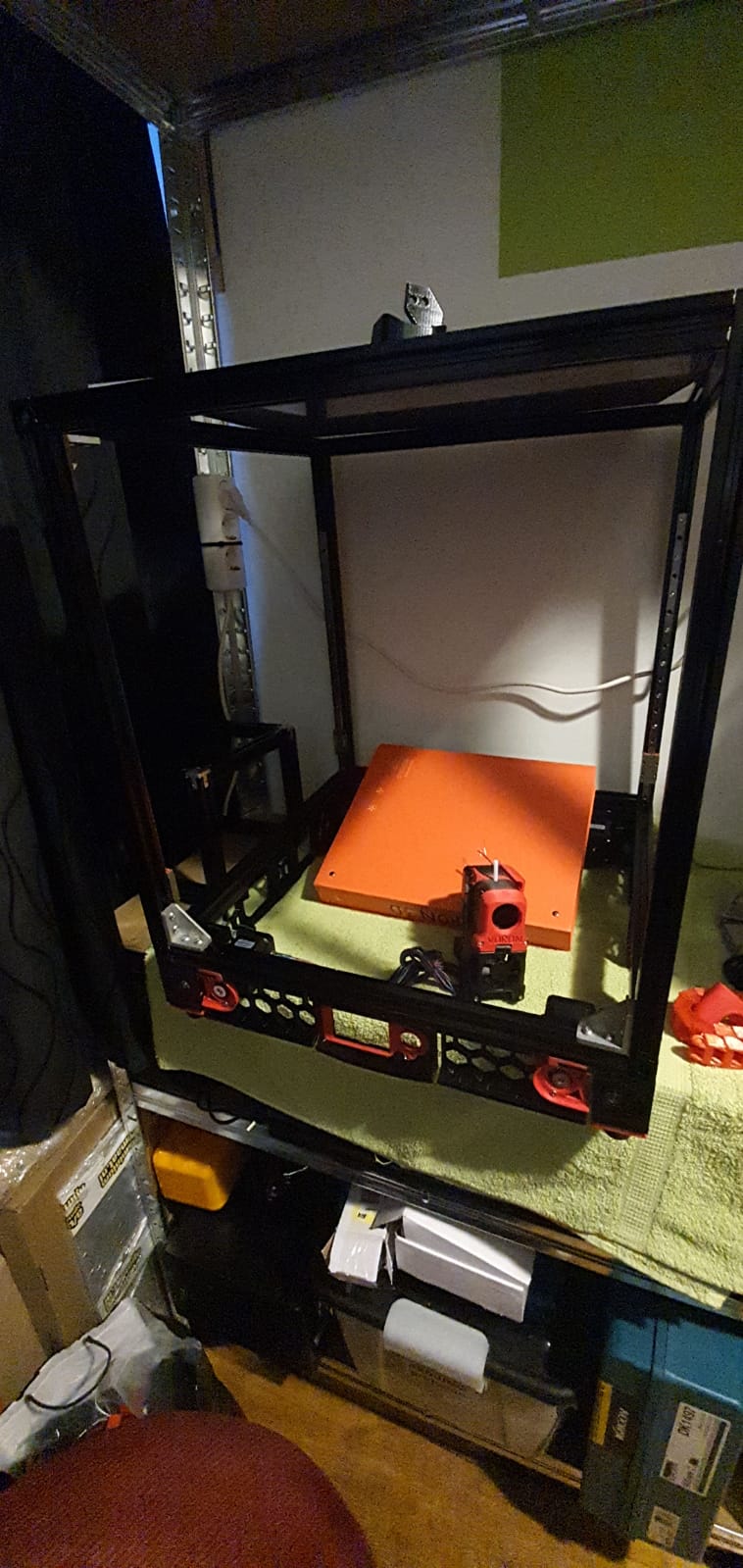
Frame of my Voron 2.4 300Electronics positioning underneath my Voron 2.4 300
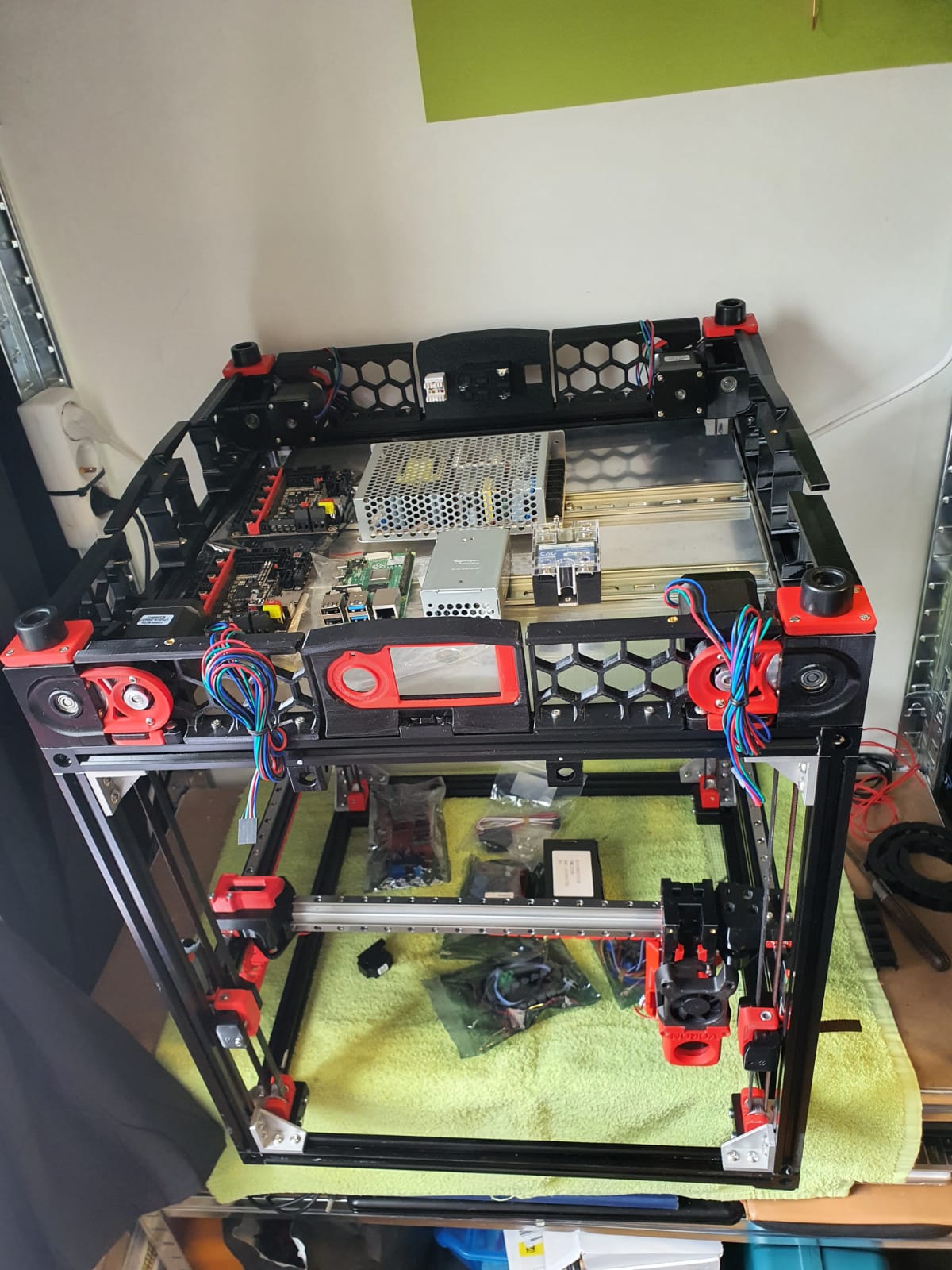
Below: The 9 mm drive belts of the 4 Z-axes placed:
Halfway the building phase of my Voron 2.4 300
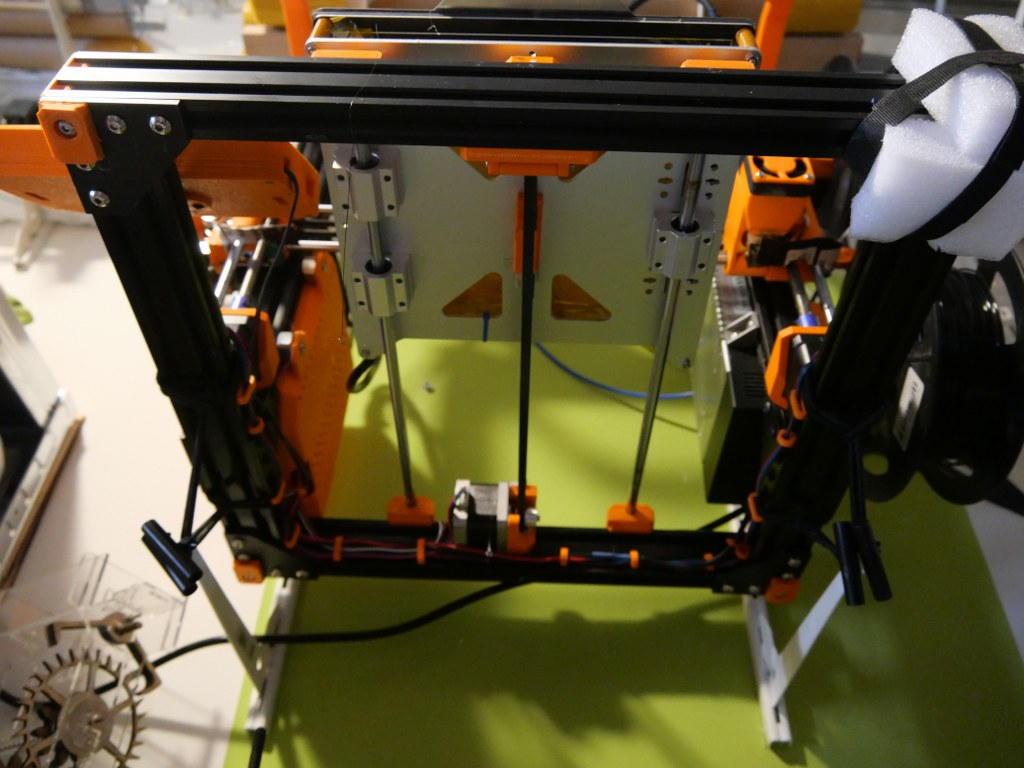
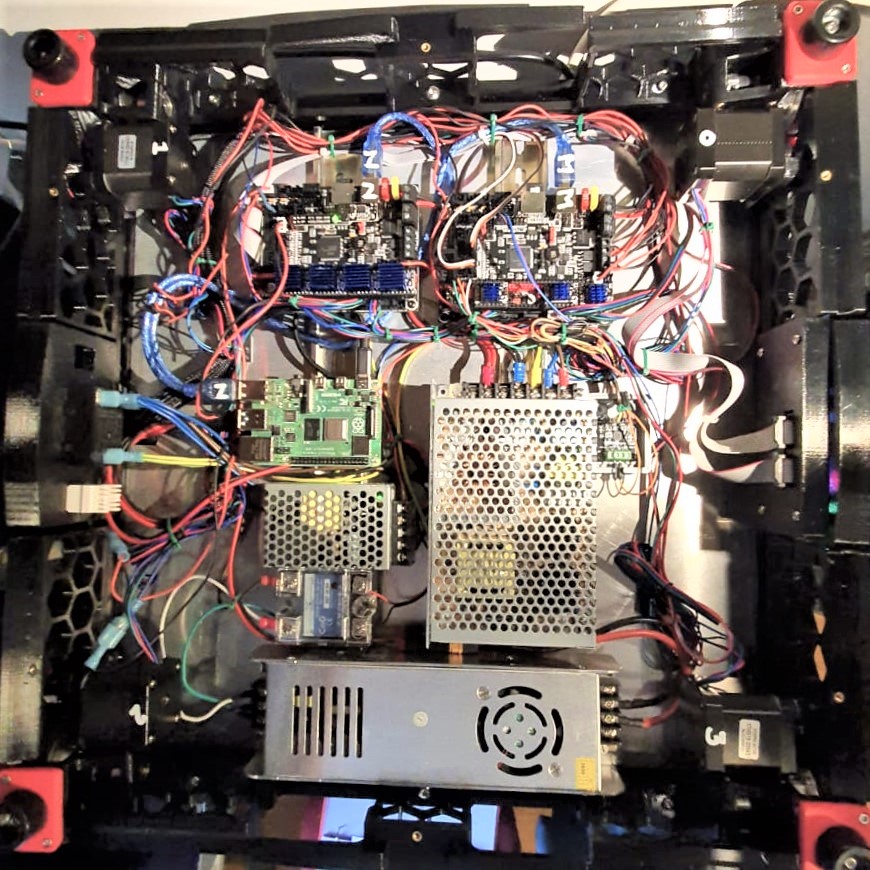
And the assembled base plate with the rails and controls, power supplies and so on (printer turned over):
Cabling and electronics of my Voron 2.4 3000: 2xSKR1.4 turbo with Klipper, Raspberry PI and Octoprint with Klipper
We are still waiting for the bearings for the Alpha and Beta drives in the gantry. These bearings are used to make a tension roller per 2 pieces. I had originally bought idler bearings for this purpose, but the diameter of the collar of these bearings is just too large.
Too bad but then I have to work on the Raspberry PI4B in combination with 2 times SKR V1.4 turbo motherboards. The PI will make a new config.bin via Klipper for the SKR V1.4 motherboards so the PI can drive both SKR boards at the same time. On the main board will be Alpha and Beta and the extruder plus the extruder heater, on the other (Z) board the 4 Z-motors and bed heater. By itself a Duet with expansion board could have been an option too, but the Voron designers made it with the PI, Klipper and 2 SKR boards. And I try to stay as close to the design as possible . -)
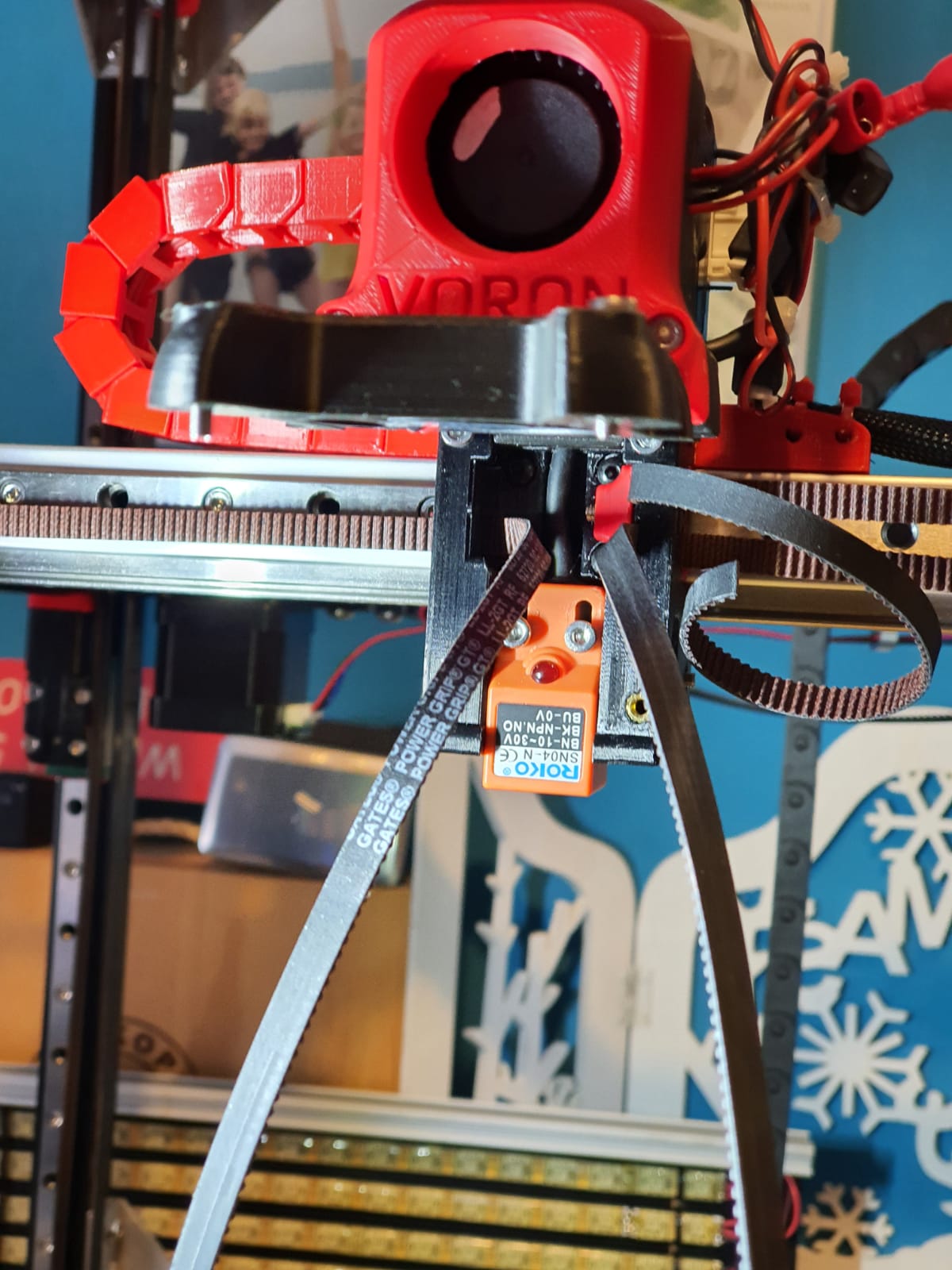
Below: Threading the straps, no picture used. Just start somewhere and you’ll end up right. Oh yes, also changed the sensor in the config from NC to NO..
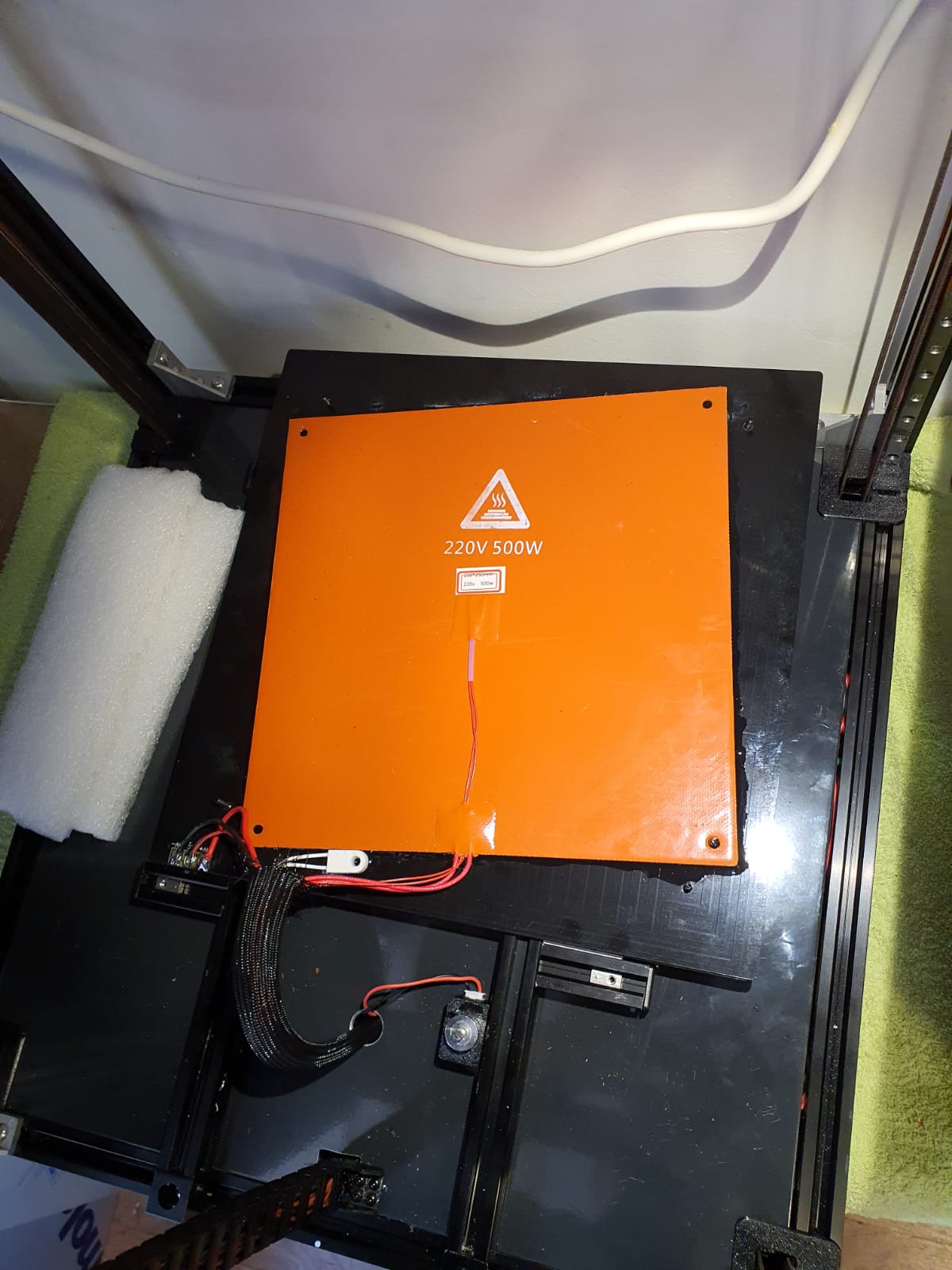
Below: In addition to the 24Volt 200 Watt hotbed nevertheless also added the 500 Watt 230V. With only the 24V version it took more than 20 minutes to get to 110 degrees Celsius…
Old:
And new— no PID run done yet..)
Below: The steel plate is placed on the sticky magnet sheet.
Below: First print…. I had to search for the Z offset adjustment and the extruder turned the wrong way around. Also the gantry leveling took some thought, you actually have to make the basic setting with a ruler, otherwise the leveling takes a long time. Nice is that a bed mesh leveling is not necessary anymore, but of course it can be done. You turn a home and because the nozzle always calibrates the Z on the mechanical Z endstop, and the gantry does all the leveling, you always have a good first layer. Unless the bed warps but with such a thick plate that seems almost impossible. Just to be sure, I did include a bed_mesh profile in the config.g. By the way I just used a 24 V aluminum hotbed as a base because my 8 mm 310×310 plate turned out to be a cut plate instead of sawn. And a cut sheet turns out to be non-flat on the cut sides by default, unfortunately. Flattening costs more than a new plate, maybe that will come sometime….
And with enclosure, camera and the TOP LED’s:
Afterword:
In practice, I fixed a few more minor flaws, including:
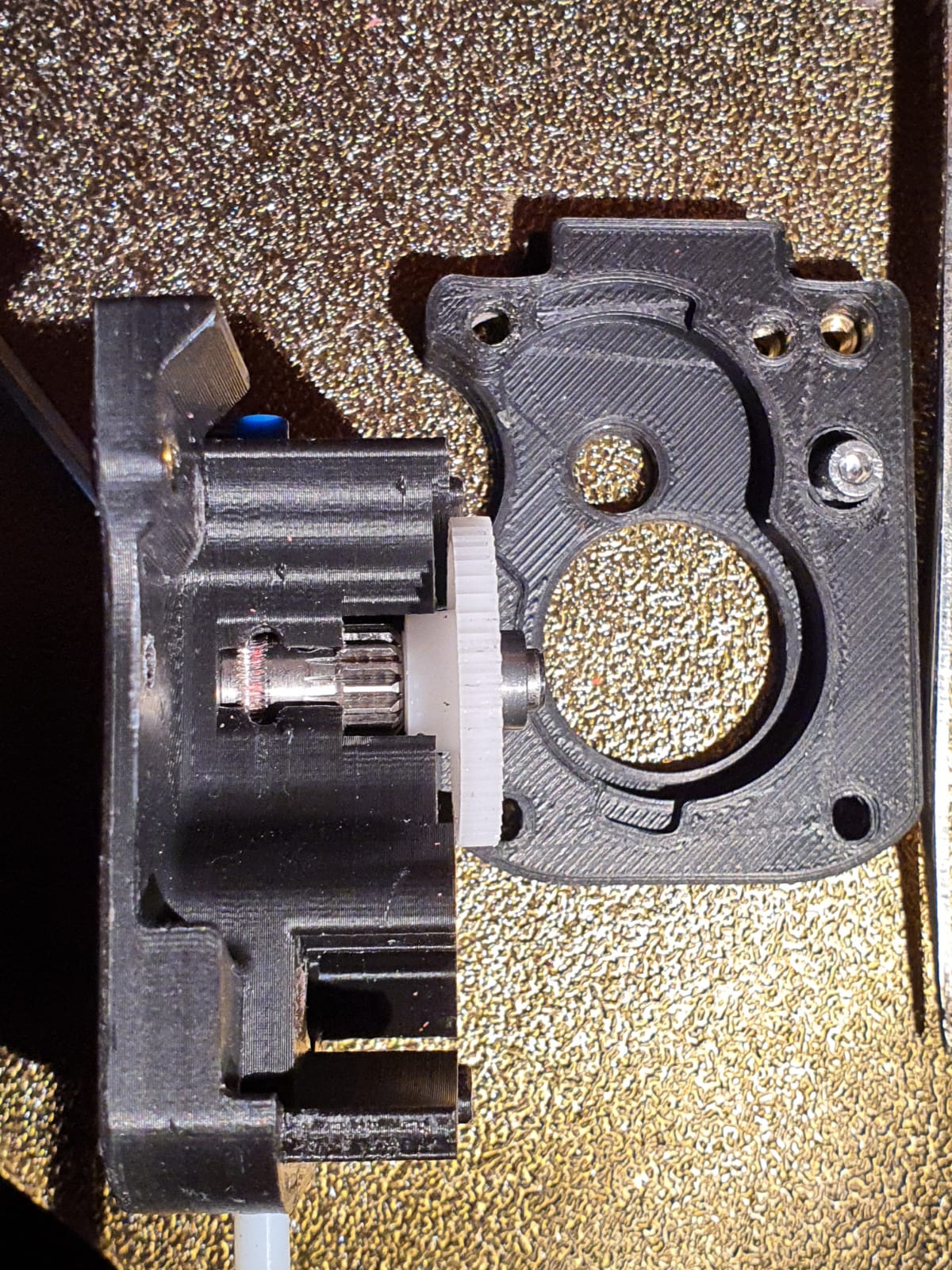
Extruder tuning. The donor extruder turned out not to pick up the filament properly.
First I tried to put a ring in between the left side of the shaft, but then the nylon gear on the right side of the shaft gets tight and the housing can’t be closed completely anymore….
I ended up using a spare set of dual drive extruder gears and swapping the set of gears. With that, the filament was properly aligned with the running path of the gears. See the picture how it was at first:
Misaligned filament path in Afterburner extruder
Hotend tuning
After the PID runs of hotend and heated bed, my chosen assembly of the custom ED6 heater block, the heatbreak pipe and the cooling element turned out not to fit together properly. The result was that when the filament was extracted, a thick piece was always stuck at the end. This was caused by the heatbreak pipe not fitting tightly on the nozzle. There should be no play between them. I completely demounted the filament and screwed the heatbreak pipe 2 turns less into the cooling element with red threadlocker. Let it harden for a day and then I assembled the rest. By the way, I also mounted the teflon version of the heatbreak pipe in stead of the titanium version. The tintanium version was to my experience a bit too stiff. Or my filament was too old or inferior. In any case, after the modification, everything works without problems.
Hotbed, TPU and ABS
To print TPU and ABS without brim or skirt without warping I bought a magnetic PEI steel plate with coarse profile. It really works perfectly. Both ABS at 110 degrees sticks nicely and TPU at room temperature sticks nicely too. And the removal is also without problems. Occasionally I spray a little hairspray on the plate but I don’t think that lacquer is really necessary at all. It is meant to make the removal easier.
Tension of the belts
I tried getting the belts at the same tension, this was not that easy. Finally I ended up with a mechanical way of measuring tension after putting 1 at my desired tension and comparing this as reference with the other to be compared belts. So, for the Alpha and Beta belts I first did a ‘good feeling’ setting and then I used my old trunk scale weight device to measure the tension when pulling the belt A. Then, I used the device to measure at the same place for B. And I repeated this for the 4 vertical belts.
Alignment
Aligning the machine is also a bit of a challenge…
You must assume that your frame is square and straight. You have to check this thoroughly. Both vertically, horizontally and diagonally. Then you can adjust the gantry. Loosen and remove the A and B belts. Or do the alignment BEFORE placing the belts.
Fix the horizontal position of the Gantry otherwise you can’t align at all. Place 4 equal distance blocks of about 10-15 cm under the sliders of the vertical linear rails on the lower 2020 profiles, in the 4 corners through which the gantry rests stably. I have placed position holders under all MGN9 vertical linear rails afterwards so that the rails cannot slide in the 20×20 V profile. If you use ‘regular’ 20×20 extrusion profile you don’t have a problem because there is enough ‘meat’ left for attaching your rail to the profile. With V-profile, the groove is a bit wider and it is very difficult to mount the rails neatly without tools in the groove. My frame is of V-rail profile and the gantry of plain 2020 profile.
The alignment of the gantry I started at the back. Loosening all screws a bit, including the screws of the convex connectors that hold the gantry to the linear rails. By the way, I see some builders placing these screws with multiple spring washers. I’m going to do that too…
At the rear of the gantry, push the gantry completely against the rear. There should be no gap between the XY joints and the frame. PS: Leave the endstops off for a while at this action!
While the gantry is sitting against the back, tighten the XY joints and the sliders of the X-axle as well. (the side of the endstops holder is temporarily secured with 2 screws)
Tighten the rear 2 gantry joints (with the convex surfaces) as well. This fixes the rear position at right angles.
Carefully slide the gantry forward. This should be possible without any effort. If not, check whether there is enough play (and if necessary loosen the screws) on the gantry joints at the front (with the convex surfaces). If you still don’t have a free run to the front, your frame is not good or your vertical rails are not seated properly. First check the correct positioning of your rails with your position tool (from the printed stock) and to be sure also unscrew the 4 screws on both front vertical rails. Try again if the sliding of the gantry goes smoothly. Still no good? Then reverse the procedure and start at the front. Try to set the gantry exactly level with the frame.
After adjusting: Test the alignment also halfway (vertically) and at the top!
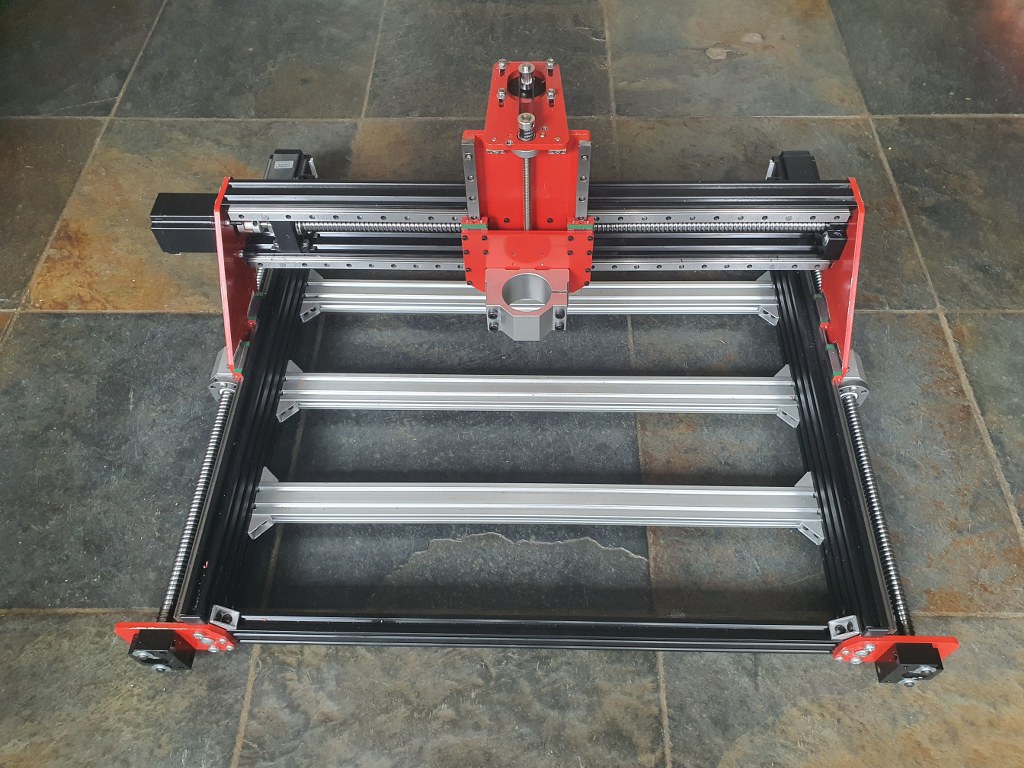
The Indymill’s Z-axis uses a lead screw by design , and not a ballscrew as I would like. But- that will be changed later.
For now, the lead screw solution will be OK because I will first build the Indymill machine and use the 500 Watt DC engine I already have for my CNC3018 setup.
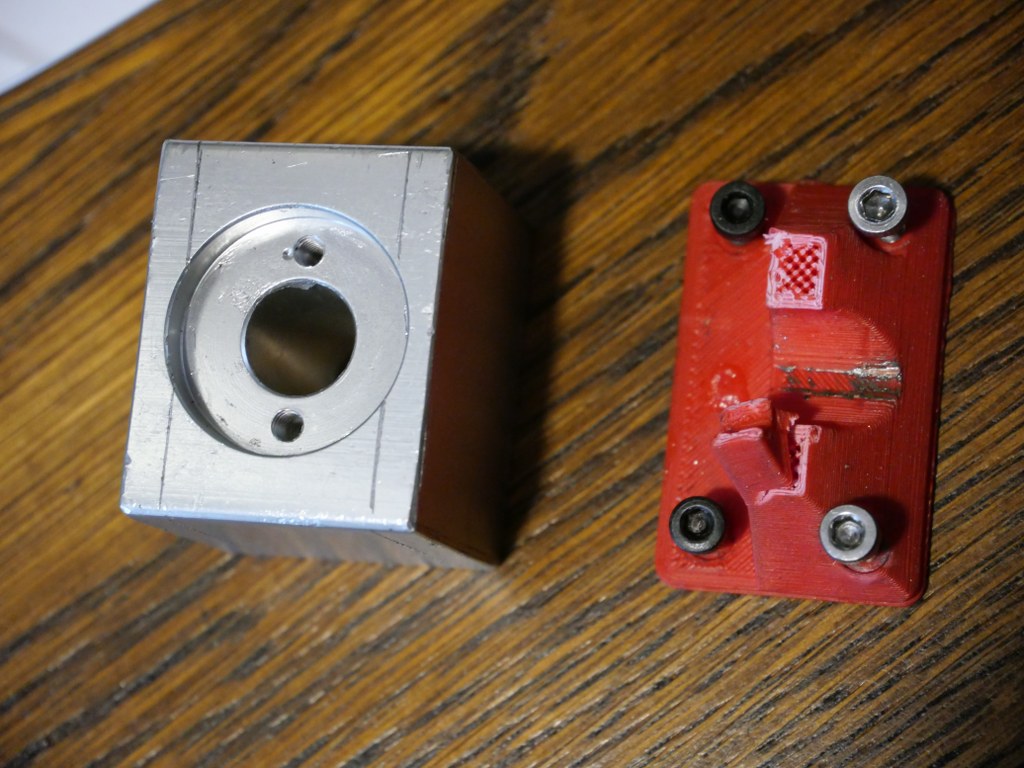
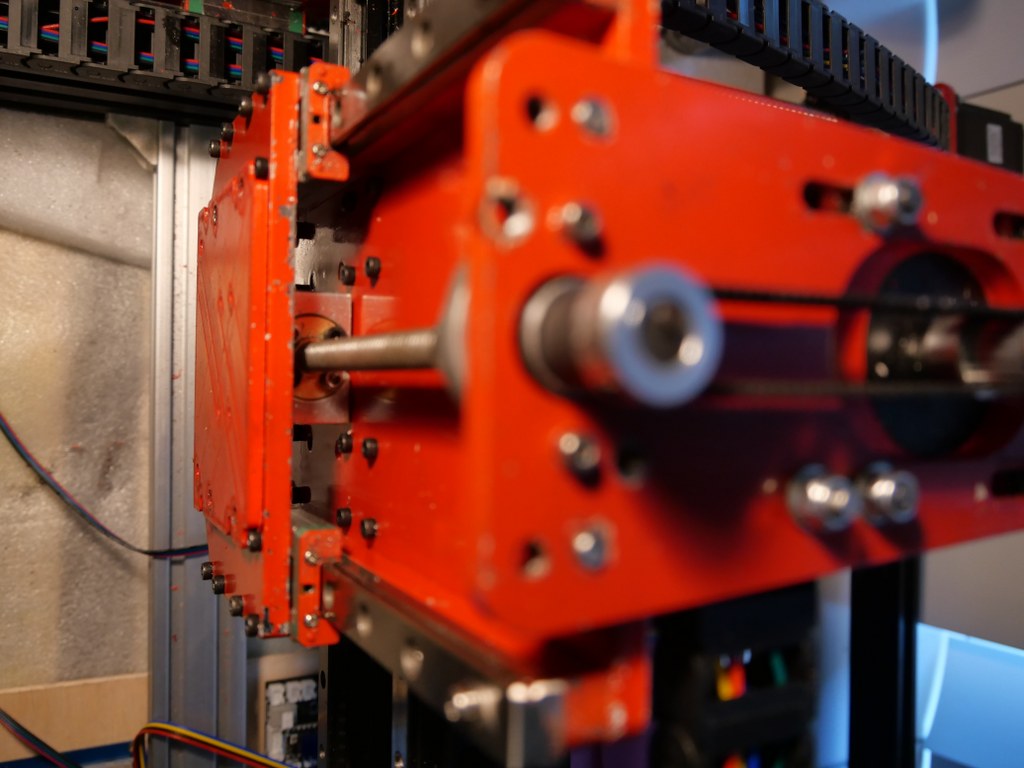
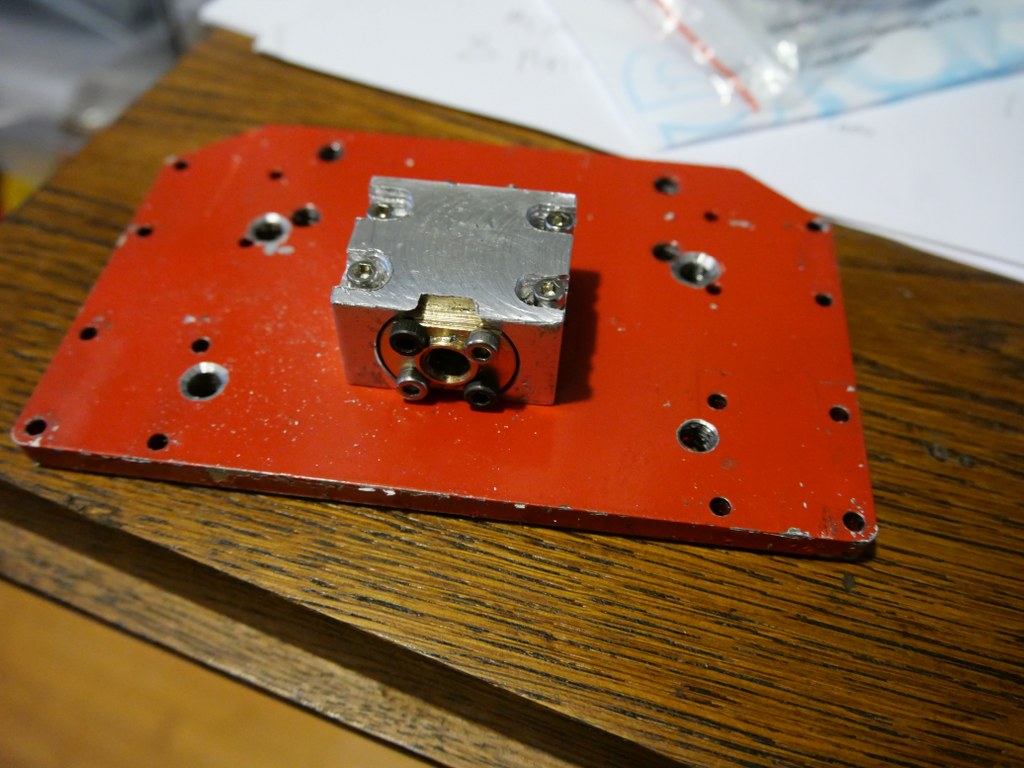
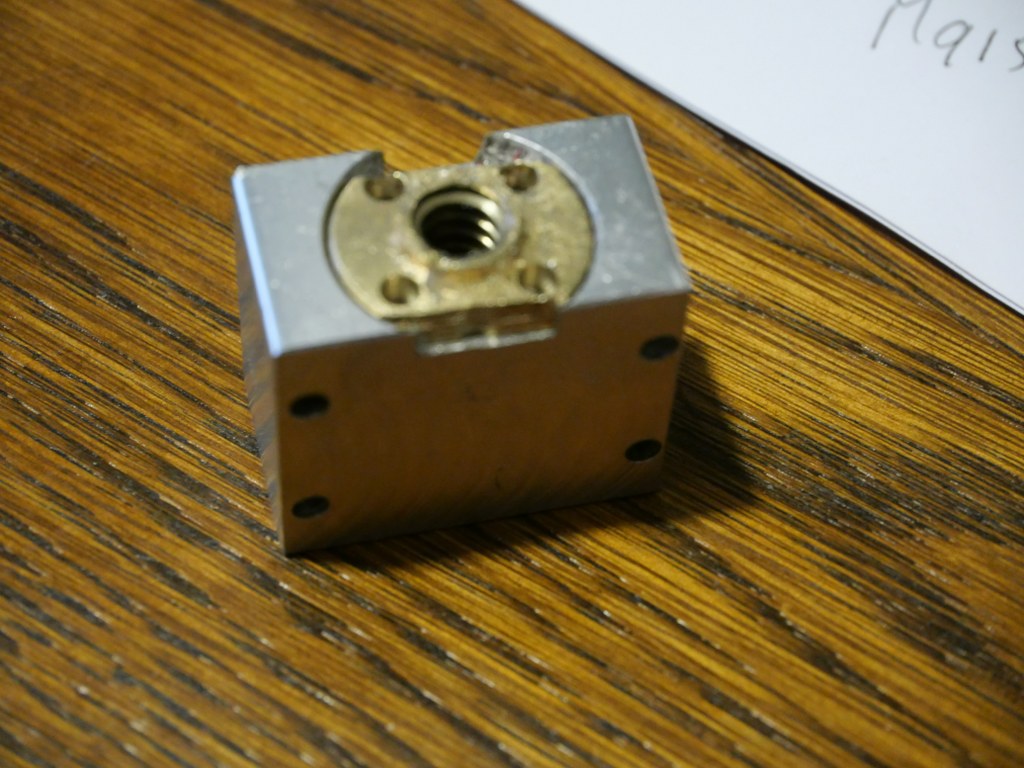
The leadscrew of the Indymill is an 8mm leadscrew with a brass nut mounted in a 3d printed part that is mounted on the vertical rear of the Z-plate.
And- the drive stepper motor is mounted hanging on a horizontal plate on top of the Z-plate.
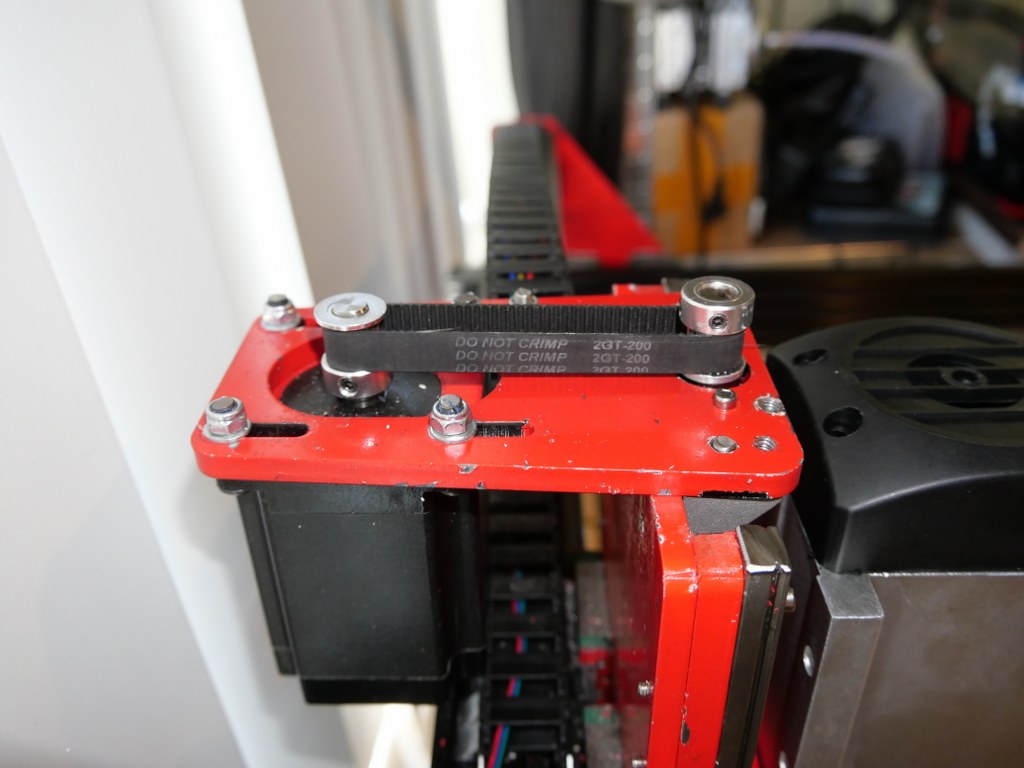
The required motion is exchanged to the leadscrew with a pair of 8x10x22 treehed wheels that are coupled with a GT2-10 mm wide 200 mm long belt.
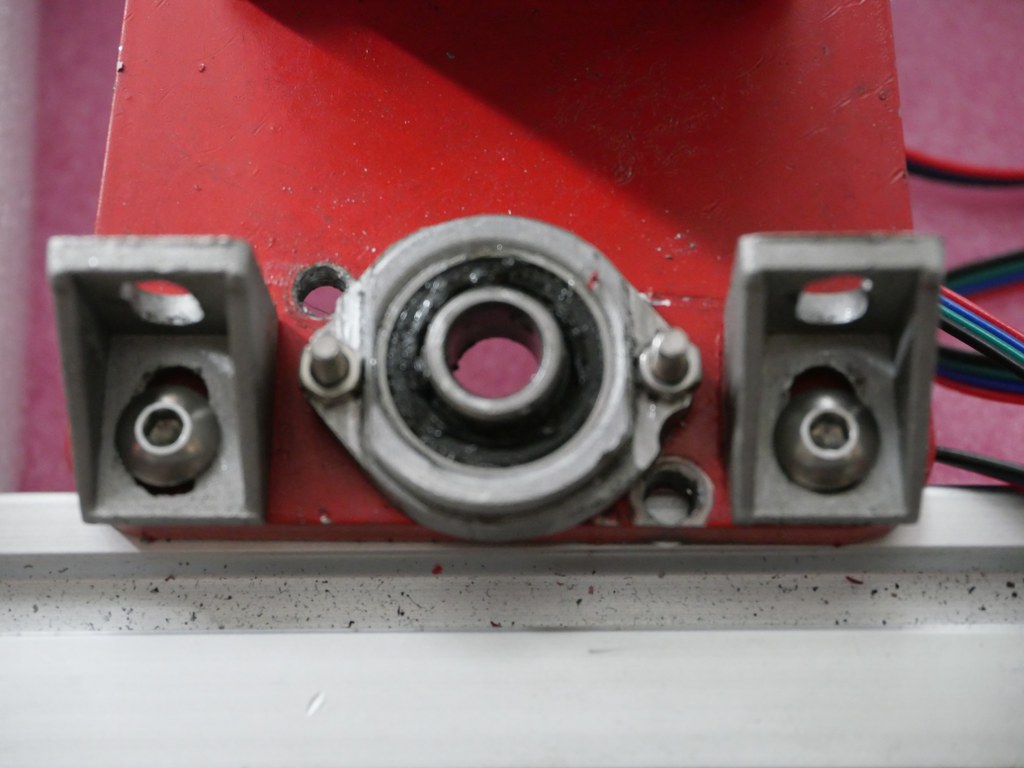
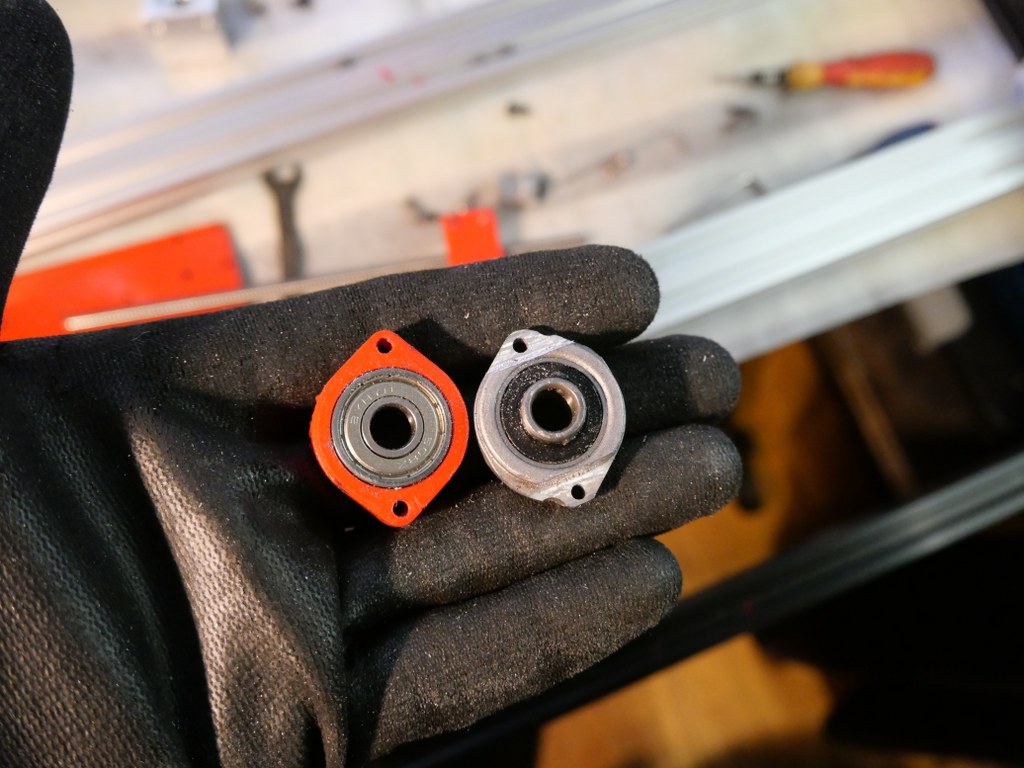
The change I made to the original setup is to use an original 8mm lead screw bearing on top, under the horizontal plate.
I did not particularly like the original setup with an 8mm bearing in a 3d printed holder, and an 8 mm lockup ring under and above this bearing.
I had to machine the pro-bearing to fit the Indymill’s mounting holes and get the threaded drive screw nicely centered.
To get the best possible CNC driver / firmware setup, in combination with the CAD and CAM programs that are required, I tested the following setups with the Indymill hardware:
1) Reprap 3.3 & the Duet2wifi. STL’s are made with OpenScad and then converted either online or with Estlcam to Gcode (.nc files). The Gcode is then uploaded via Duet webinterface and run on the local reprap driver board. Not chosen by me beacause it proved impossible to run a gcode stream online from the PC to the USB interface of the Duet2wifi board. It is, however, possible to attach a serial handwheel to the Duet2wifi and manually control the CNC setup. And dual axis squaring is also easily made possible. Actually, the Duet reprap CNC setup is very mature and customizable. I still have this setup as backup and by switching the connectors from the Indymill over, I can easily switch to this setup. Some advantages of this setup are a.o. the webinterface and the ease of having an automatic squaring gantry on the 2 Y axes with individual endstops. I also learned that Estlcam can generate Gcode that I can then send via the webinterface to the Indymill CNC machine which works very well. (I make my designs in Openscad and save this as .STL files. Estlcam can then convert these .stl files to .nc files…, using the machine configuration to get the code properly generated for the Indymill’s dimensions and hardware settings)
2) GRBL,Estlcam & Openscad,Marlin & GT2560 (A) board; This is also working out of the box and emulates a GRBL driver board. The main reason to NOT use this is the fact that the GT2560 board just has not got enough pins available onboard for things like a handwheel and other outputs for accessories. The second thing that prevents me from going this way is the fact that it proved impossible to have a functional LCD attached that shows things like position, speed, status et cetera.
3) Mach3, FreeCad & USB CNC ‘barebone’ . This is actually a very solid and reliable solution BUT I could not get it to do any way of squaring my dual Y axis setup. Still investigating this…
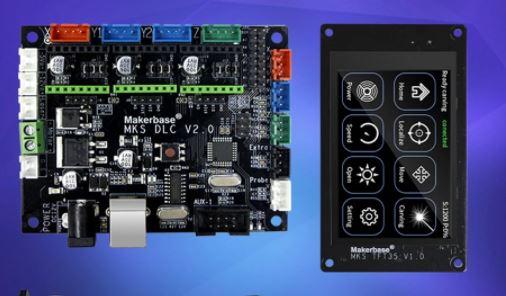
4) GRBL, Estlcam & Openscad & MKS DLCV2.1 board with TFT 3.5 “; Also for this setup: No option for squaring the dual Y axis setup. But- this is a very neat solution for smaller machines. or larger, if you use external drivers. The nice option of this setup is the 3.5 inch LCD that also comes preconfigured for CNC. I use this for my small 3018 CNC.
I also have an original USB Mach3 interface with a. o. a handwheel unit. This works very straight forward but needs a PC to keep a stream of Gcode commands running to the USB controller. I am not very fond of this solution since a little mishap will destroy your objects that is being carved. But- this appears to work very well for many people so I have set this up after I had the FLY-CDY-V2 with the reprap 3.3 and the Duet webinterface running, to get to know the differences. I must admit it works straight forward without any problem. I decided to have this setup available next to the GRBL Mega2560/GRBL shield solution. The thing that keeps me from the USB-CNC solution is primarily the fact that this setup cannot auto-square my dual Y axis gantry. The Mega 2560/GRBL shield solution does this squaring very well.
GRBL with MKS-DLCV2.1 and the TFT screen
And- the most in use hobbyist solution: The GRBL boards like the above shown setup from MKS. I have this running on my old 3018 CNC milling machine and it always works well. This particular setup utilizes the preconfigured KMS DLC 2.1 board and the preconfigured MKS TFT for CNC. All is very neat and since the drivers can be adde externally as well as interanlly, it is possible to drive real high currents if you want that. These boards don’t do sensorless homing and usually put the 2 Y steppers in serial. This means that you will never be sure that they are well aligned.
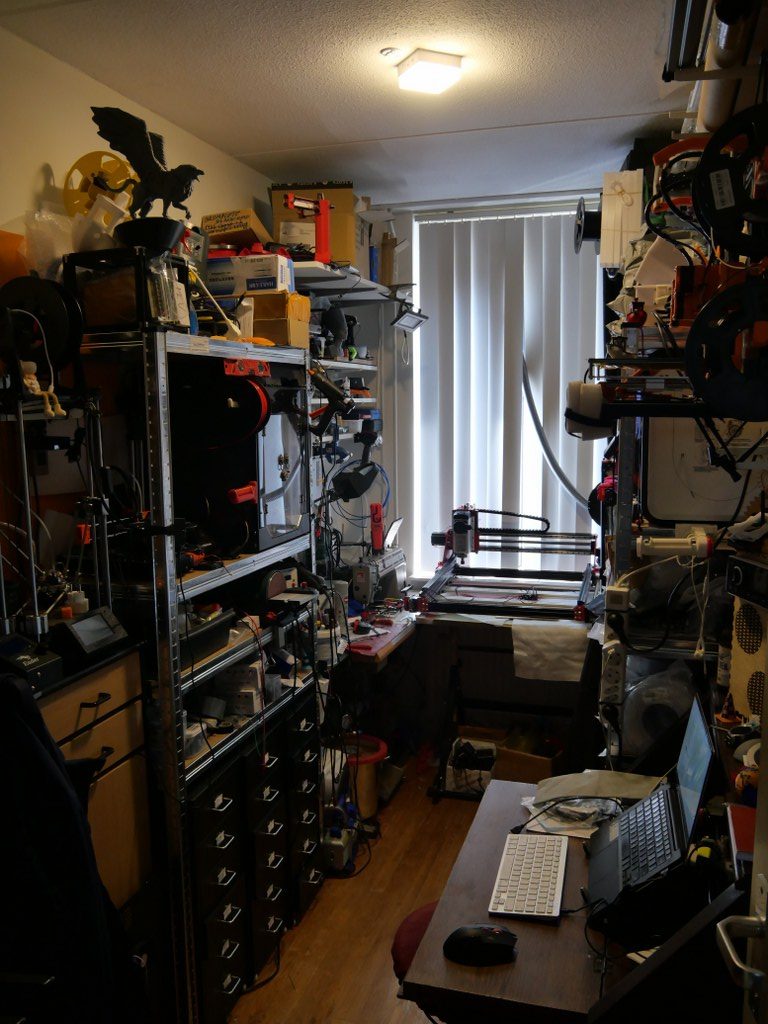
One of the 2nd floor bedrooms was converted into my 3.5×2 meters mini in-house workshop… The garage is used for my larger machines like the lathes, milling- and welding machines, laser cutter et cetera…
My last 3d printer I built just produced too much noise, mainly from changing the tools during multi-filament prints
Finally, I made a construction where the printer hangs in big elastic suspenders. This took away any noise that was previously transferred to the wall, so no more problems with noises throughout the house. Pfff…
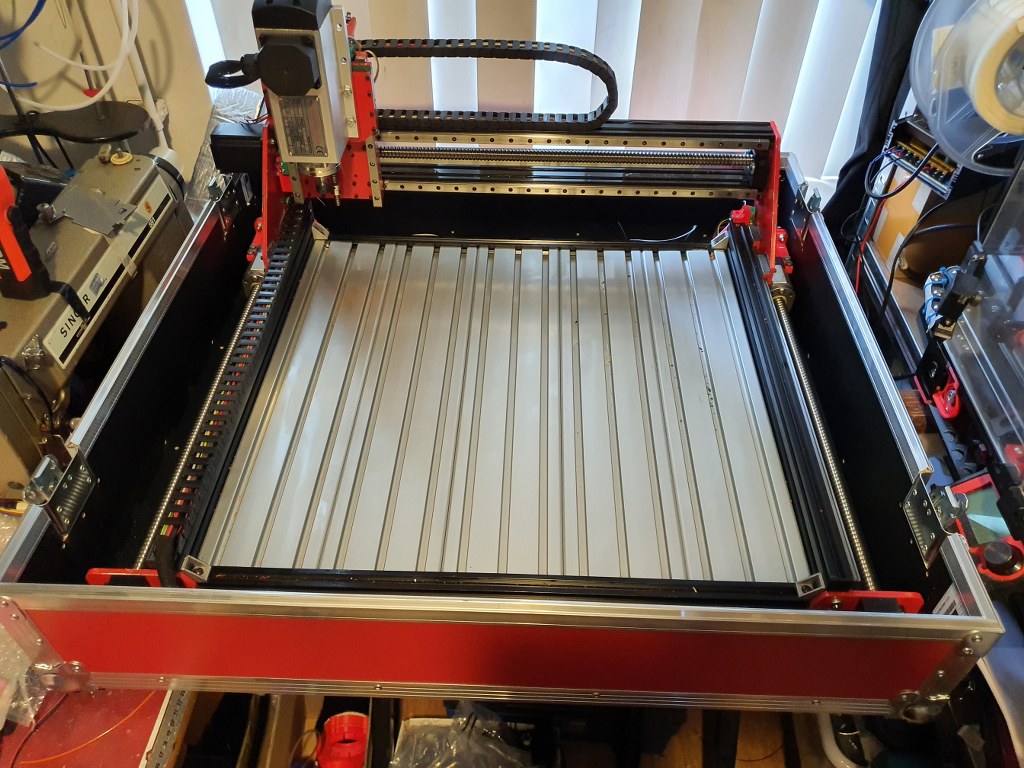
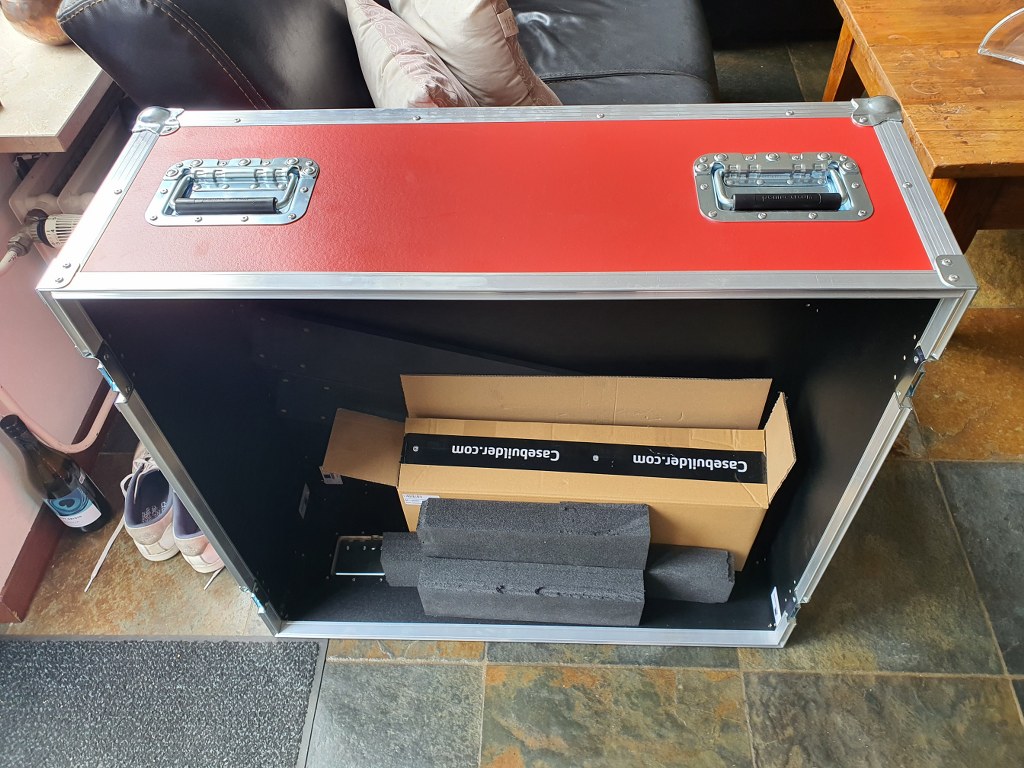
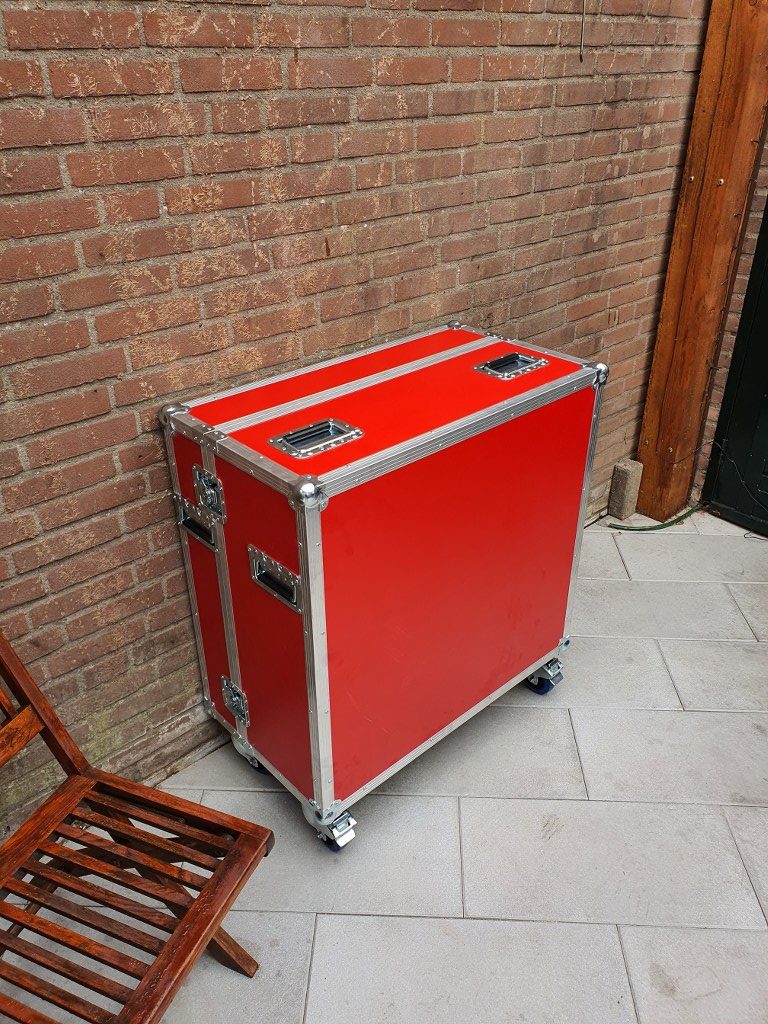
This is only the lower part of the newly built flightcase for the Indymill. It is 15cm high, 75 cm deep and 80 cm wide, all measured on the inside.
The top of the case is 22 cm high on the inside and it will get perspex windows at the front and top. Wheels will get mounted at the rear so the case can be moved standing upright.
The Indymill will be mounted in rubbers underneath and on the sides of the frame. The connectors to the electronics will be mounted in flightcase shells at the front. When all is positioned correctly and connected, the Indymill will be placed in my garage where I will use it in my large(r) shop.
With the 1.5 Kw spindle I intend to mill aluminium and brass, but mainly aluminium.
1st Job will be to machine ‘flat’ the 8mm aluminium plate I have bought some time ago for the heated bed of my Voron 3d printer. The plate is 310x310mm wide and was not entirely flat when I received it, due to the way it was stamped instead of saw’d. Now, I will be able to get it done right. I will use the boring head from my other mill to get this done. My other mill can only work with smaller objects, not anything as large like the Indymill can handle.
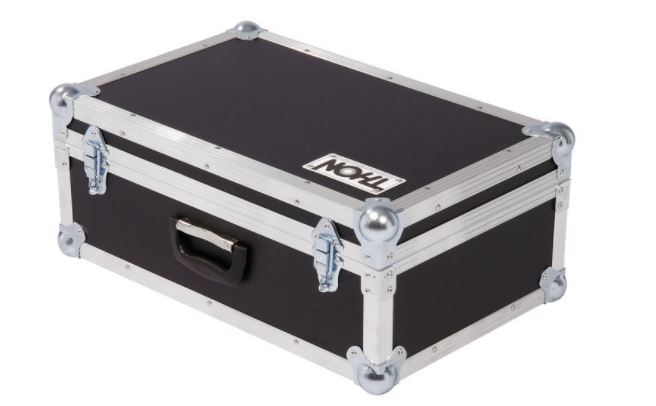
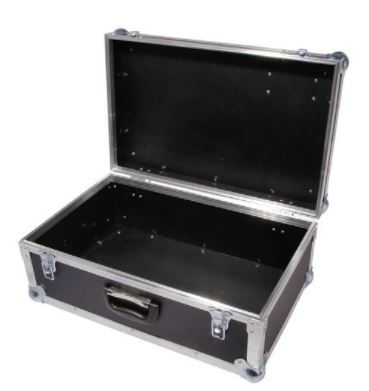
Just ordered me a new case for the Indymill’s electronics from Thomann.de.
The idea is to get everything mounted in the cases, and use the control case with the lid open. The control case gets connected to the Indymill case with multicables and – connectors. When not used, the cables get disconnected from the Indymill and from the control case and go in the Indymill’s case. The electronics controls will be mounted in the lower part of the control case and the connectors are placed on top of the control panel that gets mounted flush with the top rails of the bottom part of the controller’s flighcase. When closed, everything is neatly stored and can be transported damage-free.
I intend to store the controller case inside the Indymill case, but when moving it around the controller case will be separated from the Indymill case to prevent any possible damage to the mill.
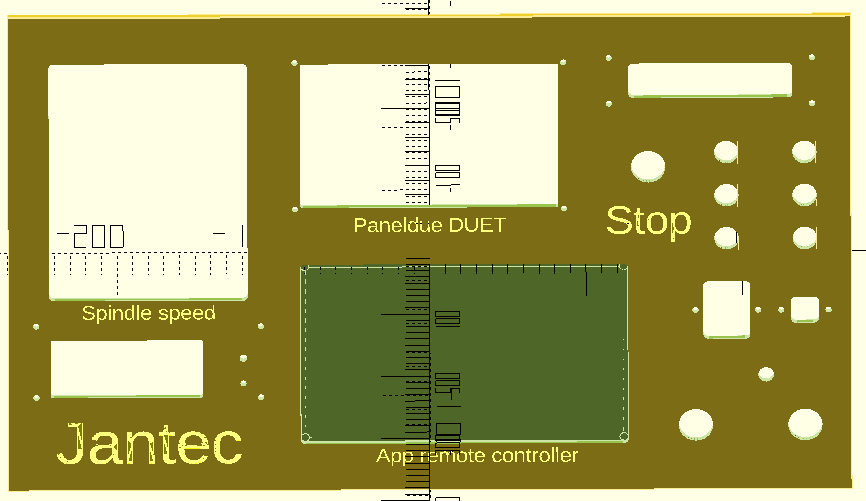
And this is the front I designed for the controller flightcase. Right are the connectors and switches. I can use either the big multiconnector or the standard 4-pol round connectors for increased compatibility with other CNC machines.. The green face is for my Samsung Note10 (8 inch) tablet.




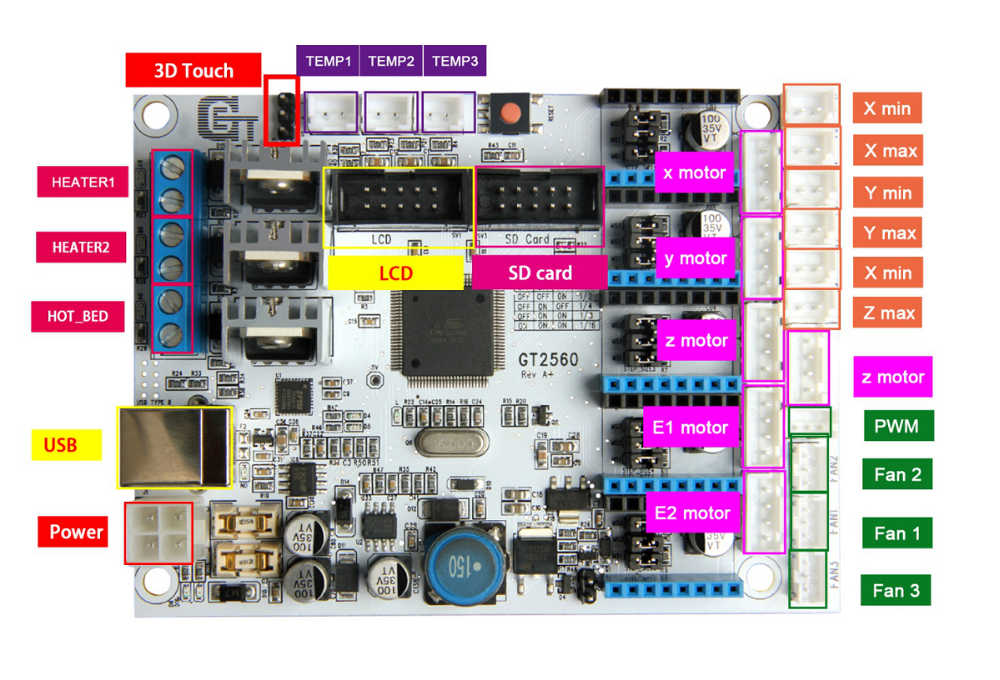 The main reason to NOT use this is the fact that the GT2560 board just has not got enough pins available onboard for things like a handwheel and other outputs for accessories. The second thing that prevents me from going this way is the fact that it proved impossible to have a functional LCD attached that shows things like position, speed, status et cetera.
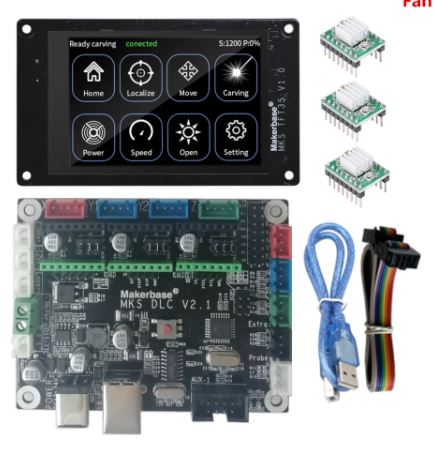 Also for this setup: No option for squaring the dual Y axis setup. But- this is a very neat solution for smaller machines. or larger, if you use external drivers. The nice option of this setup is the 3.5 inch LCD that also comes preconfigured for CNC. I use this for my small 3018 CNC.